EasyManua.ls Logo

SOMFY TaHoma Switch - User Manual

SOMFY TaHoma Switch
14 pages
Print Icon
To Next Page IconTo Next Page
Loading...
1
TaHoma switch
Installation guide
EN

Other manuals for SOMFY TaHoma Switch

Question and Answer IconNeed help?

Do you have a question about the SOMFY TaHoma Switch and is the answer not in the manual?

Summary

Pack Content

Install TaHoma App

Follow Installation Instructions

The app guides users through the installation process on their smartphone.

TaHoma App Installed

Confirmation that the TaHoma application has been successfully installed.

Plug Power Supply

Power Supply Connection

Connecting the TaHoma switch to a power source using the provided adapter.

Power Indicator Troubleshooting

Action for when the device light is not flashing blue.

Connect to the Internet

Accept Bluetooth Connection

Authorizing the Bluetooth connection for initial device discovery.

Select WiFi and Enter Password

Choosing the WiFi network and providing the password to connect the device.

Create TaHoma Account

Enter Email and Password

Inputting user credentials to create or log into a TaHoma account.

Enter Personal Information

Providing name and surname as part of the user profile setup.

Accept Terms and Conditions

Reviewing and agreeing to the terms and conditions for using the service.

Authorize Notifications

Granting permission for the app to send notifications for an improved user experience.

Setup Completion

Next Steps After Setup

Guidance on adding products and configuring the TaHoma switch.

Summary

Pack Content

Install TaHoma App

Follow Installation Instructions

The app guides users through the installation process on their smartphone.

TaHoma App Installed

Confirmation that the TaHoma application has been successfully installed.

Plug Power Supply

Power Supply Connection

Connecting the TaHoma switch to a power source using the provided adapter.

Power Indicator Troubleshooting

Action for when the device light is not flashing blue.

Connect to the Internet

Accept Bluetooth Connection

Authorizing the Bluetooth connection for initial device discovery.

Select WiFi and Enter Password

Choosing the WiFi network and providing the password to connect the device.

Create TaHoma Account

Enter Email and Password

Inputting user credentials to create or log into a TaHoma account.

Enter Personal Information

Providing name and surname as part of the user profile setup.

Accept Terms and Conditions

Reviewing and agreeing to the terms and conditions for using the service.

Authorize Notifications

Granting permission for the app to send notifications for an improved user experience.

Setup Completion

Next Steps After Setup

Guidance on adding products and configuring the TaHoma switch.

Overview

The Somfy TaHoma switch is a smart home hub designed to centralize and control various connected devices within a home, offering an intuitive user experience through a dedicated mobile application. This installation guide outlines the steps to set up the TaHoma switch and begin managing smart home products.

Function Description:

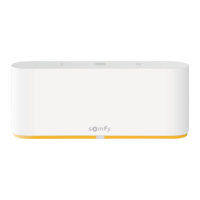
The TaHoma switch acts as a central control unit for a wide range of Somfy and compatible third-party smart home devices. Its primary function is to enable users to control their home automation systems, such as blinds, shutters, lighting, heating, and security devices, from a single interface. The device facilitates the creation of personalized scenarios, schedules, and automations, allowing for a more convenient and energy-efficient living environment. By connecting to the internet via Wi-Fi, the TaHoma switch allows for remote control of devices, ensuring that users can manage their home even when they are away. The hub also supports voice control integration with popular smart assistants, further enhancing its usability. The physical device features a minimalist design with a prominent Somfy logo and a status indicator light, providing visual feedback on its operational status. The two programmable buttons on the device itself offer quick access to predefined scenarios without needing to open the app.

Important Technical Specifications:

While specific technical specifications like processor speed, RAM, or exact wireless protocols (beyond Wi-Fi 2.4 GHz) are not detailed in this installation guide, the manual highlights a crucial network requirement: the Wi-Fi network must operate on the 2.4 GHz frequency band and be secured with a password. This ensures compatibility with standard home Wi-Fi setups and provides a basic level of network security. The device is powered by an external power supply, which is included in the pack, along with a USB cable. The presence of Bluetooth connectivity is also indicated, as the initial setup process involves accepting Bluetooth pairing to connect the TaHoma switch to the mobile application. The device's compact form factor suggests it is designed for discreet placement within the home.

Usage Features:

The TaHoma switch offers a comprehensive set of usage features, primarily accessed through the TaHoma® mobile application:

  • Easy Installation and Setup: The installation process is streamlined, starting with downloading the TaHoma® app, plugging in the power supply, and then following on-screen instructions for network connection and account creation.
  • Mobile Application Control: The core of the TaHoma switch experience is the dedicated mobile app, available for smartphones. This app provides a centralized interface for managing all connected devices.
  • Wi-Fi Connectivity: The device connects to the home's Wi-Fi network (2.4 GHz, password-secured) for internet access, enabling remote control and integration with cloud services.
  • Bluetooth for Initial Setup: Bluetooth is utilized during the initial setup phase to establish a connection between the TaHoma switch and the mobile device, simplifying the pairing process.
  • Account Management: Users can create a new TaHoma® account or log in to an existing one through the app, allowing for personalized settings and secure access to their smart home system.
  • Personalized User Information: During account creation, users are prompted to enter their name and surname, which helps personalize the user experience.
  • Terms and Conditions Acceptance: Users must accept the terms and conditions to proceed with the setup, ensuring compliance with service agreements.
  • Notification Authorization: The app requests authorization for sending notifications, which are crucial for receiving alerts and updates regarding the smart home system, enhancing the user's awareness and interaction with their home.
  • Product Addition: After the initial setup, users can add various smart home products to the TaHoma switch, integrating them into the centralized control system.
  • Button Configuration: The two physical buttons on the TaHoma switch can be configured to trigger specific scenarios or control particular devices, offering a convenient way to execute common actions without using the app.
  • Scenario and Automation Creation: While not explicitly detailed in the installation guide, the "Discover all the possibilities offered by the app!" statement implies advanced features such as creating custom scenarios, schedules, and automations to automate daily routines and enhance home comfort and security.
  • Remote Control: With internet connectivity, users can control their devices and monitor their home from anywhere using the TaHoma® app.

Maintenance Features:

The installation guide provides one key piece of information related to troubleshooting and potential maintenance:

  • Reset Functionality: If the status light on the TaHoma switch is not flashing blue during the setup process, indicating a potential issue or a need to reset, users are instructed to "press the round button for 10 seconds." This suggests a built-in reset mechanism that can help resolve connectivity or setup problems, acting as a primary troubleshooting step before seeking further support.

The TaHoma switch is designed to be a user-friendly and versatile smart home hub, simplifying the management of connected devices and offering a foundation for a more intelligent and responsive home environment.
SOMFY TaHoma Switch Specifications

General IconGeneral
BrandSOMFY
ModelTaHoma Switch
CategorySwitch
LanguageEnglish

Related product manuals