EasyManua.ls Logo

SOMNOmedics SOMNOwatch plus - User Manual

SOMNOmedics SOMNOwatch plus
162 pages
Print Icon
To Next Page IconTo Next Page
Loading...
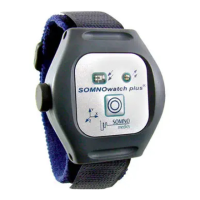
SOMNOwatch™ plus
I
NSTRUCTION MANUAL
SOMNOmedics GmbH Am Sonnenstuhl 63 D-97236 Randersacker
Tel. +49 (0) 931 / 35 90 94 0 Fax +49 (0) 931 / 35 90 94 49
E-Mail info@somnomedics.de
Internet www.somnomedics.de
Caution-- Investigational device. Limited by Federal (or
United States) law to investigational use.

Table of Contents

Questions and Answers

Summary

Introduction

About this Instruction Manual

Explains the importance of reading paragraphs marked with a specific icon for potential danger.

Explanation of Symbols Used in this Manual

Describes symbols used in the manual, including hints and warnings for possible problems.

About the SOMNOwatch plus

Indication for Use

Details the device's purpose, signal recording capabilities, and suitable applications for various medical conditions.

Model and Device Number

Guides on checking the model and device number against the delivery note and device label.

Elements of Keyboard

Explains the function of the device's status LEDs, patient marker button, and light sensor.

Configuration

Lists the items included in the basic Actigraphy set delivery.

Safety Instructions

Installing the DOMINO light Software

Docking Station Driver Installation

Operating Instructions

Initializing the SOMNOwatch plus

Guides on connecting, initializing, and checking the device status via the DOMINO light panel.

Attaching the Sensors

Details attachment procedures for various sensors like Activity, PLM/RLS, Body Temperature, and EDA.

Data Transfer from SOMNOwatch plus to PC

Steps to transfer recorded data from the device to a PC using DOMINO light software.

Open a Recorded Measurement

How to open and manage saved measurements within the DOMINO light software.

Analysis

Define the Begin and the End of the Measurement

How to set start and end markers to define the measurement period for analysis.

Use-oriented Analysis Steps

Details analysis steps like Activity Analysis, Sleep Wake Analysis, PLM/RLS, and Sleep Profile.

Enter the Findings and the Diagnosis

Open the Report

Activity Analysis Report

Selects components for an Activity Analysis report.

Sleep Wake Analysis Report

Selects components for a Sleep Wake Analysis report, including manual TIB/Day definition.

Tremor Analysis Report

Selects components for a Tremor Analysis report.

PLM;RLS Analysis Report

Selects components for PLM/RLS analysis reports for single night and both legs.

Body Temperature Report

Selects components for a Body Temperature report, including recorded time and TIB.

EDA Report

Selects components for an EDA report, displaying conductance values in a graph.

Sleep Profile Report

Selects components for a Sleep Profile report, including recorded time and TIB.

ECG Analysis Report

Selects components for an ECG Analysis report, showing heart rate distribution.

Training;Rehab Report

Selects components for a Training/Rehab report, analyzing motor activity and heart frequency.

Flow;Snore Report

Selects components for a Flow/Snore report, including respiratory analysis and definitions.

CPAP Control Report

Selects components for a CPAP Control report, showing CPAP pressure stages.

DOMINO light Software

System Requirements

Lists minimum and recommended system requirements for running the DOMINO light software.

DOMINO light Panel

Explains the icons and functions available on the DOMINO light software panel.

Global Preferences

General settings area for configuring software parameters and user preferences.

Selection of Device Type

Guides on selecting the correct device type (SOMNOwatch™ or SOMNOwatch™ plus).

Menu - Folders

Configures directories for recordings, archives, form letters, and patient database.

Menu - Channels

Adjusts signal characteristics like color, scaling, direction, and order of data channels.

Menu - Analysis

Allows modification of analysis algorithm parameters and display colors.

Sleep Wake Analysis

Configures software to determine sleep/wake periods based on motor activity.

Sleep Profile

Analyzes EEG data to classify sleep stages based on predefined parameters.

Spindle and K-Complex Analysis

Analyzes EEG data to determine spindles and K-complexes.

Sleep FFT Analysis

Analyzes EEG frequency bands for sleep stages and microarousals.

Activity Analysis

Displays periods of motor activity for ADHD diagnosis or rehabilitation monitoring.

Light Analysis

Detects TIB and Day areas automatically using light sensor data.

Flow Analysis

Analyzes respiratory signals for Apnoea, Hypopnoea, and Flow Limitations.

Snore Analysis

Analyzes snoring events based on duration and ratio to baseline.

Leg Movements (LM) Analysis

Detects periodic leg movements and provides diagnosis for Restless Legs.

Heart Rate Analysis

Analyzes ECG patterns for arrhythmias, accelerations, and decelerations.

FFT Analysis

Detects tremor and analyzes average tremor frequency and intensity.

HR-Movement Analysis

Displays training status by calculating the ratio of heart frequency and activity.

Position Analysis

Determines dominant body position within a time window.

Temperature Analysis

Displays body temperature curves and indicators for circadian rhythm disturbance.

CPAP Analysis

Shows the results of CPAP therapy by analyzing pressure sensor recordings.

EDA-Analysis (Electro Dermal Activity)

Analyzes changes in skin resistance triggered by stress, including emotional reactions.

Menu - Analysis Channels

Formats the analysis window presentation and changes channel order.

Menu - Filter

Allows filtering of specific signals using highpass, lowpass, and notch settings.

Menu - Raw Data Profiles

Configures display settings for raw data, including time bases and channel collections.

Menu - Analysis Profiles

Adapts the analysis display screen by collecting predefined analysis channels.

Menu - Keys

Sets keyboard keys for manual editing of events and sleep stages.

Menu - Markers

Sets predefined markers to indicate events within a measurement.

Menu - Area Definition

Defines custom areas within the analysis window for specific reporting sections.

Menu - User Data

Enters information and includes a company logo for report headings.

Menu - Report

Configures standard report templates, contents, format, and item order.

Standard Report

Configures standard report templates, contents, format, and item order.

User Defined Report

Creates and customizes user-defined reports by importing elements or editing text fields.

Analysis

The Quick Start Toolbar

Provides quick access to standard software functions via a toolbar.

Setting Analysis and Channels

Adjusts analysis channel parameters and filter settings directly in the display.

Functions of the Analysis Pop-up Window

Explains options for saving, selecting, and manipulating analysis channels and data.

Function of the Raw Data Pop-up Window

Details options for saving, selecting, and manipulating raw data channels.

Layouts for Data Display in Analysis Mode

Selects different display layouts for efficient data processing in analysis mode.

Inserting and Editing Markers

Guides on placing, editing, and deleting markers to denote events in data.

Creating and Editing Samples

Selects and saves interesting events as samples for reports.

Creating, Deleting and Editing User Areas

Defines special areas within recordings for reporting specific sections.

The Event List

Opens and navigates an event list to find specific events in the raw data.

Averaging

Improves signal quality by averaging recurring signals multiple times.

Manual Editing

Edit Mode

Marks and scores events using keyboard shortcuts in the raw data window.

Quick Edit Mode

Marks events without a keyboard by dragging the cursor and releasing.

Select Edit Mode

Marks events and selects from a list of all events on the channel.

Repeat Mode

Repeats the last marked event irrespective of cursor position.

Define a Global Artefact

Marks significant areas as global or channel-specific artefacts.

Reports

Reports using the DOMINO light Report Generator

Generates reports using standard or user-defined templates via the report selection.

Export Result List to MS Excel

Exports analysis results into MS Excel for further calculation or custom reports.

Form Letters

Generates form letters for sending diagnostic information to various parties.

Creating a Form Letter

Guides on creating new form letters by selecting fields and inserting them into MS Word.

Data Exchange

Data Export as Picture, in RIFF or ASCII Format

Exports analysis and raw data as pictures or data files in various formats.

EDF+ Export

Enables data exchange between different labs and devices using EDF+ format.

Archiving

Archiving Data

Step-by-step instructions for archiving data onto CD-R or DVD+/-R media.

Archiving Database

Instructions for archiving the optional patient database on a weekly basis.

Patient Database (Option)

Registration

Explains the requirement for a registration code to use the database function.

Search Function

Details how to search for patients and recordings using various criteria and relational operators.

Menu - History

Displays patient data, recordings, and allows editing, deletion, and PDF document creation.

Menu - Recording

Selects and defines default result templates for displaying findings, diagnosis, and comments.

Menu - Summary Picture

Shows summary graphics from patient analyses curves for a quick overview.

Trend Function

Displays a trend of analysis results for a patient across multiple recordings.

Compare Sleep Stages

Displays a sleep stage comparison graph for multiple patient recordings.

Troubleshooting

Maintenance of SOMNOwatch plus

Cleaning and Disinfection

Instructions for cleaning and disinfecting the device and its accessories using mild detergents.

Service

Technical Specification

Lists detailed technical specifications including channels, data processing, power, and environmental requirements.

Lifetime

States the expected lifetime of the SOMNOwatch™ plus device.

Malfunctions

Guides on handling device malfunctions and contacting support.

Storage and Transport

Guidelines for storing and transporting the device and its accessories safely.

Warranty

Outlines the conditions under which SOMNOmedics guarantees the device's safety and operation.

Disposal of Parts and;or the SOMNOwatch plus

Advises on proper disposal of parts and devices according to local regulations.

Accessories and Spare Parts

Lists available accessories and spare parts with their part numbers.

Contact

Provides contact information including telephone, fax, and email for support.

SOMNOmedics SOMNOwatch plus Specifications

General IconGeneral
Battery LifeUp to 7 days
ConnectivityUSB
Operating TimeUp to 7 days
Connectivity OptionsUSB
Data Storage512 MB
Data Storage TypeInternal flash memory
Sensors IncludedAccelerometer, Light, Temperature
Memory512 MB
CompatibilityWindows
SensorsAccelerometer