f)
Cambridge
Audio
Getting connected cont.
Connecting
to
a wireless network
Place
the
NP30
in
range
of
your wireless
network
(usually
10-30m
of
a
suitable
wireless
transmitter, although
this is affected
by
walls and
the
construction
of
your
building)
and
turn
it
on,
via
the
back
panel
switch and then on
the
front
panel.
'
\
\
8
Cambridg
e
k.Jdio
@
0
@
@
~
.
@
~1110~
Internet
I
~
{;,
~
>£
'""'m'~""
Wireless
broadband
'[
--'------~]
Router/ Modem .
.
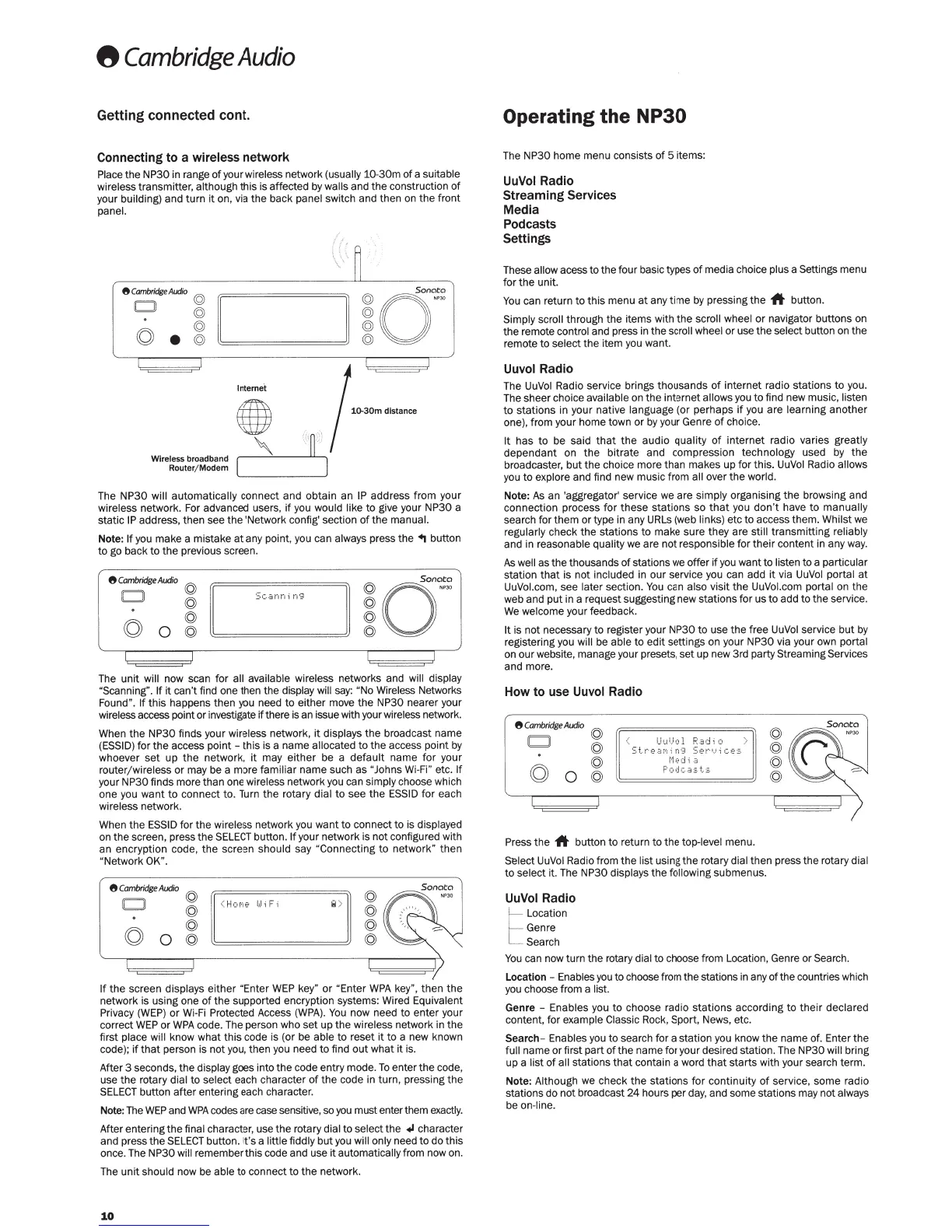
The
NP30
will automatically
connect and obtain an
IP
address from
yo
ur
wireless
network. For advanced users.
if
you
would like to give your NP30 a
static
IP
address, then see
the
'Network config' section
of
the
manual.
Note:
If
you make a
mist
ake
at
any point, you can
always
press
th
e
..
button
to
go back
to
the
previous screen.
8
Cambridge
Audio
© ©
D
©
Sc
..
:.nn1
n9
©
(Q)
© ©
0
© ©
The
unit
will
now scan for
all avail
ab
le wireless
networks and
will display
"Scanning". If
it
ca
n't
find one then
the
display will
say:
"No Wireless
Networks
Found".
If
this
happens then
you
need to either move
the
NP30 nearer your
wireless
access point or investigate
if
there is an issue with your
wireless
network.
When
the
NP30 finds your
wireless
network,
it
displays
the
broadcast name
(ESSID)
for
the
access point -
this
is a
name
allocated
to
the
access poi
nt
by
whoever
set
up
the
n
et
work,
it
may
eit
her be a defa
ult
name
for
yo
ur
rou
te
r/
wir
eless
or
may be a more familiar
name
such
as
"Johns
Wi-Fi"
etc.
If
your NP30 finds more than one
wireless
network
you
can
simply
choose which
one you want
to
connect to. Turn
the
rotary
dial
to
see
the
ESSID
for
each
wireless
network.
Wh
en
the
ESSID
for
the
wireless
network you want
to
connect
to
is displayed
on
the
screen, press
the
SELECT
button.
If
your network is
not
configured with
an encryption code,
the
screen
should
say
"Connecting
to
networ
k"
then
"Network OK".
8
Cambridge
Audio
©
0
I
'""'
,.
,,
"[
©
© ©
(Q)
©
©
0
© ©
If
the
screen
displays
e
ither
"Enter
WEP
key"
or
"Ent
er
WPA
key",
th
en
the
network is using one
of
the
suppo
rt
ed encryption systems: Wired
Equivalent
Privacy
(WEP)
or Wi-Fi Protected Access
(WPA).
You
now
ne
ed
to
e
nt
er
yo
ur
correct
WEP
or
WPA
code.
Th
e person who
set
up
th
e
wireless
network
in
the
first
place will
know what
thi
s code is (or be
able
to
reset
it
to
a new known
code);
if
that
person is not you, then you need
to
find
out
what
it
is.
After 3 seconds,
th
e
di
s
pl
ay
goes
int
o
th
e code entry mode.
To
e
nt
er
the
code,
use
the
rotary
dial
to
select
each character
of
the
code in turn,
pr
essing
the
SELECT
button
after
enter
ing
each character.
Note: The
WEP
and
WPA
codes are case sensitive, so
you
must enter them
exa
ctly.
After entering
the
final character, use
th
e rotary dial
to
sel
ect
the
.,
character
and press
the
SELECT
button.
It'
s
a little fiddly
but
you
will only
need
to
do
this
once.
Th
e NP30
will
remember this code and use
it
autom
at
ically
from now on.
The
unit
should
now be
able
to
connect
to
the network.
10
Operating the
NP30
The NP30 home menu consists
of
5 items:
UuVol
Radio
Streaming Services
Media
Pod casts
Settings
These
allow
acess
to
the
four basic types
of
media choice
plus
a Settings
menu
for
the
unit.
You
can return
to
this
menu
at
any
time
by
pressing
the
1t
button.
Simply scroll through
the
items with
the
scroll wheel
or
navigator buttons on
the
remote control
and press in
the
scroll wheel
or use
the
select
button on
the
remote to
select
the
item you want.
Uuvol
Radio
The
UuVol
Radio service brings thousands
of
internet radio st
at
ions to you.
The sheer choice available
on
the
in
te
rnet
allows
you
to
find new music,
listen
to
stations
in your native
language
(or perhaps
if
you are
learning
another
one), from your home town
or
by your Genre
of
choice.
It
has
to
be said
th
at
th
e audio quali
ty
of
internet
radio varies
greatly
dependant
on
the
bitrate
and
compression technology
used
by
the
broadcaste
r,
but
the
choice more than makes
up
for this.
UuVol
Radio
allows
you
to
explore
and find new music from all
over
the
world.
Note:
As
an 'aggregator' service
we
are
simply
organising
the
browsing and
connection process
for
these
stat
ions
so
that
you
don't
have
to
manually
search for them
or
type in any
URLs
(w
eb
links)
etc
to
access them.
Whilst
we
regularly
check
the
stations
to
make sure
they
are
still
transmi
tting
reliably
and in
reasonable quality
we
are
not
responsible
for t
heir
content in any way.
As
well
as the thousands
of
stations we offer
if
you want
to
listen
to
a
particular
station that is
not
included
in
our
service you can add
it
via
UuVol portal
at
UuVol.com,
see
later
section.
You
can
also
visit
the
UuVol.com por
tal
on
the
web and put in a request suggesting new stations for
us
to
add
to
the
service.
We
welcome
your feedback.
It
is
not
necessary
to
register your NP30
to
use
the
free
UuV
ol
service
but
by
registering you
will
be able
to
edit settings on your NP30 via your own
port
al
on
our
website, manage your presets,
set
up
new 3
rd
party
Streaming Services
and more.
How
to
use
Uuvol
Radio
8
Cambridge
Audio
0
©
©
©
©
Uu
i..J
,:.l
R.
;id
i
o
Sl
re
aMi n9 Se
rv
ices
!·1e d
i
a
F'odc
-3::.
+_.
:::
.
Press
the
1t
button
to
return to
the
top-level
menu.
©
©
©
©
Select
UuVo
l
Radio from
the
list
using
the
rotary
dial
then
press
th
e rotary
dial
to
se
l
ect
it.
Th
e
NP30 displays
the
followi
ng
submenus.
UuVol
Radio
r
Location
C
,
Genre
Search
You
can now
tu
rn
the
rotary
dial
to
choose from Location, Genre or
Search.
Location-
Enables
you
to choose from the stations in any
of
the countries which
you
choose from a
list.
Genre -
Enables
you
to
choose radio
stat
i
ons
according
to
their
declared
content, for
example
Cl
assic
Rock,
Sport
,
News, etc.
Search- Enables
you
to search for a station you know
th
e name
of
. Enter
th
e
full
name or first
part
of
th
e n
ame
for your desired station.
Th
e
NP30 will bring
up
a
li
st
of
all
stations
th
at co
nt
ain a word
that
starts with your search term.
Note:
Although
we
check
the
stations
for
continuity
of
service,
some
radio
stations do
not
broadcast
24
hours per
d
ay,
and some stations may
not
always
be
on-line.



 To Next Page
 Loading...