8
Cambridge
Audio
Operating the
NP30
cont.
Alphameric Search
8
Cambridge
Audio
D
©
©
©
g
0
©
~BCDEFGHIJKLMNOPQRST
I_II)I...I::.;YZ012345f.:
,7:::
•3(
i
=·>
+-
_!
') ;j)#:t:-;
...
'8
::+::;
·.
1
I!
. ' .
....
©
©
©
©
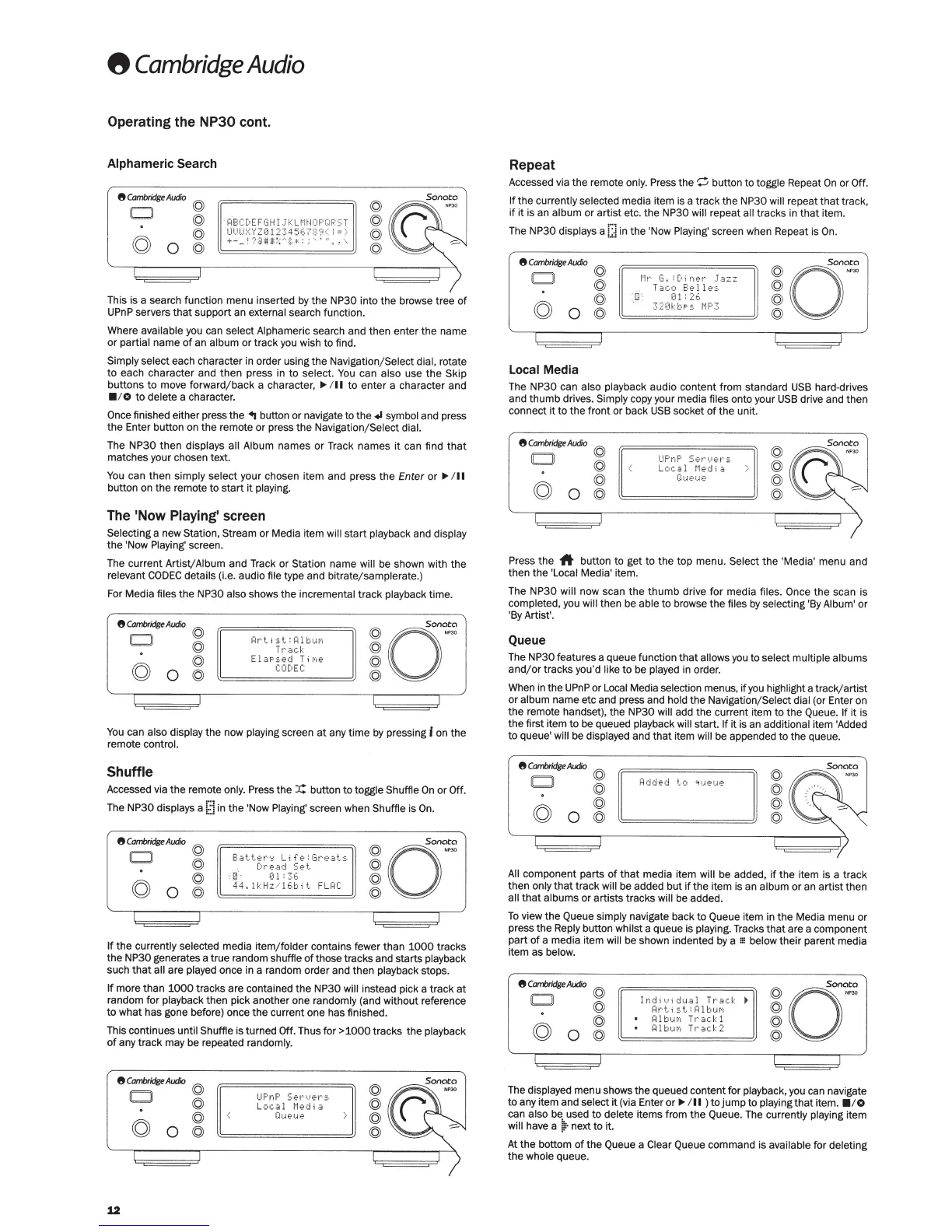
This is a search function menu inserted
by
the
NP30
into the browse tree
of
UPnP
servers
that
support
an external search function.
Where
available you can select Alphameric search and then enter
the
name
or
partial name
of
an
album
or
track you wish to find.
Simply
select each character in order using the Navigation/ Select
dial,
rotate
to
each character and
then
press
in
to
select.
You
can
also use
the
Skip
buttons
to
move forward/ back a character,
,..
/
II
to
enter
a character and
• 10
to
delete a character.
Once
finished either press the
..
button or navigate to the
+I
symbol and press
the
Enter button on the remote or press the Navigation/ Select
dial.
The
NP30
then
displays
all Album
names or Track names
it
can find
that
matches your chosen text.
You
can then simply select your chosen item and press
the
Enter
or
,..
/
II
button on the remote
to
start
it
playing.
The
'Now Playing' screen
Selecting
a new Station, Stream
or
Media i
tem
will
start
playback and display
the 'Now
Play
ing' screen.
The current Artist/Album and Track or Station name
will
be
shown
wi
th the
relevant
CODEC
details (i.e. audio
file
type and bitrate/ samplerate.)
For Media
files
the
NP30
also
shows
the
incremental track playback
time
.
8
Cambridge
Audio
© ©
o~
0
~r·t..i
st.:
l=ilburi
©
Tt~ack
©
©
ElaPsed
T
i
r<1e
©
g
0
©
CODEC
©
You
can
also
display the now playing screen
at
any
time
by pressing
I
on
the
remote
control.
Shuffle
Accessed via the remote
only.
Press the
X:
button to toggle Shuffie
On
or
Off.
The
NP30
displays a
[1
in the 'Now Playing' screen when Shuffie is
On.
8
Cambridge
Audio
0
©
©
g
0
g
Batter~
Life:Greats
Dr·ead
Set_.
o0 ·
01:
.36
44.1kHzil6bi
t..
FLRC
If
the currently selected media item/ folder contains fewer than
1000
tracks
the
NP30
generates a true random shuffie
of
those tracks and starts playback
such
that
all
are played once in a random order and then playback stops.
If
more than
1000
tracks are contained the
NP30 will
instead pick a track
at
random for playback then pick another one randomly (and without reference
to
what has gone before) once the current one has finished.
This continues until Shuffie is turned
Off.
Thus for
>1000tracks
the playback
of
any
track
may be repeated randomly.
8
Cambridge
Audio
\Q)
0 ©
©
g
0
©
12
UP
n
F'
Ser
·•
.
.Jer·::.
Local
Media
Gwe1..1e
©
©
©
©
Repeat
Accessed via
the
remote
only.
Press the
~
butt
on
to
toggle Repeat
On
or
Off.
If
the
currently selected media item is a
track
the
NP30 will repeat
that
track,
if
it
is an
album or artist etc. the
NP30 will
repeat
all
tracks
in
that
item.
The
NP30
displays
a [:!
in
the 'Now
Playing'
screen when Repeat is
On
.
8
Cambridge
Audio
D
0
Local Media
©
©
©
©
t·lr·
G.
:
C•
i
ner·
..
T.
:szz
Taco
Belle:;
.
:
.o
·
01:26
32<JkbPS
i·IP3
The
NP30
can
also
playback audio content from
standard
USB
hard-drives
and
thumb
drives.
Simply
copy your media
files
onto your
USB
drive and then
connect
it
to
the front or back
USB
socket
of
the
unit.
8
Cambridge
Audio
0
©
©
g
0
g
UF'r1F'
SertJer·::
.
Local
t·
led
i
.:s
OIJ€'1..1>?
©
©
©
©
Press
the
A
button
to
get
to
the
top menu. Select
the 'Media' menu and
then the 'Local Media' item.
The
NP30 will
now scan
the
thumb
drive
for
media files.
Once
the
scan is
completed, you
will
then be
able
to
browse the files
by
selecting
'B
y Album' or
'By Artist'.
Queue
The NP30 features a queue function
that
allows
you
to
select
multiple
albums
and/
or
tracks you'd like
to
be played
in
order.
When in the
UPnP
or
Local
Media selection menus,
if
you
highlight a track/artist
or
album
name etc and press and hold
the Navigation/ Select
dial
(or Enter
on
the remote handset), the
NP30 will
add the current item to the Queue.
If
it
is
the first item
to
be queued playback
will
start.
If
it
is
an additional item 'Added
to
queue'
will be displayed and
that
item
will
be
appended to the queue.
8
Cambridge
Alxio
©
0
©
©
g
0
©
©
©
©
©
All
component parts
of
that
media item
will
be added,
if
the item is a track
then
only
that
track
will
be added but
if
the item is an album
or an
artist
then
all
that
albums or artists tracks
will
be
added.
To
view the Queue simply navigate back to Queue item
in
the Media menu
or
press the
Reply
button whilst a queue is playing. Tracks
that
are a component
part
of
a media item
will
be shown indented
by
a
m
below
their
parent media
item as below.
8
Cambridge
Audio
© ©
cr
CJ
Indi
t}i
dual
Tr·a
d:
©
Hr·t;::.t
:
Hl
b
ur•1
©
©
Hl
bur•1
Tr-.:sck
1
©
g
0
©
H l
biJf'l
Tt·.ock
2
©
The displayed menu shows the queued content for playback, you can navigate
to any item and select
it
(via Enter
or,.. /
II
)
to
jump
to
playing
that
item.
• 10
can
also
be
used to delete items from
the
Queue. The currently playing item
will
have a
~
next
to
it
.
At
the bottom
of
the Queue a
Clear
Queue command is available for deleting
the
whole
queue.



 To Next Page
 Loading...