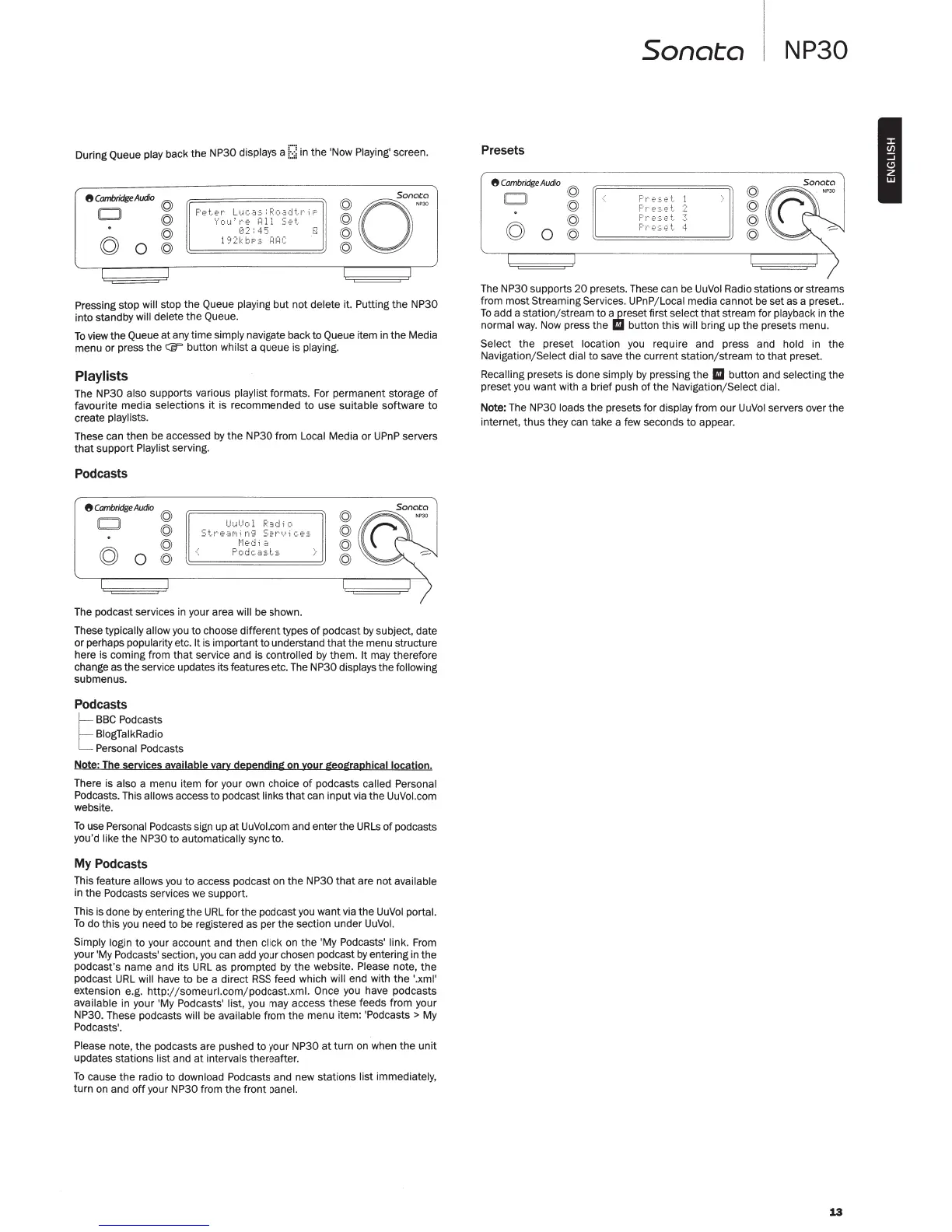
During Queue play back
the
NP30 displays a
t;
;;
in
the 'Now Playing' screen.
8CombridgeAudio @
0 @
@
© o
©>
Peter
Lucas:Roadtr
i P
'lciiJ~r·e
Hll
Set
(12:
45
1
'12k
bF::.
!=lAC
Pressing stop will stop the Queue playing
but
not
delete it. Putting
the
NP30
into standby will delete the Queue.
To
view
the
Queue
at
any time simply navigate
ba
ck to Queue item
in
the
Media
menu or press
the
CiF button whilst a queue is playing.
Playlists
The NP30 also supports various playlist formats.
For
permanent storage
of
favourite media selections
it
is recommended
to
use suitable software
to
create playlists.
These can then be accessed
by
the
NP30 from Local Media or
UPnP
servers
that
support Playlist serving.
Podcasts
8
Cambridge
Audio
0
0
@
@
@
@
UuU•)
1
P.:Jd
i o
StreaMin9
Services
t·
1edi
.:J
Podc.."':=-t::.
The podcast services in your area will be shown.
@
@
©
©
These typically allow
you
to choose different types
of
podcast
by
subject, date
or perhaps popularity etc. It is important to understand
that
the menu structure
here is coming from
that
service and is controlled
by
them. It may therefore
change as the service updates its features etc. The NP30 displays the following
submenus.
Podcasts
t
BBC
Podcasts
BlogTalkRadio
Personal Podcasts
Note: The services available vary depending on your geographical location.
There is also a menu item for your own choice
of
podcasts called Personal
Podcasts. This allows access to podcast links
that
can
input
via the UuVol.com
website.
To
use Personal Podcasts sign up
at
UuVol.com and enter the
URLs
of
pod casts
you
'd like
the
NP30 to automatically sync to.
My Podcasts
This feature allows you to access podcast on
the
NP30
that
are
not
available
in the Podcasts services
we
support.
This is done
by
entering
the
URL
for the pod cast
you
want via the
UuVol
portal.
To
do this
you
need to be registered as per
the
secti
on
under
UuVol.
Simply login to your account and then click on
the
'My Podcasts' link. From
your 'My Podcasts' section,
you
can add your chosen podcast
by
entering in
the
podcast's name and its
URL
as prompted
by
the
website. Please note,
the
podcast
URL
will have
to
be a direct
RSS
feed which will end with
the
'.xml'
extension e.g.
http
:;
;
someur
l.com; podcast.xml. Once you have pod casts
available in your 'My Podcasts'
list
, you may access these feeds from your
NP30. These podcasts will be available from the menu item: 'Podcasts
> My
Podcasts'.
Please note, the podcasts are pushed to your NP30
at
turn
on
when the unit
updates stations list and
at
intervals thereafter.
To
cause
the
radio to download Podcasts and new stations list immediately,
turn
on
and
off
your NP30 from
the
front panel.
Presets
8
Cambridge
Audio
0
0
©
©
©
©
Sonata
F'
r·E
·:
:.e
t_
.
P
r·E·~-e
t.
F'
!--e5e
t
F'
r·
E·::.e
t
>
©
@
©
©
NP30
The NP30 supports
20
presets. These can be
UuVol
Radio stations or streams
from
most
Streaming Services.
UPnP
/ Local media cannot be set as a preset..
To
add a station; stream to
a2eset
first select
that
stream for playback
in
the
normal
way.
Now press
the
lill
button this will bring up the presets menu.
Select
the
preset location you require and press and hold in
the
Navigation/ Select dial to save
the
current station; stream to
that
preset.
Recalling presets is done simply
by
pressing
the
II
button and selecting the
preset you want with a brief push
of
the
Navigati
on
/ Select dial.
Note: The NP30 loads the
pr
esets for display from our
UuVol
servers over the
internet. thus they can take a few seconds to appear.
13
I



 To Next Page
 Loading...