Wired/Wireless connection
It is possible
to
connect your NP30 to your network via an available Ethernet
connection (RJ45) or via a
Wi-Fi
router.
By
default
the
unit
is
in
AUTO
mode,
each time
you
turn the unit it looks for the presence
of
a wired connection, and
tries to use this,
if
none is present or
it
cannot connect
it
then tries to use the
wireless connection and so on.
In
Auto mode once the NP30 has established
a certain type
of
connection to
the
network, then this type
of
connection will
remain in use while the NP30 is on.
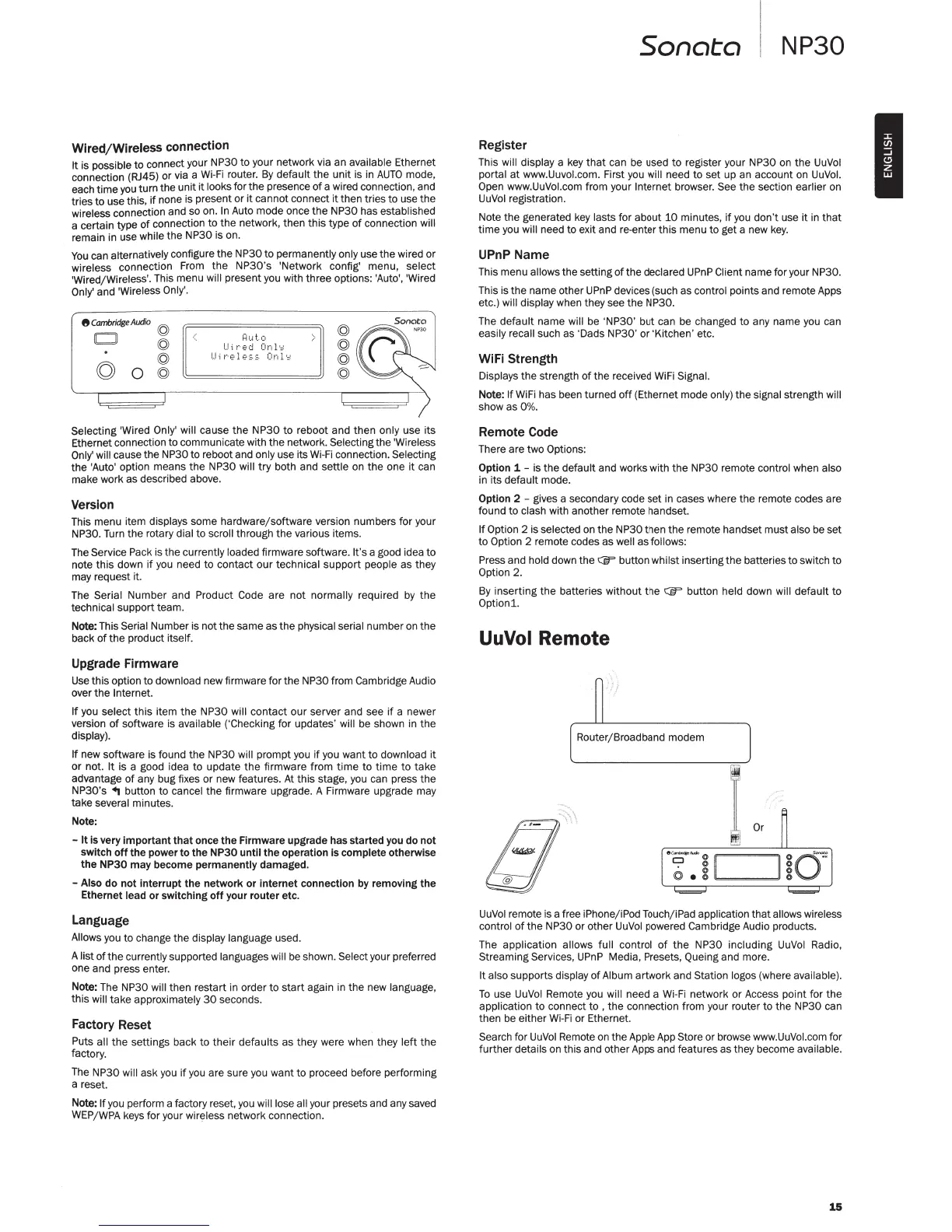
You
can alternatively configure the NP30
to
permanently only use the wired or
wireless connection
From
the NP30's 'Network config' menu, select
'Wired/Wireless'. This menu will present you with three options: 'Auto', 'Wired
Only' and 'Wireless Only'.
fJ
Cambridge
Audio
CJ
©
lbdJ
©
g 0
~
I=!
IJt.o
I
..J
;
r·ed
On
1·::
I
Jir
·e l
ess
Onl
•
::
©
©
©
©
Selecting 'Wired Only' will cause
the
NP30
to
reboot and then only use its
Ethernet connection to communicate with the network. Selecting the 'Wireless
Only'
will cause the NP30 to reboot and only use its
Wi-Fi
connection. Selecting
the 'Auto' option means
the
NP30 will
try
both and settle on
the
one it can
make work as described above.
Version
This menu item displays some hardware/software version numbers for your
NP30.
Turn
the rotary dial to scroll through
the
various items.
The Service Pack is the currently loaded firmware software. It's a good idea to
note this down
if
you
need
to
contact our technical support people as they
may request it.
The Serial Number and Product Code are
not
normally required
by
the
technical support team.
Note: This Serial Number is not the same as the physical serial number
on
the
back
of
the
product itself.
Upgrade Firmware
Use
this option to download new firmware for the NP30 from Cambridge Audio
over the Internet.
If
you select
this
item
the
NP30 will contact our server and see
if
a newer
version
of
software is available ('Checking for updates' will
be
shown in the
display).
If
new software is found the NP30 will prompt you
if
you want to download it
or
not. It is a good idea to update
the
firmware from
time
to
time
to take
advantage
of
any bug fixes or new features.
At
this stage, you can press the
NP30's
~ button to cancel the firmware upgrade. A Firmware upgrade may
take several minutes.
Note:
- It is very
important
that
once the Firmware upgrade has started you do not
switch
off
the power to the NP30 until the operation is complete otherwise
the NP30 may become permanently damaged.
- Also do not interrupt the network or internet connection
by
removing the
Ethernet lead or switching
off
your router etc.
Language
Allows you to change the display language used.
A list of the currently supported languages will
be
shown. Select your preferred
one and press enter.
Note: The NP30 will then restart in order to start again in the new language,
this will take approximately
30
seconds.
Factory Reset
Puts all
the
settings back to their defaults as they were when they
left
the
factory.
The NP30 will ask
you
if
you
are sure you want to proceed before performing
a reset.
Note: If you perform a factory reset,
you
will lose all your presets and any saved
WEP/WPA keys for your wireless network connection.
Sonata
NP30
Register
This will display a
key
that
can
be
used to register your NP30
on
the
UuVol
portal
at
www.Uuvot.com. First you will need to set up an account
on
UuVol
.
Open www.UuVol.com from your Internet browser. See the section earlier on
UuVol
registration.
Note the generated
key
lasts for about
10
minutes,
if
you
don't use it in that
time
you will need to exit and re-enter this menu to get a new
key
.
UPnP Name
This menu allows the setting
of
the declared
UPnP
Client name for your NP30.
This
is
the name other
UPnP
devices (such as control points and remote Apps
etc.) will display when they see the NP30.
The default name will be 'NP30' but can be changed to any name you can
easily recall such as 'Dads NP30' or 'Kitchen' etc.
WiFi Strength
Displays the strength of the received
WiFi
Signal.
Note: If
WiFi
has been turned
off
(Ethernet mode only) the signal strength will
showasO%.
Remote Code
There are two Options:
Option 1 -
is
the default and works with the NP30 remote control when also
in its default mode.
Option 2 - gives a secondary code set in cases where the remote codes are
found
to
clash with another remote handset.
If Option 2 is selected on the NP30 then the remote handset must also be set
to
Option 2 remote codes as well as follows:
Press and hold down the
CiF button whilst inserting
the
batteries to switch to
Option 2.
By
inserting the batteries without the CiF button held down will default to
Optionl
.
UuVol Remote
UuVol
remote is a free iPhone/iPod Touch/iPad application that allows wireless
control
of
the NP30 or other
UuVol
powered Cambridge Audio products.
The application allows full control
of
the NP30 including
UuVol
Radio,
Streaming Services,
UPnP
Media, Presets, Queing and more.
It also supports display of Album artwork and Station logos (where available).
To
use
UuVol
Remote
you
will need a
Wi-Fi
network or Access point for the
application to connect
to
, the connection from your router
to
the NP30 can
then
be
either
Wi-Fi
or Ethernet.
Search for
UuVol
Remote
on
the Apple App Store or browse www.UuVol.com for
further details
on
this and other Apps and features as they become available.
15
I



 To Next Page
 Loading...