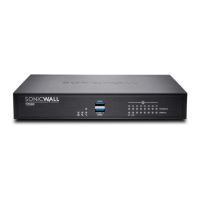
SonicWallNSA2600/3600/4600/5600/6600GettingStartedGuide
39
UpgradingtheFirmware
Theappliancemustbeproperlyregisteredbeforethefirmware
canbeupgraded.RefertoRegisteringinSonicOSonpage33
formoreinformation.
TouploadnewfirmwaretoyourSonicWallappliance
andrebootwithcurrentconfigurationsettings:
1DownloadtheSonicOSfirmwareimagefilefrom
MySonicWallandsaveittoaconvenientlocationon
yourlocalcomputer.
2PointyourbrowsertotheapplianceIPaddress,andlog
inasanadministrator.
3OntheSystem>Settingspage,clickUploadNew
Firmware.
4Browsetothelocationwhereyousavedthe
SonicOS
firmware imagefile,selectthefileandclicktheUpload
button.
Afterthefirmwarefinishesuploading,itisdisplayedin
theFirmwareManagementtable.
5 ClicktheBooticonintherowforUploadedFirmware‐
New!torestarttheappliancewiththenewfirmware
usingyourexistingconfigurationsettings.
6Intheconfirmation
dialogbox,clickOK.Theappliance
restartsandthendisplaystheloginpage.
7Enteryourusernameandpassword.ThenewSonicOS
imageversioninformationisdisplayedontheSystem>
Statuspage.
UsingSafeModetoUpgradeFirmware
IfyouareunabletoconnecttotheSonicOSmanagement
interface,youcanrestartthesecurityapplianceinSafeMode.
TheSafeModefeatureallowsyoutorecoverquicklyfrom
uncertainconfigurationstateswithasimplifiedmanagement
interfacethatincludesthesamesettingsavailableonthe
System>Settingspage.
TheSafeModeprocedure
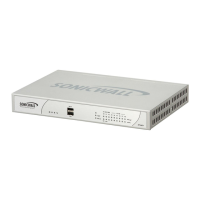
usesarecessedSafeModebuttonin
asmallpinholeneartheUSBportsonthefrontofthe
SonicWallappliance.
TouseSafeModetoupgradefirmwareonaSonicWall
securityappliance:
1 ConnectyourcomputertotheMGMTportonthe
applianceandconfigureyourcomputerwithanIP
addressonthe192.168.1.0/24subnet,suchas
192.168.1.20.


 To Next Page