Select a sample and load it into the sample slots
1
On the SOUND page, push the A knob. TAG SEARCH opens.
2
Search for the samples and select a sample, then press the
Auxiliary right button LOAD.
The sample is loaded in order from an empty slot.
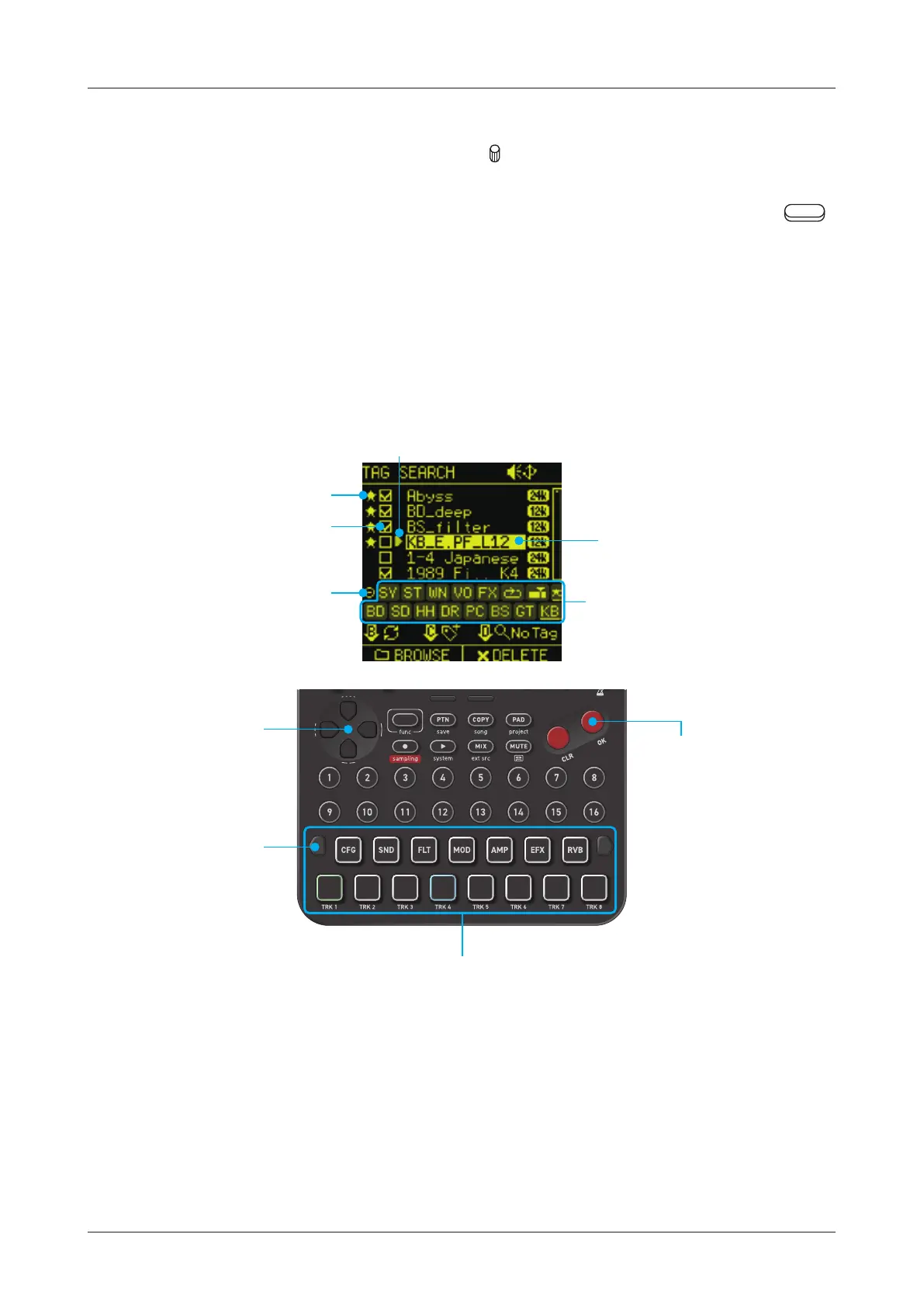
TAG SEARCH operation
TAG SEARCH is useful when searching for samples of a desired
sound category from the vast sample library.
Sample File Setup - Loading into Sample Slots -
49
Favorite
Minus search
Preview playback
Select
Cursor
Tag icons
OK button
This selects the
sample.
By moving the cursor
while pressing the OK
button, you can select
them consecutively.
Move cursor
position
By moving the cursor
to a preview playback
position, the sample
can be played and
previewed.
Page left switch
Holding it and press
the 15 PADs will
exclude samples with
the Tags from the
search.
OFF (lights o)
All samples are shown except samples without Tags (The samples
without Tags can be shown by pushing the D knob).
ON (lights blue)
The samples with the Tags are shown. By pressing multiple pads,
you can narrow down the target samples.
Minus ON (lights yellow)
You can exclude samples with the Tags by pressing the pad while
holding down the page left switch.


 To Next Page