22
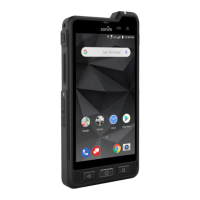
Your Sonim XP7
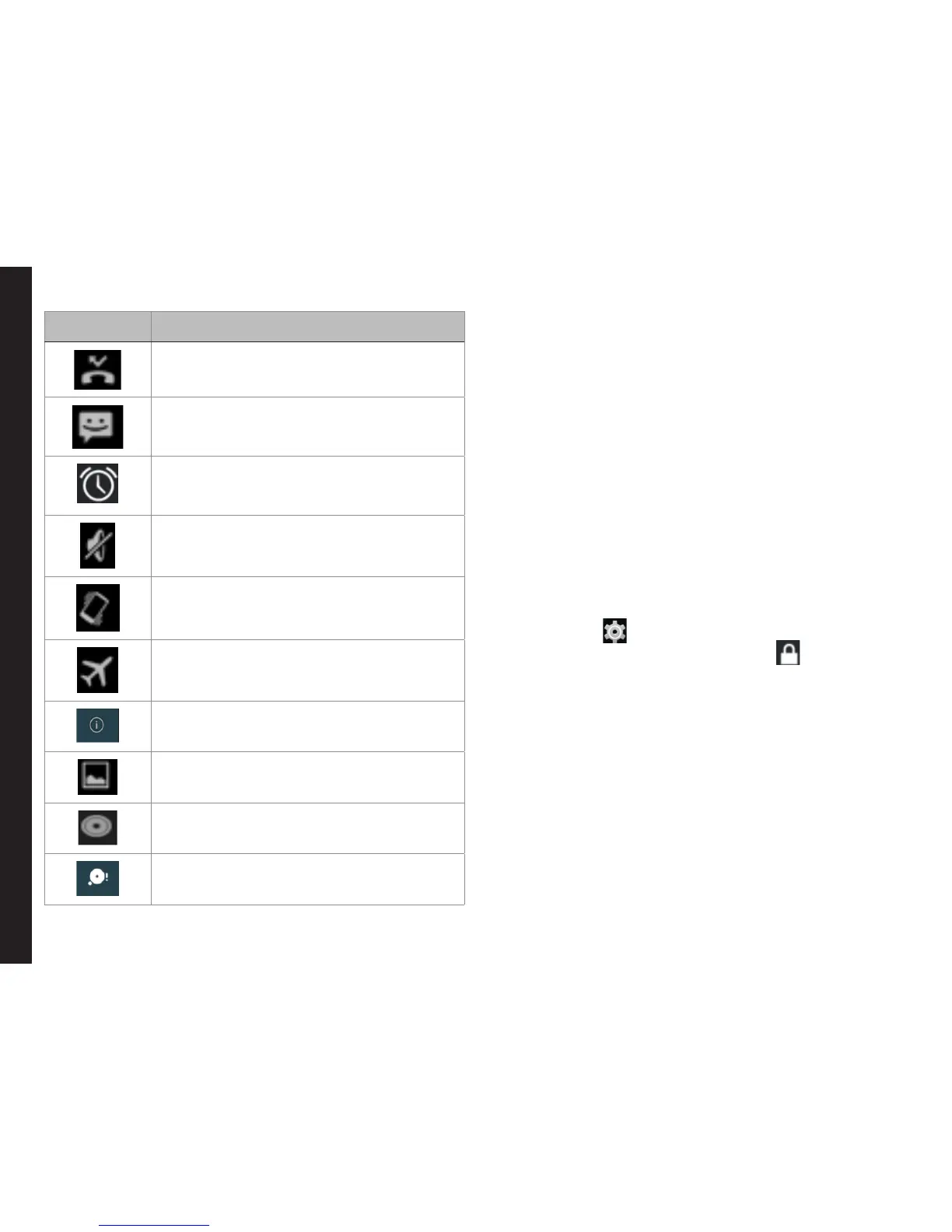
Icons Description
Missed call
New SMS or MMS
Alarm activated
Silent mode activated
Vibration mode activated
Flight mode activated
Error/information notication - attention
required
Screenshot captured
Music is played
Device storage space is running out
View and Modify the Settings
You can perform the following operations without
inserting a SIM card in your phone.`View and modify all
settings except Data usage and mobile network related
settings.
• Activate and share les through Bluetooth.
• Activate and access the Internet, and all your
synced accounts using Wi-Fi connectivity.
• Access your phonebook, my les, multimedia les,
all tools and applications.
Setting up and Using Lock Screen
You must lock your phone to protect it from unauthorized
access.
1. From the Home or All Applications screen, tap on
Settings ( ).
2. Scroll down and tap on Security ( ) , located
under Personal settings.
3. Tap on Screen lock and select one of the following
options to congure lock screen:
• None: Disables the phone lock.
• Slide: When the screen is locked with the slide,
slide your nger across the screen to unlock it.
• PIN: Provide your PIN value(minimum four
numbers) to set up PIN lock. When screen is
locked with PIN, provide your correct PIN value
to unlock the screen.
• Pattern: Draw your pattern to setup pattern
lock, when screen is locked with pattern.
Provide the correct pattern to unlock it.



 To Next Page