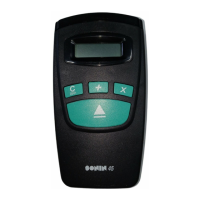
- 4 -
4) To find a specific distance from a wall, walk
toward or away from the wall while holding
down
or .
5) When the surface being measured to has
protrusions and recesses, you can determine
where the beam is hitting. Move sideways,
parallel to the target, while holding down
or . You will see the distance increase
for recesses and decrease for protrusions.
6) Be sure the surface you are measuring to is
hard, flat and uniform. Some surfaces such as
stucco or clapboard may scatter signals.
7) When tracking, the unit may lock on to a
stronger (usually closer) measurement. If this
happens, release
and try again.
8) Remember:
Measures from bottom of unit.
Measures from top of unit.
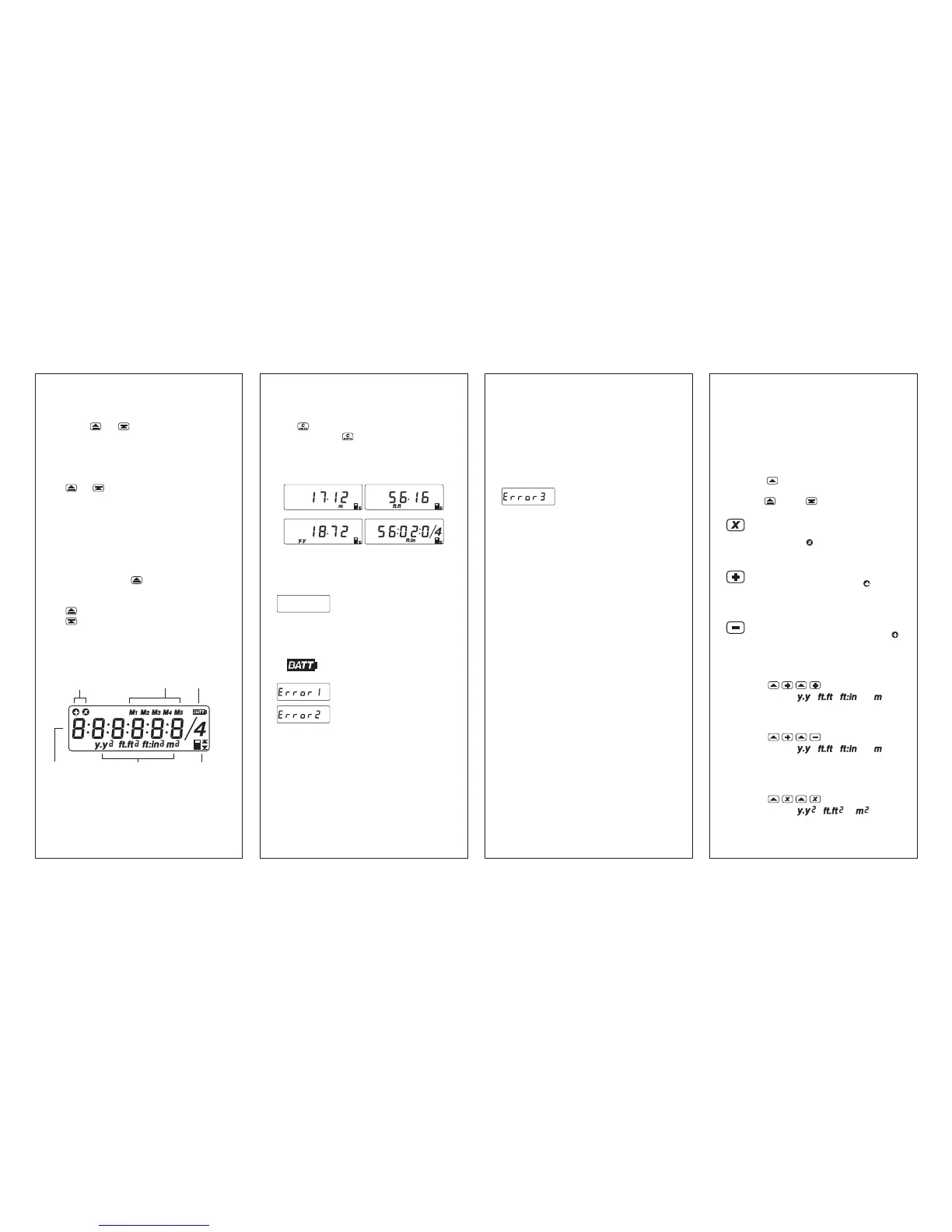
READING THE DISPLAY:
The SONIN 60 PRO can display measurements
in 4 modes.
- 5 -
To change the display units or convert a displayed
value from one set of units to another, press and
hold
. The displayed value will change with
the units. Release
when the desired units are
displayed. If you release before the reading changes
units, the display will clear and the reading will be
erased.
1) If the unit is unable to take a "good" measure-
ment the display will show one of the following:
BLANK SCREEN Make certain
the ON/OFF switch is in the ON
position. Check/replace battery.
If unit still doesn't work, call
your SONIN Dealer.
When the BATT symbol appears
on the display, replace the battery.
Out of Range or No Return Signal.
No Valid Reading.
Possible causes for Error 1 and Error 2 include:
a) Measurement out of range
(1.5 to 60 ft or 0.46 to 18.2 m).
See Specification Section on Range.
b) Unit is not perpendicular to the surface.
c) Surface is not hard and flat.
- 6 -
d) Interference from external noise sources
(see section on Environmental
Conditions).
e) Unit was moved during the measurement.
When using the validate mode, the unit
must be held stationary.
Math error - square or cube result
overflow.
2) If you get readings which are excessively long
or short, the likely causes are:
a) The unit is not being held parallel to the
floor. Hold the unit parallel to the floor
and at 90° to the surface being measured
to.
b) Measuring path is not clear of obstructions
or it is not wide enough. (See FIG. 1.)
c) The surface you are measuring to not
sufficiently flat and the sound waves are
continuing to rebound. Place a flat object,
such as a board or mirror against the
surface and measure to the object.
d) Environmental factors such as noise from
machinery or close proximity to an air
conditioner or computer screen.
3) If you get readings that are too short for the
distance being measured, make sure there is
a clear and sufficiently wide path to the surface.
Remove any objects in the way or select a
different surface to measure to. (See HINT #2
for help.)
4) Range and accuracy can be affected by
environmental factors such as wind, tempera-
- 7 -
ture, humidity and altitude (see section on
Environmental Conditions).
COMPUTATION FUNCTIONS:
To make the computations in the descriptions
below, the
button symbol indicates taking an
actual measurement (length, width or height) with
either the
or the button.
Multiplying: The unit multiplies linear
measurements to compute areas and
volumes. The symbol will appear in
the upper left corner of the display.
Adding: The unit adds linear measure-
ments, areas or volumes. The
symbol
will appear in the upper left corner of
display.
Subtracting: The unit subtracts linear
measurements, areas or volumes. The
symbol will appear in upper left corner of
display.
Adding distances:
Press
(Display shows , , or )
(Continue until you are done adding distances.)
Subtracting distances:
Press
(Display shows , , or )
(Continue until you are done subtracting
distances.)
Multiplying to compute areas:
Press
(Display shows , or )
meter decimal feet
yard foot:inch
Battery Low
Indicator
Bottom & Top
Measuring Icon
Units / Sq / Cu
Icon
Memories
Register
Six Digits & Fraction
Data Display Line
Multiply & Add
Memory Register



 To Next Page
 Loading...