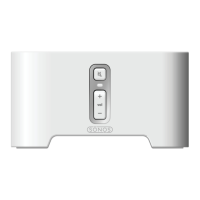
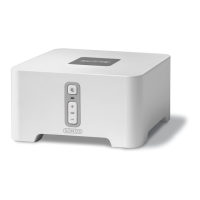
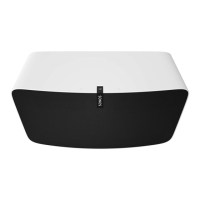
Sonos ZonePlayer S512
ENGLISH
DEUTSCH
NEDERLANDS
SVENSKA
Adding to an Existing Sonos System
Once you’ve got your Sonos Multi-Room Music System set up, you can easily add
more Sonos components any time (up to 32 zones).
If your house has structured (built-in) wiring, you can make a wired connection to the
additional ZonePlayers. If you don’t have structured wiring, our built-in wireless
technology is ideal for you.
Add a Zone
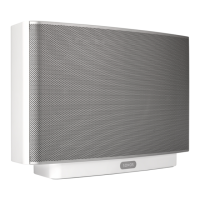
1. Select a location for your ZonePlayer S5 (see page 11 for optimal placement
guidelines.)
2. Attach the power cord to the ZonePlayer S5, and apply power.
3. If you are making a wireless connection, skip this step and continue on to step 4.
If you are making a wired connection, connect a standard Ethernet cable from
your router or another ZonePlayer (or a live network wall plate if you have built-in
wiring) to one of the Ethernet switch connections on the back of the new Sonos
component.
4. Choose one of the following options:
•Using the Sonos Controller 200 or Sonos Controller for iPhone, select
Settings→Add a Zone from the Music Menu and follow the on-screen
prompts to add this component to your Sonos Multi-Room Music System.
•Using the Sonos Controller for Mac or PC, select Zones→Add a Zone and
follow the prompts to add this component to your Sonos Multi-Room Music
System.


 To Next Page