ILCE-7SM3
5-060-467-41(1)
EN
9
\\Win-473\camera\CX85000(OT)UUD_IM\Multi\04_Compose\5060467411_14lang\5060467411ILCE7SM3CEC\01EN-ILCE7SM3CEC\030BAS.indd
DTP data saved: 2023/12/27 17:47
PDF file created: 2024/01/19 12:00
EN
EN
9
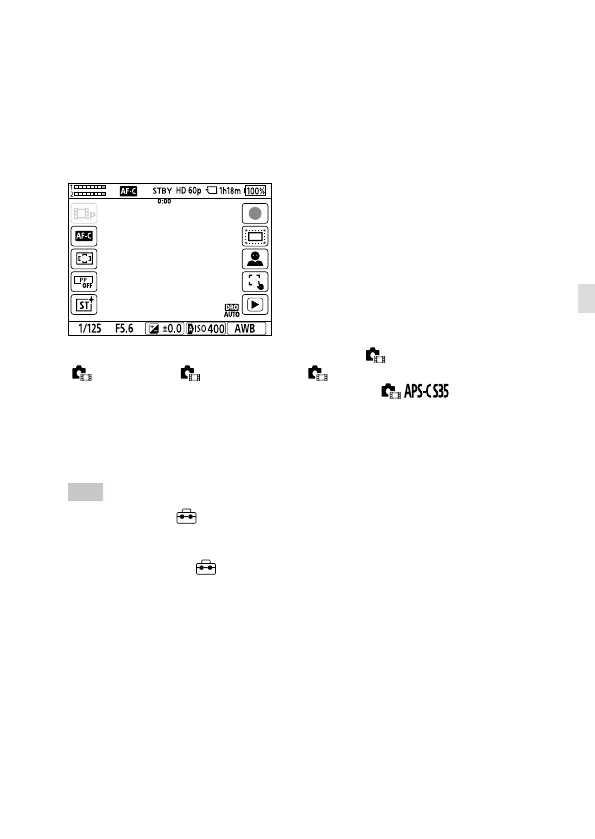
Icons on the right side: Shoots a still image, starts recording movies,
[Face/Eye Subject Select], [Touch Func. in Shooting], switches to the
playback screen*
* The shot mark button is displayed even during movie recording in the still
image shooting mode so that shot marks can be set for the movie being
recorded.
During movie recording
Icons on the left side: Movie recording mode, [ Focus Mode],
[
Focus Area], [ Picture Profile], [ Creative Look]
Icons on the right side: Starts recording movies, [ Shooting],
[Face/Eye Subject Select], [Touch Func. in Shooting], switches to the
playback screen*
* The shot mark button is displayed during movie recording so that shot marks
can be set for the movie being recorded.
Hint
• When MENU (Setup) [Touch Operation] [Touch Panel Settings]
[Playback Screen] is set to [On], the touch function icons on the playback
screen are always displayed.
• If you set MENU (Setup) [Touch Operation] [Touch Panel Settings]
[Shooting Screen] [Icon When Monitor Flipped] to [Flip], you can set
whether to switch the left and right icons on the shooting screen when the
monitor is flipped.


 To Next Page