Playback
21
GB
Playing a Disc
For playable discs, see “Playable Discs”
(page 49).
1 Switch the input selector on your TV so
that the signal from the system
appears on your TV screen.
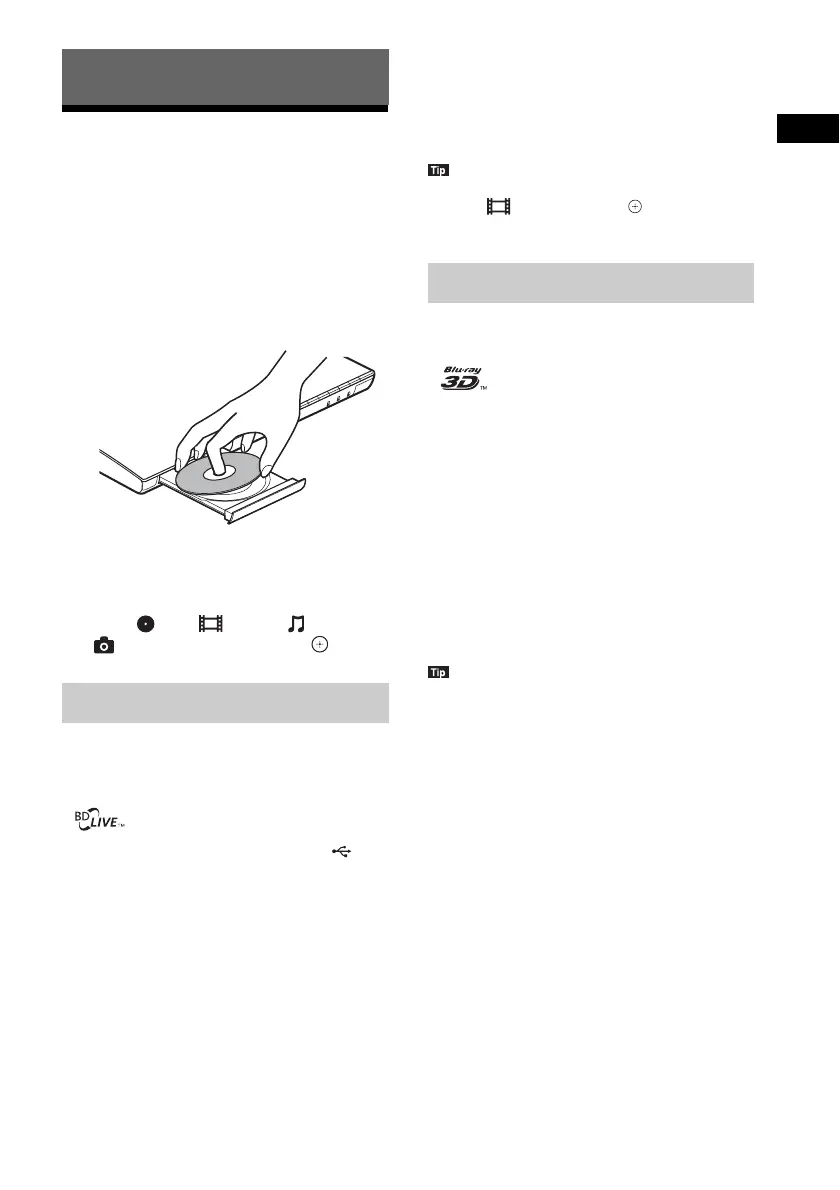
2 Press Z, and place a disc on the disc
tray.
3 Press Z to close the disc tray.
Playback starts.
If playback does not start automatically,
select in the [Video], [Music], or
[Photo] category, and press .
Some BD-ROMs with “BD-LIVE Logo*” have
bonus content and other data that can be
downloaded for enjoyment.
*
1 Connect the USB device to the
(USB) port (page 9).
For local storage, use a 1 GB or larger USB
memory.
2 Prepare for BD-LIVE (BD-LIVE only).
• Connect the system to a network
(page 16).
• Set [BD Internet Connection] to [Allow]
(page 40).
3 Insert a BD-ROM with BONUSVIEW/
BD-LIVE.
The operation method differs depending on
the disc. Refer to the operating instructions
of the disc.
• To delete data in the USB memory, select [Erase BD
Data] in [Video], and press . All data stored in
the buda folder will be deleted.
You can enjoy Blu-ray 3D Discs with the 3D
logo*.
*
1 Prepare for Blu-ray 3D Disc playback.
• Connect the system to your 3D-
compatible TV using a High Speed HDMI
cable (not supplied).
• Set [3D Output Setting] and [TV Screen
Size Setting for 3D] in [Screen Settings]
(page 38).
2 Insert a Blu-ray 3D Disc.
The operation method differs depending on
the disc. Refer to the operating instructions
supplied with the disc.
• Refer also to the operating instructions of your 3D-
compatible TV.
Playback
Enjoying BONUSVIEW/BD-LIVE
Enjoying Blu-ray 3D



 To Next Page