You can also use Smart Connect to set a specific action or a group of actions to
launch on your device at certain times of the day. For example, when you connect
your headset between 7am and 9am, you can decide that:
•
The "WALKMAN" application starts.
•
The web browser opens the morning paper.
•
The ring volume is set to vibrate.
With Smart Connect, you can also manage your accessories such as SmartTags and
SmartWatch. Refer to the User guide of the specific accessory for more information.
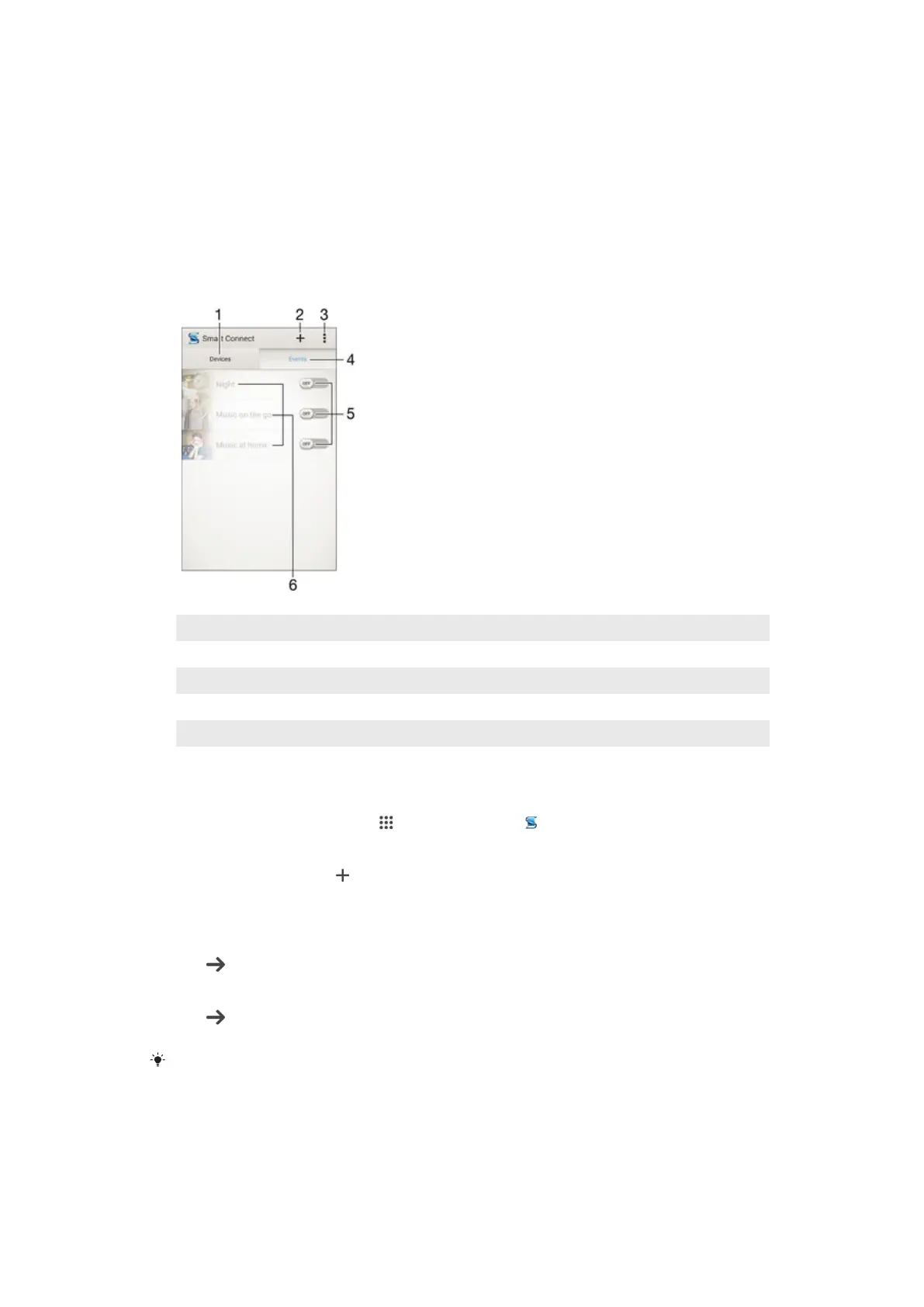
Overview of Smart Connect
1 Tap to display all added devices
2 Add a device or an event
3 View menu options
4 Tap to display all added events
5 Tap to activate an event
6 Tap to view details of an event
To create a Smart Connect event
1
From your Home screen, tap , then find and tap .
2
If you are opening Smart Connect for the first time, tap OK to close the
introduction screen.
3
On the Events tab, tap
.
4
If you are creating an event for the first time, tap OK again to close the
introduction screen.
5
Add conditions under which you want to trigger the event. A condition could be
the connection with an accessory, or a specific time interval, or both.
6
Tap
to continue.
7
Add what you want to happen when you connect an accessory, and set other
settings as desired.
8
Tap
to continue.
9
Set an event name, then tap Finish.
To add a Bluetooth® accessory, you have to first pair it with your device.
To edit a Smart Connect event
1
Start the Smart Connection application.
2
On the Events tab, tap an event.
3
If the event is switched off, drag the slider to the right to turn it on.
4
Tap Edit, then adjust the settings as desired.
90
This is an Internet version of this publication. © Print only for private use.






 To Next Page