76
GB
Note
• In order to enjoy the surround sound after you change
the position of the speakers, it is recommended you
set [SPEAKER FORMATION], and then set [AUTO
CALIBRATION].
• To set [AUTO CALIBRATION], you need to
connect the supplied calibration mic.
• The front panel display indicates the selected
[SPEAKER FORMATION]. It does not indicate the
speakers which output sound.
• When you change the [SIZE] setting in [SPEAKER
SETUP], the [SPEAKER FORMATION] setting
returns to [ALL FRONT].
D. C. A. C. (Digital Cinema Auto Calibration)
can set the appropriate surround sound
automatically.
Note
• Loud test sound is output when [AUTO
CALIBRATION] starts. You cannot turn the volume
down. Give consideration to children and neighbor.
1 Press FUNCTION +/– repeatedly until
“DVD” appears in the front panel
display.
2 Press DISPLAY when the system is
in stop mode.
The Control Menu appears.
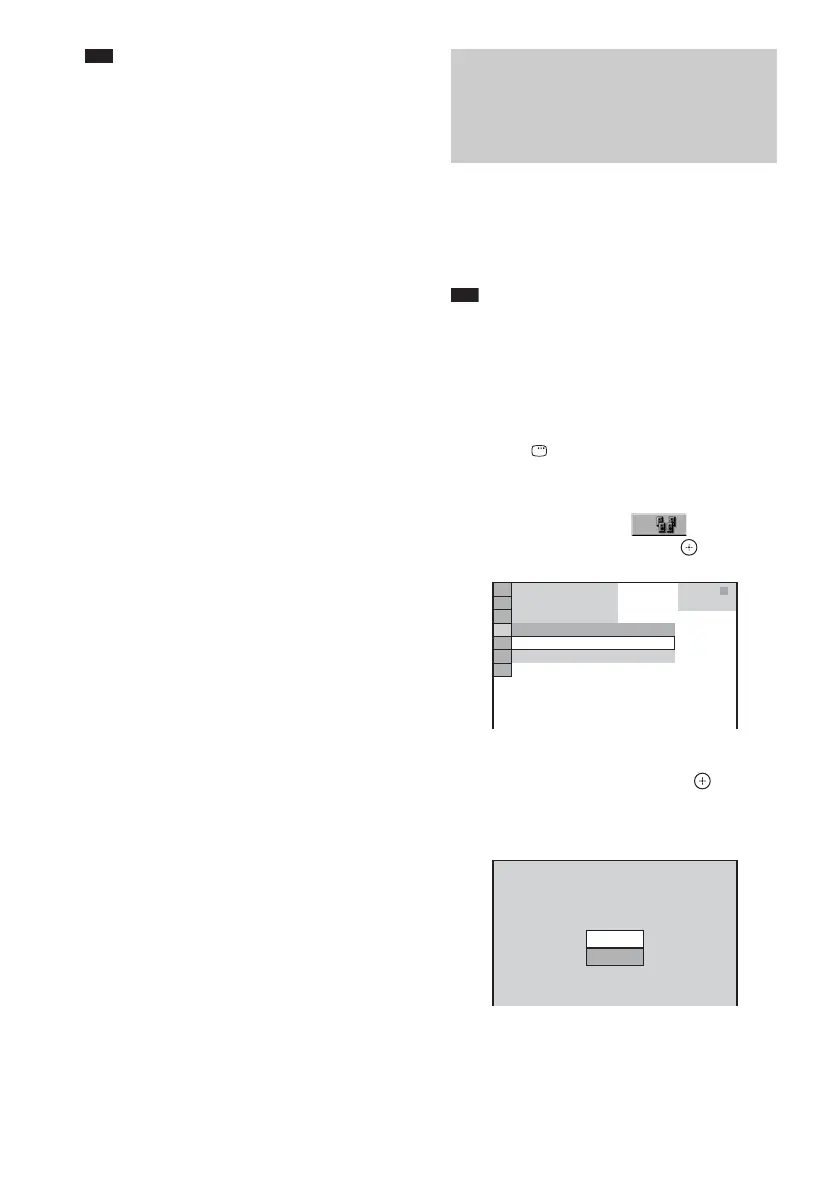
3 Press X/x to select [SPEAKER
FORMATION], then press .
4 Press X/x to select [AUTO
CALIBRATION], then press .
The options for [AUTO CALIBRATION]
appear.
Connect the calibration mic to the A.CAL
MIC jack on the front panel, and set it up at
the ear level using a tripod, etc. (not
supplied). The front of each speaker should
Calibrating the
Appropriate Settings
Automatically
(AUTO CALIBRATION)
AUTO CALIBRATION
SPEAKER FORMATION
T
0 : 0 3 : 0 4
3
(
2 8
)
1
(
4 4
)
DVD VIDEO
SPEAKER FORMATION
Connect calibration mic. Start
measurement?
YES
AUTO CALIBRATION
NO


 To Next Page