Color System Setup
1 Connect the AC power cord.
2 Turn on the power of the main unit
and TV.
/
/ (power)
3 Press FUNCTION repeatedly or DVD/
CD to switch the function to DVD/CD.
Playback starts automatically if a disc
with an auto playback function is loaded.
Press twice to stop playback.
4 Switch the input selector on your TV
to display “Home Theatre System.”
5 Press SETUP in stop mode.
The Setup Menu appears.
6 Press / repeatedly to select
[Preference Page], then press .
7 Press / repeatedly to select [TV
Type], then press .
8 Press / repeatedly to select [PAL]
or [NTSC] from the displayed list, then
press .
9 Press SETUP to turn off the Setup
Menu.
Note
The display on the TV screen may be
interrupted momentarily after changing the
color system as described above.
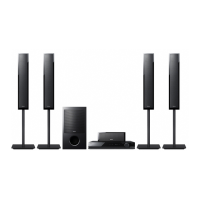
DVD Home Theatre
System
4-272-768-12(1)
DAV-TZ135
Operating Instructions
WARNING
To reduce the risk of fire or electric shock, do
not expose this apparatus to dripping or
splashing, and do not place objects filled with
liquids, such as vases, on the apparatus.
To reduce the risk of fire, do not cover the
ventilation opening of the apparatus with
newspapers, tablecloths, curtains, etc.
Do not place the naked flame sources such as
lighted candles on the apparatus.
As the main plug is used to disconnect the
unit from the mains, connect the unit to an
easily accessible AC outlet. Should you notice
an abnormality in the unit, disconnect the
main plug from the AC outlet immediately.
The main plug is used to disconnect this
device from the AC outlet, so position this
device in a location where it can be easily
unplugged.
Do not install the appliance in a confined
space, such as a bookcase or built-in cabinet.
Do not expose batteries or apparatus with
battery-installed to excessive heat such as
sunshine, fire or the like.
The unit is not disconnected from the mains
as long as it is connected to the AC outlet,
even if the unit itself has been turned off.
To prevent injury, this apparatus must be
securely attached to the floor/wall in
accordance with the installation instructions.
Indoor use only.
CAUTION
The use of optical instruments with this
product will increase eye hazard.
For European and Mexican models:
This appliance
is classified as a
CLASS 1
LASER product.
This marking is
located on the
rear exterior of
unit.
Notice for customers: The following
information is only applicable to equipment
sold in countries applying EU Directives.
The manufacturer of this product is Sony
Corporation, 1-7-1 Konan Minato-ku Tokyo,
108-0075 Japan. The Authorized
Representative for EMC and product safety is
Sony Deutschland GmbH, Hedelfinger Strasse
61, 70327 Stuttgart, Germany. For any service
or guarantee matters please refer to the
addresses given in separate service or
guarantee documents.
For the customers in the USA
To reduce the risk of fire or electric shock, do
not expose this apparatus to rain or moisture.
This symbol is intended to alert the
user to the presence of uninsulated
“dangerous voltage” within the
product’s enclosure that may be of sufficient
magnitude to constitute a risk of electric
shock to persons.
This symbol is intended to alert the
user to the presence of important
operating and maintenance
(servicing) instructions in the literature
accompanying the appliance.
Owner’s Record
The model and serial numbers are located on
the rear exterior of the unit. Record the serial
number in the space provided below. Refer to
them whenever you call upon your Sony
dealer regarding this product.
2 3 4
6 7 85
10 11 129
14 15 1613
Model No. DAV-TZ135
Serial No.______________
The following FCC statement applies only to
the version of this model manufactured for
sale in the USA. Other versions may not
comply with FCC technical regulations.
NOTE:
This equipment has been tested and found to
comply with the limits for a Class B digital
device, pursuant to Part 15 of the FCC Rules.
These limits are designed to provide
reasonable protection against harmful
interference in a residential installation. This
equipment generates, uses, and can radiate
radio frequency energy and, if not installed
and used in accordance with the instructions,
may cause harmful interference to radio
communications. However, there is no
guarantee that interference will not occur in a
particular installation. If this equipment does
cause harmful interference to radio or
television reception, which can be determined
by turning the equipment off and on, the user
is encouraged to try to correct the
interference by one or more of the following
measures:
Reorient or relocate the receiving antenna
(aerial).
Increase the separation between the
equipment and receiver.
Connect the equipment into an outlet on a
circuit different from that to which the
receiver is connected.
Consult the dealer or an experienced radio/
TV technician for help.
CAUTION
You are cautioned that any changes or
modifications not expressly approved in this
manual could void your authority to operate
this equipment.
Important Safety Instructions
1) Read these instructions.
2) Keep these instructions.
3) Heed all warnings.
4) Follow all instructions.
5) Do not use this apparatus near water.
6) Clean only with dry cloth.
7) Do not block any ventilation openings.
Install in accordance with the
manufacturer’s instructions.
8) Do not install near any heat sources such
as radiators, heat registers, stoves, or
other apparatus (including amplifiers)
that produce heat.
9) Do not defeat the safety purpose of the
polarized or grounding-type plug. A
polarized plug has two blades with one
wider than the other. A grounding type
plug has two blades and a third grounding
prong. The wide blade or the third prong
are provided for your safety. If the
provided plug does not fit into your
outlet, consult an electrician for
replacement of the obsolete outlet.
10) Protect the power cord from being
walked on or pinched particularly at
plugs, convenience receptacles, and the
point where they exit from the apparatus.
11) Only use attachments/accessories
specified by the manufacturer.
12) Use only with the cart, stand, tripod,
bracket, or table specified by the
manufacturer, or sold with the apparatus.
When a cart is used, use caution when
moving the cart/apparatus combination
to avoid injury from tip-over.
13) Unplug this apparatus during lightning
storms or when unused for long periods
of time.
14) Refer all servicing to qualified service
personnel. Servicing is required when the
apparatus has been damaged in any way,
such as power-supply cord or plug is
damaged, liquid has been spilled or
objects have fallen into the apparatus, the
apparatus has been exposed to rain or
moisture, does not operate normally, or
has been dropped.
For the customers in Europe
Disposal of Old Electrical &
Electronic Equipment
(Applicable in the European
Union and other European
countries with separate
collection systems)
This symbol on the product or
on its packaging indicates that
this product shall not be treated as household
waste. Instead it shall be handed over to the
applicable collection point for the recycling of
electrical and electronic equipment. By
ensuring this product is disposed of correctly,
you will help prevent potential negative
consequences for the environment and
human health, which could otherwise be
caused by inappropriate waste handling of
this product. The recycling of materials will
help to conserve natural resources. For more
detailed information about recycling of this
product, please contact your local Civic
Office, your household waste disposal service
or the shop where you purchased the product.
Applicable accessories: Remote Control.
Disposal of waste batteries
(applicable in the European
Union and other European
countries with separate
collection systems)
This symbol on the battery or on
the packaging indicates that the
battery provided with this product shall not
be treated as household waste.
On certain batteries this symbol might be
used in combination with a chemical symbol.
The chemical symbols for mercury (Hg) or
lead (Pb) are added if the battery contains
more than 0.0005% mercury or 0.004% lead.
By ensuring these batteries are disposed of
correctly, you will help prevent potentially
negative consequences for the environment
and human health which could otherwise be
caused by inappropriate waste handling of the
battery. The recycling of the materials will
help to conserve natural resources. In case of
products that for safety, performance or data
integrity reasons require a permanent
connection with an incorporated battery, this
battery should be replaced by qualified
service staff only. To ensure that the battery
will be treated properly, hand over the
product at end-of -life to the applicable
collection point for the recycling of electrical
and electronic equipment. For all other
batteries, please view the section on how to
remove the battery from the product safely.
Hand the battery over to the applicable
collection point for the recycling of waste
batteries.
For more detailed information about
recycling of this product or battery, please
contact your local Civic Office, your
household waste disposal service or the shop
where you purchased the product.
Checking the supplied items
(The inclusion of a SCART adapter and HDMI cable varies depending on the area/model.)
Speakers (5)
Operating Instructions
(this manual)
Video cord (1)
FM wire antenna (aerial) (1)
or
Remote commander
(remote) (1)
Foot pads
(subwoofer) (1 set)
R6 (size AA) batteries (2)
HDMI cable (1)
Main unit (1)
Subwoofer (1)
SCART adapter (1)
Preparing the remote control
Insert two R6 (size AA) batteries (supplied) by matching the and ends on the batteries to
the markings inside the compartment.
Trademarks
This system incorporates with Dolby* Digital
and Dolby Pro Logic adaptive matrix
surround decoders.
* Manufactured under license from Dolby
Laboratories.
Dolby, Pro Logic, and the double-D
symbol are trademarks of Dolby
Laboratories.
This system incorporates High-Definition
Multimedia Interface (HDMI™) technology.
HDMI, the HDMI Logo, and High-Definition
Multimedia Interface are trademarks or
registered trademarks of HDMI Licensing
LLC in the United States and other countries.
“BRAVIA” is a trademark of Sony
Corporation.
MPEG Layer-3 audio coding technology and
patents licensed from Fraunhofer IIS and
Thomson.
Windows Media is either a registered
trademark or trademark of Microsoft
Corporation in the United States and/or other
countries. This product contains technology
subject to certain intellectual property rights
of Microsoft. Use or distribution of this
technology outside of this product is
prohibited without the appropriate license(s)
from Microsoft.
ABOUT MPEG-4 VISUAL: THIS PRODUCT
IS LICENSED UNDER THE MPEG-4
VISUAL PATENT PORTFOLIO LICENSE
FOR THE PERSONAL AND
NONCOMMERCIAL USE OF A
CONSUMER FOR DECODING VIDEO IN
COMPLIANCE WITH THE MPEG-4
VISUAL STANDARD (“MPEG-4 VIDEO”)
THAT WAS ENCODED BY A CONSUMER
ENGAGED IN A PERSONAL AND
NONCOMMERCIAL ACTIVITY AND/OR
WAS OBTAINED FROM A VIDEO
PROVIDER LICENSED BY MPEG LA TO
PROVIDE MPEG-4 VIDEO.
NO LICENSE IS GRANTED OR SHALL BE
IMPLIED FOR ANY OTHER USE.
ADDITIONAL INFORMATION
INCLUDING THAT RELATING TO
PROMOTIONAL, INTERNAL AND
COMMERCIAL USES AND LICENSING
MAY BE OBTAINED FROM MPEG LA,
LLC. SEE http://www.mpegla.com/
All other trademarks are trademarks of their
respective owners.
About these Operating
Instructions
“DVD” may be used as a general term for a
DVD VIDEO, DVD+RW/DVD+R, and
DVD-RW/DVD-R.
The system enters standby mode
automatically.
When the system is in pause, stop, open, or
no disc mode, the system will enter standby
mode automatically after 30 minutes.
Depending on the jacks on your TV or set-top box, select the video and audio connection
method.
Connecting your TV/set-top box
When connecting to a TV only When connecting to a TV and set-top box
Audio
Video
Audio
Video
Video
Connecting the video to your TV
Depending on the jacks on your TV, select one of the connection methods.
Method 1 (supplied)
This is the basic connection.
Method 2 (supplied only with certain models)
Picture quality will be improved compared to Method 1.
Connecting the audio from your TV/set-top box
To listen to TV or set-top box sound via the system, you need to perform a connection with an
audio cord (not supplied).
Not supplied
Connecting the Speakers
Caution
Do not use any speakers other than those
supplied with this system.
To attach the foot pads to the
subwoofer
Remove the foot pads from
the protective cover.
Note
Use caution when placing the speakers and/
or speaker stands attached to the speakers
on a specially treated (waxed, oiled,
polished, etc.) floor, as staining or
discoloration may result.
/ (on/standby)
Turns on the unit, or sets it to standby
mode.
Play operation buttons
(open/close)
Opens or closes the disc tray.
(play)
Starts or re-starts playback (resume play).
(stop)
Stops playback and remembers the stop
point (resume point).
The resume point for a title/track is the
last point you played.
FUNCTION
Selects the playback source.
(USB) port
Used for connecting a USB device.
Front panel display
(remote sensor)
MASTER VOLUME control
Adjusts the system’s volume.
Disc tray
Remote control
TV INPUT
Switches the TV’s input source between the
TV signal and other input sources.
BRAVIA Sync
ONE-TOUCH PLAY
Activates One-Touch Play.
TV I/ (on/standby)
Turns on the TV or sets it to standby mode.
Playable Discs
DVD DVD-ROM
DVD-R/DVD-RW
DVD+R/DVD+RW
CD
CD-DA (Music CD)
CD-ROM
CD-R/CD-RW
VIDEO CD
Super VCD
A CD or DVD will not play if it has not been
correctly finalized. For more information,
refer to the operating instructions supplied
with the recording device.
Discs that cannot be played
Blu-ray Discs
HD DVDs
DVD-RAMs
DVD Audio discs
PHOTO CDs
Super Audio CDs
Data track of CD-Extras
Audio material side on DualDiscs
DVD-R/DVD-RW/DVD+R/DVD+RW in
VR (Video Recording) mode
CPRM (Content Protection for Recordable
Media)-compatible DVD-R/RW containing
content flagged as “Copy once.”
Notes on discs
This product is designed to playback discs
that conform to the Compact Disc (CD)
standard. DualDiscs and some music discs
encoded with copyright protection
technologies do not conform to the Compact
Disc (CD) standard. Therefore, these discs
may not be compatible with this product.
Note on playback operations of a DVD
Some playback operations of a DVD may be
intentionally restricted by software producers.
Since this system plays a DVD according to
the disc contents the software producers
designed, some playback features may not be
available.
Note about double-layer DVDs
The playback picture and sound may be
momentarily interrupted when the layers
switch.
Region code (DVD VIDEO only)
Your system has a region code printed on the
rear of the unit and will only play a DVD
VIDEO (playback only) labeled with an
identical region code or
.
Note about Multi Session CD
You cannot play all sessions of a multisession
disc.
Unpacking
Connecting your TV
Parts and Controls :
Front panel
VIDEO OUT jack
HDMI OUT jack
TV/CABLE (AUDIO IN L/R) jacks
ANTENNA (FM COAXIAL 75Ω) jack
SPEAKERS jacks
Rear panel
Playable Types of Files
Video
File format Extensions
MPEG4 Video
1)
“.mp4,” “.m4v”
Xvid Video
2)
“.avi”
Music
File format Extensions
MP3 (MPEG1 Audio
Layer 3)
3)
“.mp3”
WMA
4)
“.wma”
AAC “.m4a”
Photo
File format Extensions
JPEG “.jpg,” “.jpeg”
1) AVC is not compatible.
2) Unavailable on US models.
3) MP3PRO format is not compatible.
4) WMA DRM,WMA Lossless or WMA
PRO format are not compatible.
Note
Some files may not play depending on the
format, the encoding, or recording
condition.
Some USB devices may not work with this
system.
The system supports ISO 9660 Level 1/
Level 2, or Joliet in DATA CD.
The system supports UDF (Universal Disk
Format) in DATA DVD.
The system supports FAT12, FAT16, and
FAT32 in USB device.
The system can recognize the following files
or folders in DATA DVD, DATA CD and
USB device:
up to 300 folders
up to 648 files
It may take time to read files in the
following cases:
there are many folders or files.
the memory capacity of the USB device
that you are using is very large.
the memory of the USB device that you
are using is fragmented.
SUBWOOFER
SUR L
SUR R
FRONT R
CENTER
FRONT L
Main unit
Insert the connectors of the speaker cords to match the color of the SPEAKERS jacks of
the unit until they click.
Rear panel of the main unit
FRONT RIGHT SPEAKER
(RED)
FRONT LEFT SPEAKER (WHITE)
SURROUND RIGHT SPEAKER
(GRAY)
SURROUND LEFT SPEAKER
(BLUE)
CENTER SPEAKER (GREEN)
SUBWOOFER (PURPLE)
©2011 Sony Corporation Printed in China
When Installing the
Speakers on a Wall
Caution
Contact a screw shop or installer for
information regarding the wall material or
screws to be used.
Use screws that are suitable for the wall
material and strength. As a plaster board
wall is especially fragile, attach the screws
securely to a beam. Install the speakers on a
vertical and flat wall where reinforcement is
applied.
Sony is not responsible for accidents or
damage caused by improper installation,
insufficient wall strength or improper screw
installation, natural calamity, etc.
1 Prepare screws (not supplied) that are
suitable for the hole on the back of
each speaker. See the illustrations
below.
5 mm
(7/32 inch)
10 mm
(13/32 inch)
4 mm (3/16 inch)
30 mm (1 3/16 inches)
Hole on the back of the speaker
2 Fasten the screws to the wall, then
hang the speaker on the wall.
Depth of fastened screw
8 to 10 mm
(11/32 to 13/32 inch)
/ (on/standby)
Turns on the system or sets it to standby
mode.
Function selection buttons
Select the playback source.
DVD/CD
FM
USB
TV/CABLE
FUNCTION
Selects the functions in sequence.
REPEAT
Activates repeat/shuffle playback mode.
SURROUND
Selects surround audio output mode.
EQ
Selects EQ mode.
AUDIO
Selects the audio format/track and the FM
mode.
SUBTITLE
Selects the subtitle language when
multilingual subtitles are available.
ANGLE
Switches to other viewing angles when multi-
angles are recorded on a DVD VIDEO.
Number buttons
Enter the title/chapter numbers, preset radio
stations, etc.
PROGRAM
Activates program play and presets radio
stations.
SLEEP
Sets the sleep timer.
DVD TOP MENU
Opens the DVD’s Top Menu.
DVD MENU
Opens or closes the DVD’s menu.
MUTING
Turns off the sound temporarily.
///
Moves the highlight to a displayed item.
(ENTER)
Enters the selected item.
VOLUME +/–
Adjusts the volume.
SETUP
Opens or closes the setup menu.
DISPLAY
Opens or closes the Display Menu.
TIME
Switches time information during playback.
Playback operation buttons
/ (previous/next)
/ (fast reverse/fast forward)
/ (slow)
Activates slow reverse/slow forward when
pressed in pause mode.
(play)
(pause)
(stop)
Radio operation buttons
PRESET +/–
TUNING +/–
SHIFT
Press and hold this button to use buttons with
pink text labels.
Note
AUDIO IN
This button does not work.
Continued
GB
Tip
For European models, connect the video
cord (supplied) and an audio cord (not
supplied) to the TV via the SCART adapter.
Connecting the FM wire antenna
(aerial)
Tip
If you have poor FM reception, use a 75-
ohm coaxial cable (not supplied) to connect
the unit to an outdoor FM antenna (aerial).

 Need help?
 General
 Weight and Dimensions

 To Next Page