6
Ripping a CD or copying data
files to a USB device
You can rip a CD or copy* data files to a USB
device. You cannot rip a CD or copy data files
while playing back a disc.
* Depending on the disc, copying may not be
possible.
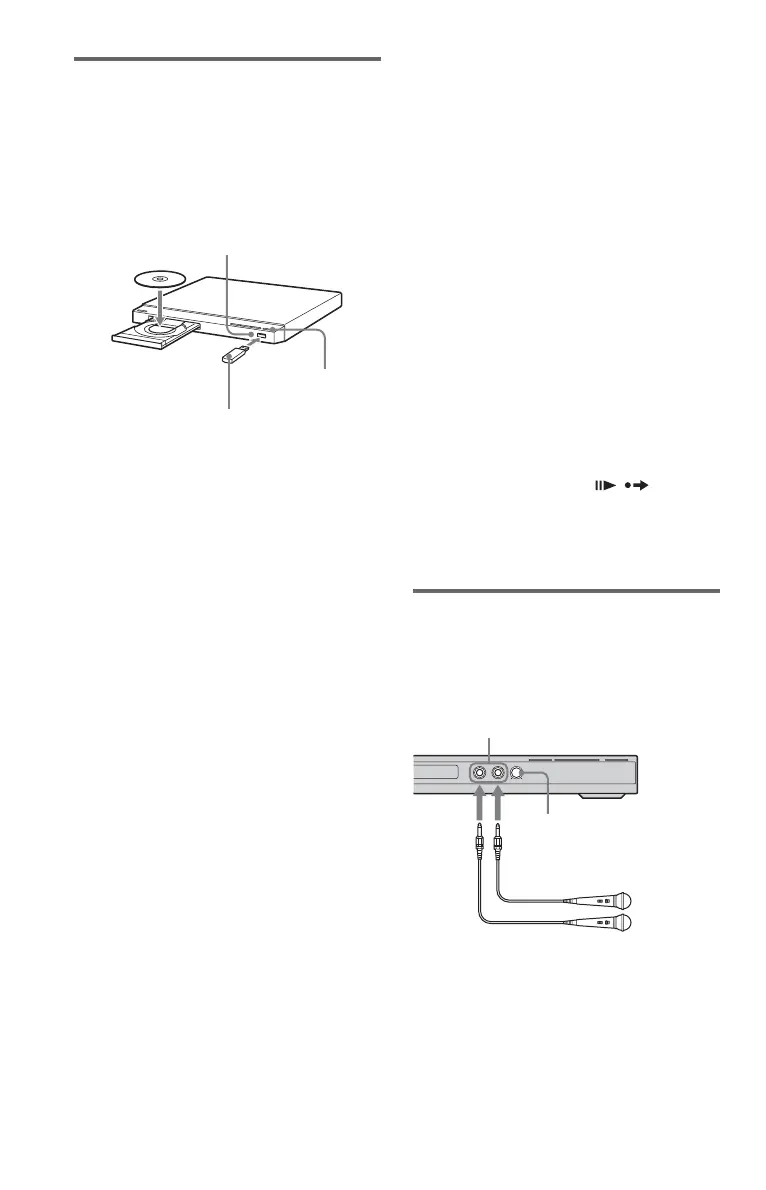
1 Insert a disc into the disc tray, and then
connect a USB device to the USB jack.
2 Press DISPLAY.
The Control Menu display appears.
3 Press X/x to select “REC TO USB.”
4 Press X/x to select the items to copy, and
press ENTER.
When ripping a CD, select “DISC” or
“TRACK.”
When copying data files, select “DISC,”
“ALBUM,” “TRACK,” or “FILE.”
If you select “DISC,” go to step 6.
5 Press C/X/x/c to select albums, tracks or
files, and press ENTER.
When selecting albums, tracks or files, the
REC LED indicator flashes.
6 Press
N.
When ripping a CD or copying data files, the
REC LED indicator stays lit.
Recording is started. Recording progress is
displayed. After recording finishes,
“Completed” is displayed.
To record simply
You can rip a CD or copy data files simply by
pressing the REC TO USB button. When
pressing the REC TO USB button, the display
appears. Press N according to the display.
Recording is started.
To erase “ALBUM,” “TRACK,” or “FILE”
Press CLEAR. Follow the displayed
message. When erasing the album, the player
may erase unshown files on the list menu of
ALBUM at the same time.
To remove the USB device
Stop playback, ripping a CD, or copying/
erasing data files, and then disconnect the
USB device from the USB jack. Do not
remove the USB device during operation, as
data corruption may occur.
About supported USB devices
• This player supports USB Mass Storage
Class only.
• This player supports FAT formatted USB
devices only (except exFAT).
• Some USB devices may not work with this
player.
Notes about USB devices
• If a USB device has a power switch, turn it
on before connecting the USB device to the
USB jack of the player.
• For some devices, LUN (Logical Unit
Number) may appear. To change the LUN
or original storage, press when the
list of albums or tracks is displayed.
When you use the REC TO USB function, the
karaoke mode is turned off.
Enjoying karaoke
You can enjoy karaoke (singing along with a
disc) by setting “KARAOKE MODE” in the
Control Menu display. You can connect up to
two microphones (not supplied) to the player.
Before connecting a microphone, set the MIC
LEVEL control to MIN (minimum).
If howling occurs:
– move the microphone away from the
speakers.
– lower the MIC LEVEL or ECHO level.
– lower the overall volume.
USB device
REC TO USB
REC LED
MIC 1/MIC 2 jacks
MIC LEVEL control
Microphones (not supplied)



 To Next Page