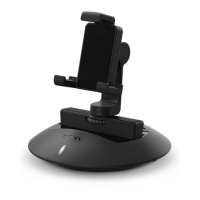
To automatically connect your Smart Imaging Stand with an Android™ phone
1
Android™ phone: Make sure the Bluetooth® function is turned on and that
your Smart Imaging Stand is paired with the phone.
2
Place the phone over your Smart Imaging Stand so that the NFC detection
area of each device touches the other. The Smart Imaging Stand now connects
automatically to the Android phone.
To manually connect your Smart Imaging Stand with an Android™ phone
1
Android™ phone: Make sure the Bluetooth® function is turned on and that
your Smart Imaging Stand is paired with the phone.
2
Open the Smart Connect application, then select Smart Imaging Stand in the
device list.
3
Tap , then select Smart Imaging Stand in the list of paired devices. Once
changes to , your Smart Imaging Stand is connected to the phone.
9
This is an Internet version of this publication. © Print only for private use.


 To Next Page