EasyManua.ls Logo

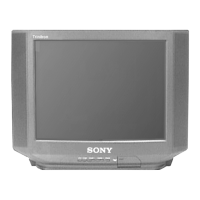
Sony KV-21HFV100 - User Manual

Sony KV-21HFV100
32 pages
Print Icon
To Next Page IconTo Next Page
Loading...
Sony KV-21HFV2100 Group J3 (GB)_2-187-288-11 (1)
Tr initron Color TV
Operating Instructions
Before operating the unit, please read this manual thoroughly and
retain it for future reference.
KV-21HFV100
© 2004 Sony Corporation
2-187-288-11 (1)
GB

Questions and Answers

  • E
    Emily CurryAug 18, 2025
    Why does my Sony KV-21HFV100 TV have no picture and no sound?
    • J
      Janet MolinaAug 19, 2025
      If your Sony TV has no picture and no sound, check the power cord, antenna, and VCR connections. Make sure the TV is turned on by pressing the POWER button. If that doesn't work, turn off the TV using the main power button for about five seconds, and then turn it back on.
  • P
    Patrick WelchAug 20, 2025
    How to fix Sony KV-21HFV100 TV with good picture but no sound?
    • N
      Nathan HarrisonAug 21, 2025
      If your Sony TV has a good picture but no sound, first, increase the volume level by pressing VOL +. If that doesn't work, cancel muting by pressing MUTING. You can also try pressing MTS/SAP until “Stereo” or “Mono” appears on the screen.
  • J
    jessejonesAug 23, 2025
    Why does my Sony KV-21HFV100 TV have no color?
    • M
      Marie BrownAug 23, 2025
      If your Sony TV has no color, go to the “Video” menu and choose the picture mode you want. Then, change the “Color” level in “Picture Controls”. You should also go to the “Setup” menu and check the “Color System” setting, usually set to “Auto”. Also, check the antenna setup.
  • D
    David SharpAug 26, 2025
    What to do if Sony KV-21HFV100 TV cannot receive stereo broadcast sound?
    • D
      Dorothy GouldAug 26, 2025
      If your Sony TV cannot receive stereo broadcast sound, or the stereo broadcast sound switches on and off or is distorted, press MTS/SAP until “Stereo” appears on the screen. Also, check the antenna cable and connection on the TV, VCR, and at the wall. Check the antenna setup.
  • L
    leah95Aug 27, 2025
    Why does Sony KV-21HFV100 have double images or ghosts?
    • E
      erinlambAug 27, 2025
      If your Sony TV is displaying double images or “ghosts”, try using a highly directional antenna. Also, check the antenna setup. If you are using a booster, turn it off or disconnect it.
  • M
    matthew12Aug 30, 2025
    How to fix abnormal color patches on Sony KV-21HFV100?
    • A
      Austin JonesAug 30, 2025
      If your Sony TV has abnormal color patches, keep external speakers or other equipment away from the TV. Avoid moving the TV while it is on. Turn off the TV using the main power button for about 15 minutes, then turn it back on to demagnetize the TV.
  • T
    Tina SmallSep 1, 2025
    What to do if Sony KV-21HFV100 TV has snowy picture and noisy sound?
    • A
      ashley96Sep 1, 2025
      If your Sony TV is showing a snowy picture and has noisy sound, check the antenna cable and its connections at the TV, VCR, and the wall. Also, verify the antenna setup. You might also need to preset the channel again or try using a booster.
  • J
    Julie GilbertSep 3, 2025
    How to fix dotted lines or stripes on Sony TV screen?
    • P
      Patricia SuttonSep 4, 2025
      If you see dotted lines or stripes on your Sony TV screen, make sure you are not using a hair dryer or other equipment near the TV. It is also recommended to check the antenna setup.
  • D
    David AlvarezSep 6, 2025
    How to correct picture slant on Sony KV-21HFV100 TV?
    • K
      Kevin HamiltonSep 6, 2025
      If the picture on your Sony TV is slanting, keep external speakers or other electrical equipment away from the TV. Also, go to the “Setup” menu and adjust “Tilt Correction” so the picture lines up with the TV screen.
  • C
    Calvin RamosSep 8, 2025
    Why Sony KV-21HFV100 cannot receive FM radio station?
    • M
      Mariah AndersonSep 8, 2025
      To allow your Sony TV to receive FM radio stations, connect a separate FM antenna and the TV channel source through an antenna selector (switch) to your TV.

Summary

Operating Instructions

Safety Warnings

Securing the TV

Installation

Hooking Up the System

Connect the right and left speaker cords to the SPEAKER terminals.

Getting Started

Insert batteries into the remote and connect the antenna cable.

Setting Up Your TV (Initial Setup)

Configure language, preset channels, and adjust picture position during initial setup.

Overview of Controls

TV Control Panel Overview

Details the buttons and terminals on the TV's top, front, and rear panels.

Using the Remote Control

Explains the functions of various buttons on the remote control.

Advanced Operations

Picture and Sound Mode Selection

Choose between various picture and sound modes for personal preference.

WEGA Theatre Mode

Guides on setting up and using the WEGA Theatre Mode for cinema-like experience.

Party Mode

Instructions for using the Party Mode feature for music and narration.

FM Radio Operation

How to listen to FM radio, including preset and non-preset station tuning.

Stereo and Bilingual Programs

Explanation of how to select stereo or bilingual sound using the MTS/SAP button.

Operating Optional Components

Using the remote to control connected Sony video equipment.

Menu Adjustment

Introducing the Menu System

Overview of the TV's menu system and navigation.

Changing the Video Setting

Adjust picture settings like mode, color temperature, and sharpness.

Changing the Audio Setting

Adjust sound settings including mode, balance, and effect.

Changing the Channel Setup

Configure channel tuning, favorite channels, and channel blocking.

Changing the Timer Setting

Set the TV to turn off (Sleep) or turn on (Wake Up Timer) automatically.

Changing the Feature Setting

Configure FM radio stations, WEGA Theatre Mode, and Party Mode.

Changing the Setup Setting

Adjust language, picture position, picture size, and color system.

Additional Information

Connecting Optional Components

Guides on connecting external devices like camcorders and CD players.

Troubleshooting

Specifications

Sony KV-21HFV100 Specifications

General IconGeneral
Screen Size21 inches
Display TechnologyCRT
Aspect Ratio4:3
Weight25 kg
InputsComposite, S-Video
Input/Output ConnectorsRF, Composite, S-Video

Related product manuals