What’s in the Kit •••
•
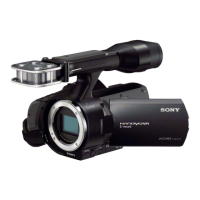
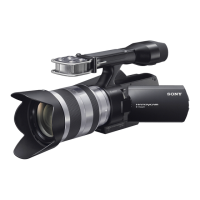
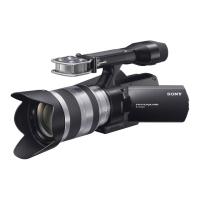
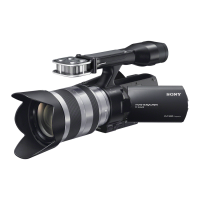
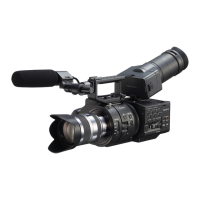
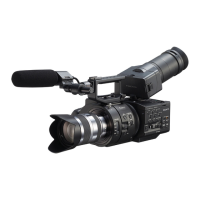
SONY NEX VG900
video camera with
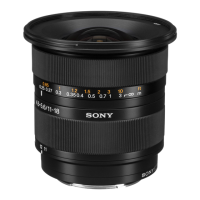
2.8 28-75 Zoom lens
•
lens shade
•
rubber eye cup
•
remote control
•
windscreen
•
battery ( 3 )
•
Power supply
•
Power cable
•
USB cable
•
lapel mic
14
US
Getting Started
Step 1: Checking
supplied items
Make sure that you have following items
supplied with your camcorder.
The numbers in ( ) are the supplied
quantity.
This camcorder (1)
Body cap (attached to the camcorder)
(1) (p
. 20)
AC Adaptor (1) (p. 17)
Power cord (mains lead) (1) (p. 17)
Component A/V Cable (1) (p. 41)
A/V connecting cable (1) (p. 41)
USB cable (1) (p. 52)
ˎ
ˎ
ˎ
ˎ
ˎ
ˎ
ˎ
Wireless Remote Commander (RMT-
835) (1)
A button-type lithium battery is already
installed.
Rechargeable battery pack (NP-FV70)
(1) (p. 17)
Wind Screen (1) (p. 16)
Large eyecup (1) (p. 29)
ˎ
ˎ
ˎ
ˎ
14
US
Getting Started
Step 1: Checking
supplied items
Make sure that you have following items
supplied with your camcorder.
The numbers in ( ) are the supplied
quantity.
This camcorder (1)
Body cap (attached to the camcorder)
(1) (p
. 20)
AC Adaptor (1) (p. 17)
Power cord (mains lead) (1) (p. 17)
Component A/V Cable (1) (p. 41)
A/V connecting cable (1) (p. 41)
USB cable (1) (p. 52)
ˎ
ˎ
ˎ
ˎ
ˎ
ˎ
ˎ
Wireless Remote Commander (RMT-
835) (1)
A button-type lithium battery is already
installed.
Rechargeable battery pack (NP-FV70)
(1) (p. 17)
Wind Screen (1) (p. 16)
Large eyecup (1) (p. 29)
ˎ
ˎ
ˎ
ˎ
14
US
Getting Started
Step 1: Checking
supplied items
Make sure that you have following items
supplied with your camcorder.
The numbers in ( ) are the supplied
quantity.
This camcorder (1)
Body cap (attached to the camcorder)
(1) (p
. 20)
AC Adaptor (1) (p. 17)
Power cord (mains lead) (1) (p. 17)
Component A/V Cable (1) (p. 41)
A/V connecting cable (1) (p. 41)
USB cable (1) (p. 52)
ˎ
ˎ
ˎ
ˎ
ˎ
ˎ
ˎ
Wireless Remote Commander (RMT-
835) (1)
A button-type lithium battery is already
installed.
Rechargeable battery pack (NP-FV70)
(1) (p. 17)
Wind Screen (1) (p. 16)
Large eyecup (1) (p. 29)
ˎ
ˎ
ˎ
ˎ
14
US
Getting Started
Step 1: Checking
supplied items
Make sure that you have following items
supplied with your camcorder.
The numbers in ( ) are the supplied
quantity.
This camcorder (1)
Body cap (attached to the camcorder)
(1) (p
. 20)
AC Adaptor (1) (p. 17)
Power cord (mains lead) (1) (p. 17)
Component A/V Cable (1) (p. 41)
A/V connecting cable (1) (p. 41)
USB cable (1) (p. 52)
ˎ
ˎ
ˎ
ˎ
ˎ
ˎ
ˎ
Wireless Remote Commander (RMT-
835) (1)
A button-type lithium battery is already
installed.
Rechargeable battery pack (NP-FV70)
(1) (p. 17)
Wind Screen (1) (p. 16)
Large eyecup (1) (p. 29)
ˎ
ˎ
ˎ
ˎ
14
US
Getting Started
Step 1: Checking
supplied items
Make sure that you have following items
supplied with your camcorder.
The numbers in ( ) are the supplied
quantity.
This camcorder (1)
Body cap (attached to the camcorder)
(1) (p
. 20)
AC Adaptor (1) (p. 17)
Power cord (mains lead) (1) (p. 17)
Component A/V Cable (1) (p. 41)
A/V connecting cable (1) (p. 41)
USB cable (1) (p. 52)
ˎ
ˎ
ˎ
ˎ
ˎ
ˎ
ˎ
Wireless Remote Commander (RMT-
835) (1)
A button-type lithium battery is already
installed.
Rechargeable battery pack (NP-FV70)
(1) (p. 17)
Wind Screen (1) (p. 16)
Large eyecup (1) (p. 29)
ˎ
ˎ
ˎ
ˎ
14
US
Getting Started
Step 1: Checking
supplied items
Make sure that you have following items
supplied with your camcorder.
The numbers in ( ) are the supplied
quantity.
This camcorder (1)
Body cap (attached to the camcorder)
(1) (p
. 20)
AC Adaptor (1) (p. 17)
Power cord (mains lead) (1) (p. 17)
Component A/V Cable (1) (p. 41)
A/V connecting cable (1) (p. 41)
USB cable (1) (p. 52)
ˎ
ˎ
ˎ
ˎ
ˎ
ˎ
ˎ
Wireless Remote Commander (RMT-
835) (1)
A button-type lithium battery is already
installed.
Rechargeable battery pack (NP-FV70)
(1) (p. 17)
Wind Screen (1) (p. 16)
Large eyecup (1) (p. 29)
ˎ
ˎ
ˎ
ˎ
14
US
Getting Started
Step 1: Checking
supplied items
Make sure that you have following items
supplied with your camcorder.
The numbers in ( ) are the supplied
quantity.
This camcorder (1)
Body cap (attached to the camcorder)
(1) (p
. 20)
AC Adaptor (1) (p. 17)
Power cord (mains lead) (1) (p. 17)
Component A/V Cable (1) (p. 41)
A/V connecting cable (1) (p. 41)
USB cable (1) (p. 52)
ˎ
ˎ
ˎ
ˎ
ˎ
ˎ
ˎ
Wireless Remote Commander (RMT-
835) (1)
A button-type lithium battery is already
installed.
Rechargeable battery pack (NP-FV70)
(1) (p. 17)
Wind Screen (1) (p. 16)
Large eyecup (1) (p. 29)
ˎ
ˎ
ˎ
ˎ
36
US
Adjusting for shooting
conditions
Adjusting Exposure, etc., manually
(MANUAL dial)
It is convenient to make manual
adjustments using the MANUAL dial, by
assigning a menu item ([Exposure] in the
default setting) to the MANUAL button.
How to use the MANUAL dial
Adjust with MANUAL dial to make the
adjustment also when pressing IRIS or
SHUTTER SPEED.
To assign a menu item
Press and hold MANUAL for a few seconds
to display the [MANUAL Button] screen.
Rotate the MANUAL dial to assign an item.
You can assign [Exposure], [AE Shift], [WB
Color Temp.], [WB B-A], or [WB G-M].
Using a tripod
Attach a tripod (sold separately) to the
tripod receptacle using a tripod screw (sold
separately, the length of the screw must be
less than 5.5 mm (7/32 in.)).
MANUAL button
MANUAL dial
Tripod
receptacle
14
US
Getting Started
Step 1: Checking
supplied items
Make sure that you have following items
supplied with your camcorder.
The numbers in ( ) are the supplied
quantity.
This camcorder (1)
Body cap (attached to the camcorder)
(1) (p
. 20)
AC Adaptor (1) (p. 17)
Power cord (mains lead) (1) (p. 17)
Component A/V Cable (1) (p. 41)
A/V connecting cable (1) (p. 41)
USB cable (1) (p. 52)
ˎ
ˎ
ˎ
ˎ
ˎ
ˎ
ˎ
Wireless Remote Commander (RMT-
835) (1)
A button-type lithium battery is already
installed.
Rechargeable battery pack (NP-FV70)
(1) (p. 17)
Wind Screen (1) (p. 16)
Large eyecup (1) (p. 29)
ˎ
ˎ
ˎ
ˎ
14
US
Getting Started
Step 1: Checking
supplied items
Make sure that you have following items
supplied with your camcorder.
The numbers in ( ) are the supplied
quantity.
This camcorder (1)
Body cap (attached to the camcorder)
(1) (p
. 20)
AC Adaptor (1) (p. 17)
Power cord (mains lead) (1) (p. 17)
Component A/V Cable (1) (p. 41)
A/V connecting cable (1) (p. 41)
USB cable (1) (p. 52)
ˎ
ˎ
ˎ
ˎ
ˎ
ˎ
ˎ
Wireless Remote Commander (RMT-
835) (1)
A button-type lithium battery is already
installed.
Rechargeable battery pack (NP-FV70)
(1) (p. 17)
Wind Screen (1) (p. 16)
Large eyecup (1) (p. 29)
ˎ
ˎ
ˎ
ˎ
• Power up the Camera •••
! ! mode button
• Set Date + Time + Area•••
•
Setup menu > Clock icon
•Insert + Format SD card •••
•
Setup menu > Format
•Set Shooting Mode •••
•
press MODE button beside Power switch or
•
use Shooting Mode menu setting
•Recording Format•••
•
Setup menu >Image Quality/Size
•
Frame Rate > 60i, 60p, 24p ( Next )
•
REC Mode > choose Standard.
30
US
Step 7: Inserting a memory card
1
Open the cover, and insert the memory card with the notched edge in the
direction as illustrated until it clicks.
The [Preparing image database file. Please wait.] screen appears if you insert a new
memory card. Wait until the screen disappears.
2
Close the cover.
Notes
If [Failed to create a new Image Database File. It may be possible that there is not enough free space.] is
displayed, format the memory card.
Confirm the direction of the memory card. If you forcibly insert the memory card in the wrong direction,
the memory card, memory card slot, or image data may be damaged.
Do not open the cover during recording.
When inserting or ejecting the memory card, be careful so that the memory card does not pop out and
drop.
To eject the memory card
Open the cover and lightly push the memory card in once.
¦
ˎ
ˎ
ˎ
ˎ
Access lamp
Note the direction of notched corner.
18
US
4
When the battery is charged, disconnect the AC Adaptor from the DC IN
jack of your camcorder.
Charging time
Approximate time (min.) required when you fully charge a fully discharged battery pack.
Battery pack Charging time
NP-FV70 (supplied) 195
NP-FV100 390
The charging times shown in the table above are measured when charging the camcorder at a
temperature of 25
ˇC (77 °F). It is recommended that you charge the battery in a temperature range of
10
ˇC to 30 ˇC (50 °F to 86 °F).
Tips
See page 64 on recording and playing time.
When your camcorder is on, you can check the approximate amount of remaining battery power with the
remaining battery indicator at the upper right on the LCD screen.
To remove the battery pack
Slide the POWER switch to OFF. Slide the BATT (battery) release lever () and remove the
battery pack ().
To use a wall outlet (wall socket) as a power source
Make the same connections as “Step 3: Charging the battery pack” (p. 17). Even if the battery
pack is attached, the battery pack is not discharged.
ˎ
¼
ˎ
ˎ
BATT (battery) release lever
24
US
Step 5: Turning the power on, and setting the
date and time
1
Slide the POWER switch to ON while pressing the green button.
2
Select the desired language, then touch [Next].
3
Select the desired geographical area with
/ , then touch [Next].
To set the date and time again, touch (MENU) [Setup] [ ( Clock Settings)]
[Date & Time Setting] [Date & Time]. When an item is not on the screen, touch
/
until the item appears.
ˎ
POWER switch
Touch the button on the
LCD screen
•Deactivating Auto Shut Off •••
•
Setup menu > General Settings>A. Shut Off
• Set Zebra to 100 % white•••
•
Camera / Mic menu > Shooting Assistant
•
choose Zebra > On
•
use + button to set Zebra to 100
•
turn Zebra on/off with button
• Set Peaking for Focus Assist•••
•
Camera / Mic menu > Shooting Assistant
•
choose Peaking > On
•
set colour and level
•
turn Peaking on/off with button
• Turn on Audio Level Display•••
•
Camera / Mic menu > Shooting Assistant
•
choose Audio Level Display > On
• Set Digital Zoom Speed•••
•
Camera / Mic menu > Shooting Assistant
•
choose Digital Zoom > On
•
choose Zoom Lever > On
•
choose Zoom Speed > Variable or Fixed
•How do we use Zebra ?
A Zebra set at 100% will show that
part of the image that is pure white.
No other part of the image should
have zebra or it is over exposed.
1. Activate Zebra.
2. Place a white piece of paper in
your lighting setup or shot.
3. Adjust the exposure until only
this paper has lines on it.
•
Press Shutter: 60 - 125
•
Press Gain + adjust max 18dB
•
Press Iris + adjust
4. Then reduce the aperture until
the lines disappear.
5. Your image is now a little under
16
US
Step 2: Attaching the
supplied accessories
Attaching the Wind Screen
Use the Wind Screen when you want to
reduce the wind noise recorded by the
microphone. Attach the Wind Screen with
the Sony logo facing down.
•Expanded 4X Focus•••
to assist with manual focus
•Manual White Balance •••
Press White Balance button.
Auto Exposure
Manual Exposure


 To Next Page
 Need help?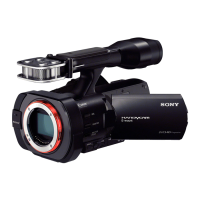




 General