EasyManua.ls Logo

Sony PS3 INFIMOD Remote Control - User Manual

Sony PS3 INFIMOD Remote Control
4 pages
Print Icon
To Next Page IconTo Next Page
Loading...
EN
WARNING
Before using this product, carefully read this manual and retain it for future reference. Read also
the instructions for the PLAYSTATION
®3 system.
Do not touch material from a leaking battery.
Contact of the material with the eyes or body can result in injury or burns to the eyes or skin.
Even if foreign substances are not immediately visible, chemical changes in the material can
result in injuries occurring at a later time.
If you do come in contact with material from a leaking battery, take the following actions:
If the material gets into the eyes, do not rub. Flush the eyes with clean water and immediately
seek medical attention.
If the material comes into contact with the skin or clothes, rinse the affected area thoroughly
with water. Consult your doctor if inflammation or soreness develops.
Precautions
Battery use
Never throw batteries into a fire.
Do not use batteries other than those specified, and always replace with the same type of
battery. Do not mix old and new batteries.
Insert batteries with the plus and minus ends in the correct direction.
Remove batteries when they have reached the end of their life, or if the BD remote control is to
be stored for an extended period of time.
Use and handling
Do not expose the BD remote control to high temperatures, high humidity or direct sunlight.
Do not allow liquid or small particles to get into the product.
Do not put heavy objects on the product.
Never disassemble or modify the product.
Do not throw or drop the product, or subject it to strong physical shock.
Do not place any rubber or vinyl materials on the product exterior for an extended period of
time.
When cleaning the product, use a soft, dry cloth. Do not use solvents or other chemicals.
Preparing for use
Inserting the batteries
Remove the cover from the BD remote control rear and insert the supplied batteries. Set the
batteries in the correct position.
Updating the PS3™ system
PS3™ system software version 1.30 or later is required to use the BD remote control. To check
the system software version, from the PS3
TM
system’s home menu, select (Settings) >
(System Settings) > “System Information”.
You must update the system software if it is a version earlier than 1.30. Use any of the following
methods to perform the update.
Network update
Download the update data directly to the PS3™ system. From the system’s home menu, select
(Settings) > (System Update) > “Update via Internet”.
Update using a PC
Use a PC to download the update data to compatible storage media.
For details, visit http://asia.playstation.com.
For other update methods, contact the PS3
TM
service line at the number listed on your warranty
card for assistance.
Registering the BD remote control with the PS3™ system
Before using the BD remote control, you must register (“pair”) the remote control with the PS3™
system. This operation is performed only once when you are using the remote control for the first
time.
Turn on the PS3™ system.
From the system’s home menu, select
(Settings) > (Accessory Settings)
> “Register Bluetooth
®
Device”, and then press the button.
Select the type of device to register.
Follow the on-screen instructions.
Hints
Only one BD remote control can be registered with the PS3™ system.
If you register the BD remote control with another PS3™ system, you will have to re-register if
you want to use the remote control again with the first PS3™ system.
Basic operations
Basic operation of the BD remote control
This manual explains button operations for Blu-ray Disc (BD) playback. The same operations
can also be performed when playing DVD videos, videos saved on the hard disk drive or audio
CDs, with the exception of some functions.
Notice
Some content may have preset playback conditions set by the content developer. In this case,
some button operations of the remote control may not be available.
1
2
3
4
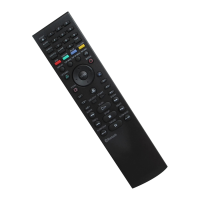
button operations (refer to diagram)
EJECT button Eject the disc.
AUDIO button Change audio on BDs with multiple audio tracks recorded.
ANGLE button Change viewing angles on BDs with multiple angles recorded on
the same scene.
SUBTITLE button Change the language for subtitles on BDs with subtitles
recorded.
CLEAR button Clear entered numbers.
TIME button View the elapsed time or remaining time of a title or chapter.
0-9 button Enter numbers.
RED, GREEN,
YELLOW, BLUE button
Perform functions assigned to each button.
(Assigned functions vary depending on the content being
played.)
DISPLAY button View status information or other information on the content
being played.
TOP MENU button View the content’s top menu.
POP UP/MENU button View the content’s pop-up menu.
RETURN button Return to a specific point in the video.
button operations (refer to diagram)
/OPTIONS, /VIEW,
/BACK, button
Perform the same operations as the SIXAXIS
TM
wireless
controller for the PS3
TM
system.
Directional buttons
(PS button)
L1, R1, L2, R2, L3, R3
button
SELECT, START button
ENTER button
Perform the same operation as the button on the SIXAXIS
TM
wireless controller for the PS3™ system.
button operations (refer to diagram)
PLAY button Start playback.
STOP button Stop playback.
PAUSE button Stop playback temporarily.
SCAN, SCAN
button
Fast forward or fast reverse playback. Playback speed changes
each time you press the button.
PREV, NEXT
button
Move to the previous or next chapter.
/
SLOW/STEP,
/ SLOW/STEP
button
Play content one frame at a time. If you press and hold down the
button, content plays in slow motion.
Hint
Pressing any button on the BD remote control when the PS3™ system is turned off (in standby
mode) will turn on the system.
If the battery charge is low
When the battery charge is low, the remote control may not operate properly or the distance
within which you can operate the remote control may become shorter. In this case, replace both
batteries with new ones.
Specifications
Power source Type AA batteries (2)
External dimensions Approx. 51 × 25.5 × 219 mm / 2 × 1 × 8.6 in (w × h × d)
Operating temperature 5°C – 35°C / 41°F – 95°F
Design and specifications are subject to change without notice.
Blu-ray Disc remote control
Instruction Manual / /
3-097-863-22(1)
CT
嫊⎮
⚌ợ䒌㚐䒆␥↱濇娯€姗䲔攕嫤㚐娎㕲㙜ᶊ⤉ⓨὁ⪼濇ṉ´⭫Ừ⌧佧ᶯ䒌Ɂ⍰㖦Ḋ娯⌧攕
PLAYSTATION
®
3ᶟ㧃䗨ợ䒌娎㕲㙜Ɂ
娯≣䠔奜兎晟㯄⡺㲍䗨ṟẹ䇍屎Ɂ
䚠䚿ㅺ帏樸剉䠔奜彽󰶠㙭㬶䇍屎⍓偡㙧⭲兘䚠䚿ㅺ䘒僾⌻↔㍱‛ㅺ‛⬗Ɂ
ᾫ⣦「ᵱゲ䠔奜󰶋彽󰶠兎晟㯄⡺㲍䗨䇍屎濇娯⋗↟㌅⌺ṉᵯ垰∹Ɂ
䓚㙭㬶䇍屎徖⃉䚠䚿㖦濇≣䒌ㆯ㌭䚠䚿Ɂㄭ䨯⋗䒌󰶃㵌㵩㮘㯺㱻䚠䚿ᶊ㌉⌻意䒃䗨妞䖦Ɂ
䓚㙭㬶䇍屎㹖⃉䘒僾ㅺ埇㙱㖦濇ㄭ䒌󰶃㵌㵩㮘⼝ⷹ㯺㱻忑㹖⃉恌ằɁ剉⹹峛䗠㿲ㅺ䔠
䔿濇娯弩徃姆⒳「䗨⬚⸑意䒃Ɂ
ợ䒌↱杬䝉󰶐杩
ợ䒌晟㯄㖦
䲹ᵱ壥⭫晟㯄ᶃ⃉㿏ᶑɁ
娯≣ợ䒌曂㉫⫾䗨晟㯄濇ᵸ䳷⶜㙘㌿䙜⍰柂⛯䗨晟㯄ɁⅫ≣㵛䒌㔔兮晟㯄Ɂ
杬ἁ㫇䠞㔝⍵㌶⃉晟㯄䗨㫇射㣙Ɂ
晟㯄⡡⏡ⵖ䙅ㅺㆷ䫻擛㖦擷ᵱợ䒌BD徽㌋◌㖦濇娯⌺⅞晟㯄Ɂ
ợ䒌八ὁ桮
娯≣⭫BD徽㌋◌㒢⚌樼㸏ɀ㼹㮇㣙愱ㅺ⌻㕉₭䙘⭨䗨⚔㔝Ɂ
娯≣嫷㴖樸ㅺ⭳枪䯶㋭⃉㚐䒆␥ᶑɁ
娯≣⚌㚐䒆␥ᵮ㒢仒愱䇍Ɂ
Ⅻ≣Ⅺ奇ㅺ㒝径㚐䒆␥Ɂ
娯≣ㇹ㑖ɀ吨び㋭厡㚐䒆␥ㅺợ󱁻⌻↔⺛䀬䗨⡺⇿㐂㐮Ɂ
娯≣⭫㚐䒆␥擛㖦擷㒢仒⚌㧅億ㅺ➵億㚴屎䗨斨張Ɂ
し㵩㺸㚐䒆␥㖦濇晤ợ䒌󰶃㵌幃ⵧɁ娯≣ợ䒌㸚⇵ㅺ󱁻Ḻ≺⫝̸啉⇵Ɂ
ợ䒌↱䗨㷺´
塁⃉晟㯄
㈸峛BD徽㌋◌倰曆䗨晟㯄启濇ᶊ塁⃉晟㯄Ɂ杬ἁ㫇䠞ằ仒塁⃉晟㯄Ɂ
㙘㔔PS3™ᶟ㧃
PS3
TM
ᶟ㧃䗨䱟䳕幃Ṛ晤㙘㔔䀞1.30ㅺṉᵮ䆬㚐⤯⍓ợ䒌BD徽㌋◌Ɂ剉し䠞姱䱟䳕幃Ṛ
䗨䙒↱䆬㚐濇娯徖⃉PS3
TM
ᶟ㧃䗨ᶟ応┒濇ᶊ応㐫 Settings濕妑⫾濄> System
Settings濕ᶟ㧃妑⫾濄>ĥSystem Information濃䱟䳕尫奮濄ĦɁ
剉䆬㚐Ẳ㔠1.30「⼩杬€㙘㔔䱟䳕幃ṚɁ娯↍䒌ᵯ彔㔝㰹❛垰㙘㔔Ɂ
䴖嵓㙘㔔
⭫ᵯ幭尫㓽䙘㌉ᵯ幭兗PS3
TM
ᶟ㧃Ɂ徖⃉ᶟ㧃䗨ᶟ応┒⻰濇応㐫 Settings濕妑⫾濄>
System Update濕䱟䳕㙘㔔濄>ĥUpdate via Internet濃彳徲䴖旿䴖嵓㙘㔔濄ĦɁ
ợ䒌晟僊㙘㔔
ợ䒌晟僊ᵯ幭㙘㔔尫㓽兗⍨䦒䙜⬝⧶樸Ɂ
姗䲔娎㕲娯㽳夡ṉᵯ䴖䨽Ɂ
http://asia.playstation.com
剉「し󰶋奇󱁻Ḻ䗨㙘㔔㔝㰹濇娯俓䳅ὁ媭㙜ᵮ奼幭䗨PLAYSTATION
®
3㳬尟佩㙱∽ᶑ⼧Ɂ
BD徽㌋◌䗟扨兗PS3™ᶟ㧃
擯⤯ợ䒌BD徽㌋◌↱濇「⼩杬€⭫徽㌋◌䗟扨ĥ悱仒ĦPS3
TM
ᶟ㧃ᵮɁ㫈杩㐱Ề󰿊晤㔠「
棺㪅ợ䒌㌋↚◌㖦❛垰Ɂ
Ⓝ∹PS3
TM
ᶟ㧃Ɂ
徖⃉ᶟ㧃䗨ᶟ応┒濇応㐫
Settings濕妑⫾濄> Accessory Update濕⏌忮㙘
㔔濄>ĥRegister Bluetooth
®
Device濃䗟扨唱刡塁仒濄Ħ⻰濇㉭ᵯ㉭慹Ɂ
応㐫壥䗟扨ᶯ塁仒䗨柂⛯Ɂ
⍰㖦㉭ᵯBD徽㌋◌䗨START濃擯⤯濄㉭慹⏰ENTER濃㯞⫾濄㉭慹ᶊ㉥䷰奜䠔⃍䤶捼
ṉᵮɁ
徽㌋◌徖⃉䗟扨㦅⹳Ɂ娯忙⼎䓏曆ᵮ䗨㉫䢞䗟扨徽㌋◌Ɂ
㌴䢞
㬳⍔PS3
TM
ᶟ㧃󰿊⍓䗟扨ᵤ⍔BD徽㌋◌Ɂ
BD徽㌋◌䗟扨兗⍊ᵤ⍔PS3
TM
ᶟ㧃⻰濇剉⵰㙿䷠䷰⚌⌃€䗟扨䗨PS3
TM
ᶟ㧃ᵮợ䒌濇
「⼩杬愱㔔䗟扨Ɂ
❞㚐㐱Ề
BD徽㌋◌䗨❞㚐㐱Ề
㚐娎㕲㙜⭫娎㕲㐑㒢Blu-ray Disc濃唱₭₭䠃濄㖦䗨㉭慹㐱Ề㔝㰹Ɂ旈恌ṡ㉭慹⡺濇㐑㒢
DVD videoㅺ杗㥦CD㖦䗨㐱Ề㔝㰹Ḋ⍰Ɂ
㱌び
恌Ⅺ⃋⬝ᶯ㐑㒢㔝⹳⍓偡㙧♄塡Ề佩䗨び♺佰堏杴€妑⫾Ɂ徫㫈〩⻆㖦濇徽㌋◌䗨恌Ⅺ
㉭慹㐱Ề⍓偡䂅㒬Ɂ
1
2
3
4
Question and Answer IconNeed help?

Do you have a question about the Sony PS3 INFIMOD Remote Control and is the answer not in the manual?

Summary

Precautions

Battery Use

Guidelines for safe and proper battery usage and replacement.

Use and Handling

Instructions for product care, handling, and cleaning to prevent damage.

Setup and Preparation

Inserting Batteries

Steps to insert batteries into the remote control.

System Software Update

Instructions to update PS3™ system software for remote compatibility.

Registering the Remote

Process to pair the BD remote control with the PS3™ system.

Basic Operations

Remote Control Button Functions

Overview of button operations for Blu-ray Disc playback and other media.

Detailed Button Operations

Group A Button Operations

Explains functions for A group buttons like EJECT, AUDIO, and number keys.

Group B Button Operations

Explains functions for B group buttons like OPTIONS, VIEW, and directional controls.

Group C Button Operations

Explains functions for C group buttons like PLAY, STOP, PAUSE, and scan.

Specifications and Maintenance

Low Battery Indicator

Symptoms and solution for low battery charge.

Product Specifications

Technical details including power source and dimensions.

Overview

This document describes the Blu-ray Disc remote control for the PlayStation 3 system, outlining its functions, usage, and maintenance. The remote control is designed to enhance the media playback experience on the PS3, offering dedicated buttons for various Blu-ray Disc, DVD, video, and audio CD operations.

Function Description

The Blu-ray Disc remote control provides a comprehensive set of buttons for navigating and controlling media playback on the PlayStation 3. It is divided into several functional areas:

  • General Control Buttons (A):

    • EJECT: Ejects the disc from the PS3 system.
    • AUDIO: Allows users to change the audio track on Blu-ray Discs that have multiple audio tracks recorded.
    • ANGLE: Enables switching between different viewing angles on Blu-ray Discs that feature multiple angles recorded for the same scene.
    • SUBTITLE: Changes the language for subtitles on Blu-ray Discs that have subtitles recorded.
    • CLEAR: Clears any numbers that have been entered.
    • TIME: Displays the elapsed time or remaining time of a title or chapter.
    • 0-9 Buttons: Used for entering numbers, likely for chapter selection or specific time jumps.
    • RED, GREEN, YELLOW, BLUE Buttons: These colored buttons perform functions assigned to them, which can vary depending on the content being played.
    • DISPLAY: Shows status information or other relevant details about the content currently being played.
    • TOP MENU: Accesses the top menu of the content.
    • POP UP/MENU: Displays the content's pop-up menu.
    • RETURN: Returns to a specific point in the video, often the previous menu or a bookmark.
  • Navigation and System Control Buttons (B):

    • Δ/OPTIONS, /VIEW, X/BACK, O Buttons: These buttons replicate the functions of the corresponding buttons on the SIXAXIS™ wireless controller for the PS3 system, providing familiar navigation within menus and content.
    • Directional Buttons: Used for navigating through menus and selections.
    • (PS Button): Functions similarly to the PS button on the SIXAXIS™ wireless controller, typically used to access the XMB (XrossMediaBar) or turn the system on/off.
    • L1, R1, L2, R2, L3, R3 Buttons: These buttons also mirror their counterparts on the SIXAXIS™ wireless controller, offering additional control options within games or specific media applications.
    • SELECT, START Buttons: Perform the standard SELECT and START functions found on the SIXAXIS™ wireless controller.
    • ENTER Button: Confirms selections, similar to the O button on the SIXAXIS™ wireless controller.
  • Playback Control Buttons (C):

    • PLAY: Initiates playback of the content.
    • STOP: Halts playback completely.
    • PAUSE: Temporarily suspends playback.
    • SCAN (Fast Forward) / SCAN (Fast Reverse) Buttons: Allows for fast forwarding or fast reversing through the content. Each press of the button changes the playback speed.
    • PREV (Previous Chapter) / NEXT (Next Chapter) Buttons: Moves to the beginning of the previous or next chapter in the content.
    • SLOW/STEP (Frame-by-Frame) / SLOW/STEP (Slow Motion) Buttons: Allows for playing content one frame at a time with a single press. If held down, the content plays in slow motion.

Usage Features

  • System Compatibility: The remote control requires PS3™ system software version 1.30 or later. Users must ensure their system software is up-to-date, which can be done via network update or by downloading the update data to a PC and transferring it to compatible storage media.
  • Bluetooth Connectivity: The remote control connects to the PS3 system via Bluetooth®. This requires a one-time registration process (pairing) with the PS3 system.
  • Registration Process:
    1. Turn on the PS3™ system.
    2. Navigate to the system's home menu, select (Settings) > (Accessory Settings) > "Register Bluetooth® Device," and press the button.
    3. Select the type of device to register.
    4. Follow the on-screen instructions to complete the pairing.
  • Single Device Registration: Only one BD remote control can be registered with a PS3™ system at a time. If the remote is registered with a different PS3, it must be re-registered with the original system to be used again.
  • Power On Functionality: Pressing any button on the BD remote control will turn on the PS3™ system if it is in standby mode.
  • Media Versatility: While primarily designed for Blu-ray Disc playback, the remote control also supports operations for DVD videos, videos saved on the hard disk drive, and audio CDs, with some minor functional exceptions.
  • Content-Specific Limitations: It's important to note that some content may have preset playback conditions set by the content developer, which might limit the availability of certain remote control button operations.

Maintenance Features

  • Battery Installation: The remote control uses two AA batteries. To install, remove the cover from the rear of the remote and insert the batteries, ensuring correct polarity.
  • Battery Replacement: When the battery charge is low, the remote control may not operate properly, or its effective operating distance may decrease. In such cases, both batteries should be replaced with new ones.
  • Battery Handling Precautions:
    • Never dispose of batteries in fire.
    • Use only the specified type of batteries and replace with the same type.
    • Do not mix old and new batteries.
    • Insert batteries with the correct plus and minus ends.
    • Remove batteries if they have reached the end of their life or if the remote control will be stored for an extended period.
  • General Handling Precautions:
    • Avoid exposing the remote control to high temperatures, high humidity, or direct sunlight.
    • Prevent liquids or small particles from entering the product.
    • Do not place heavy objects on the remote control.
    • Never disassemble or modify the product.
    • Avoid throwing, dropping, or subjecting the product to strong physical shock.
    • Do not place rubber or vinyl materials on the product exterior for extended periods.
  • Cleaning: When cleaning the product, use a soft, dry cloth. Do not use solvents or other chemicals, as these can damage the device.
  • Leaking Battery Precautions:
    • If material from a leaking battery comes into contact with the eyes, do not rub. Flush the eyes with clean water immediately and seek medical attention.
    • If material comes into contact with skin or clothes, rinse the affected area thoroughly with water and consult a doctor if inflammation or soreness develops. Contact with battery material can cause injury or burns, even if not immediately visible.

Sony PS3 INFIMOD Remote Control Specifications

General IconGeneral
TypeRemote Control
PlatformSony PlayStation 3
ConnectivityBluetooth
PowerBattery
BrandSony
ModelINFIMOD
Compatible DevicesSony PlayStation 3
Battery TypeAAA
Number of Batteries2

Related product manuals