RDP-X60iP_4-278-207-11(1)_U8
RDP-X60iP_4-278-207-11(1)_U8
Operations
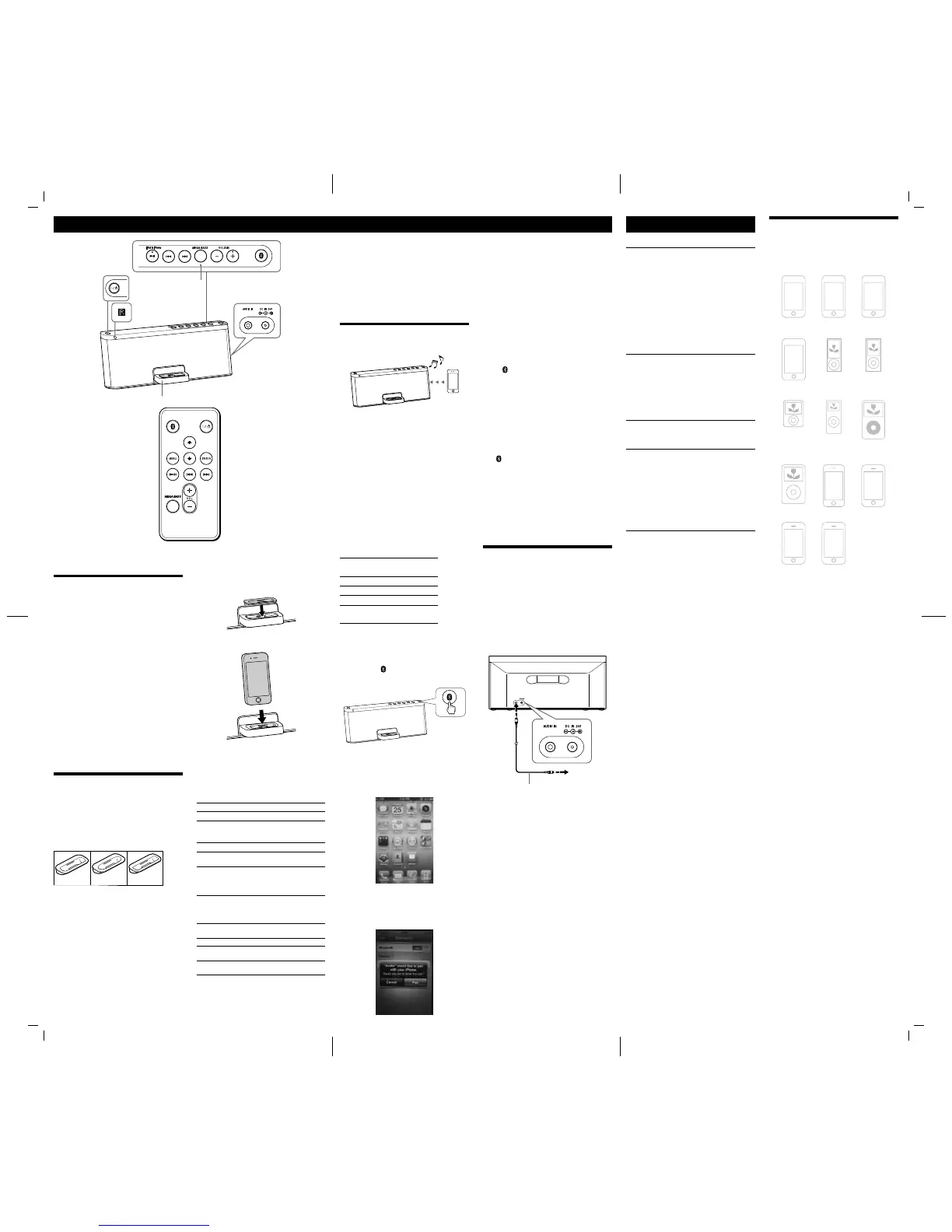
MEGA BASS
indicator
Remote sensor
Docking Tray
VOLUME + (VOL + on the remote commander) and buttons have a tactile dot.
Before using the unit
To turn on/off the unit
Press (power).
The (power) button indicator will light up in green
when the unit is turned on.
To adjust the volume
Press VOLUME +/− (VOL +/− on the remote
commander).
Tips
The (power) button indicator flashes three times when the
sound is set to either maximum or minimum volume.
To reinforce the bass sound
Press MEGA BASS.
The MEGA BASS indicator lights up.
You can achieve high quality bass sound. To return to
normal sound, press the button again.
Power management system
After playback of the iPod (or component connected to
AUDIO IN jack) has finished, if no operation is
performed for about 30 minutes, the unit will
automatically turn off.
Playing an iPod
When setting an iPod in the unit, use the supplied
universal dock adapter with your iPod or commercially
available products from Apple Inc.
If you are using an iPhone, iPhone 3G, iPhone 3GS or
iPhone 4, attach the supplied universal dock adapter ,
, or . The respective adapter number is located on
the underside of each adapter.
Supplied Universal Dock Adapter
Notes
To use an iPod, refer to the user’s guide of your iPod.
The connector of the unit is exclusively for use with an iPod. If you
use a device that does not match the connector, connect it to the
AUDIO IN jack of this unit with the supplied audio connecting
cable.
Sony cannot accept responsibility in the event that data recorded on
an iPod is lost or damaged when using an iPod connected to this
unit.
For details of environmental conditions for operating your iPod,
check the website of Apple Inc.
Notes
The display and operation may vary between iPod models. For
details, refer to the user’s guide of your iPod.
Pairing mode is canceled after about 5 minutes. If pairing mode is
canceled halfway, start over from step 2.
If pairing is not complete, start over from step 2.
To pair with another iPod, repeat steps 1 to 4.
If you turn off the unit or the iPod before the Bluetooth connection
is complete, pairing information will not be memorized, and pairing
will not be completed.
If Passcode input is required in the display, input “0000.”
Operation of Bluetooth devices (other than iPod) is not guaranteed.
To listen to the sound
Keep the iPod and the unit within 10 meters (about 30 ft)
of each other for this operation.
Check the following before operating the unit.
The Bluetooth function of your iPod is on.
Pairing of the unit and your iPod is complete.
1 Press to turn on the unit.
2 Press to turn on the Bluetooth.
3 Start the Bluetooth connection from your iPod.
The last connected device will be reconnected
automatically when the Bluetooth function is
activated again. Press “Connect” (on the screen of the
iPod) to connect other devices memorized in the unit.
4 Select music, video, game, etc., to play on your iPod.
For details, refer to the user’s guide of your iPod.
To finish listening
Terminate the Bluetooth connection by any of the
operations below.
Press to turn off the Bluetooth. (Bluetooth indicator turns off.)
Operate the iPod to terminate the connection.
Turn off the unit.
Operate the iPod to terminate the connection.
For details, refer to the user’s guide of your iPod.
To use this unit as a battery charger
for your iPod
You can use the unit as a battery charger for your iPod.
Charging begins when the iPod is connected to the unit.
The charging status appears in the display on iPod. For
details, see the user’s guide of your iPod.
Connecting optional
components
You can enjoy the sound from an optional component,
such as a portable digital music player, through the
speakers of this unit. Be sure to turn off the power of
each component before making any connections.
1 Firmly connect the line output jack of a portable
digital music player (or other component) to the
AUDIO IN jack on the back of the unit, using a
suitable audio connecting cable (not supplied).
2 Press to turn on the unit.
3 Turn the connected component on.
Audio connecting
cable (not supplied)
To external
equipment
Notes
The audio connecting cable required depends on the external
equipment. Make sure the cable is correct for the external
equipment to be connected.
If the volume level is low, adjust the volume of the unit first. If the
volume is still too low, adjust the volume of the connected
equipment.
When playing an external component connected to the AUDIO IN
jack, stop playback of your iPod.
Disconnect the audio connecting cable when audio-in is not in use.
Notes
When placing or removing the iPod, hold the iPod at the same angle
as that of the connector on this unit, and do not twist or bend the
iPod as it may result in connector damage.
Do not carry the unit with an iPod set on the Docking Tray. Doing
so may cause a malfunction.
When placing or removing the iPod, hold the Docking Tray
securely.
Before disconnecting the iPod, pause playback.
If the battery of your iPod is extremely low, charge it for a while
before operation.
An iPod touch/iPhone will not work unless it is turned on. Be sure
to turn on the power of the iPod touch/iPhone before operation.
Using the Bluetooth Connection
By using the Bluetooth connection, you can listen to the
sound from an iPod with the unit wirelessly.
Note
For details on how to operate the iPod to be connected, refer to the
user’s guide of your iPod.
Supported iPod models
iPod touch 4th generation, iPod touch 3rd generation,
iPod touch 2nd generation, iPhone 4, iPhone 3GS,
iPhone 3G and iPad.
On pairing
What is pairing?
Bluetooth devices need to be “paired” with each other
beforehand.
Once Bluetooth devices are paired, there is no need for
pairing again, except in the following cases:
Pairing information is deleted after repair, etc.
The unit is paired with 9 or more iPod models. The unit can be
paired with up to 8 iPod models. If a new iPod is paired after 8 iPod
models have been paired, the iPod whose latest connection time is
the oldest among the 8 paired iPod models is replaced by the new
one.
On Bluetooth indicator (JEITA*)
Status Bluetooth
indicator (blue)
Bluetooth off Off
Bluetooth on Flashes slowly
Paring mode Flashes quickly
Connecting or
communicating
Lights up
To pair with an iPod
Keep the iPod and the unit within 1 meter (3 ft) of each
other for this operation.
1 Press to turn on the unit.
2 Press and hold until the Bluetooth indicator flashes
quickly.
Pairing mode of the unit is activated.
3 Perform the pairing procedure on your iPod to detect
the unit. Select “Bluetooth” from “General” under
“Settings” on your iPod and turn Bluetooth on.
A list of detected devices appears on the display.
The unit is displayed as “RDP-X60iP.”
If “RDP-X60iP” is not displayed, repeat from step 2.
4 Select “RDP-X60iP” displayed on the screen of the
iPod.
When “Connected” appears on the screen of the iPod,
connection is complete.
If the below pop-up window appears, select “Pair.”
1 Attach the adapter for your iPod/iPhone.
2 Set your iPod/iPhone in the Docking Tray.
Tip
Remove the case or cover from your iPod before setting it in the tray
to ensure a stable connection.
3 Press (direct power-on).
The iPod begins to play back.
You can operate the connected iPod via this unit or
the iPod itself.
To Press
Turn off the iPod
Press and hold .
Pause playback
To resume play, press it
again.
Go to the next track
(forward)
Go back to the previous
track
(backward)*
1
Locate a point while
listening to the sound
(forward) or
(backward) while
playing and hold it until
you find the point.
Locate a point while
observing the display on
iPod
(forward) or
(backward) in pause
and hold it until you find
the point then press .
Go back to the previous
menu
MENU*
2
Go back to the main menu
Press and hold MENU*
2
Select a menu item or a
track for playback
(up)/ (down)*
2
Execute the selected menu
item or begin playback
ENTER*
2
*
1
During playback, this operation returns to the
beginning of the current track. To go back to the
previous track, press twice.
*
2
These operations are available only when using the
supplied remote commander.
Troubleshooting
General
The power is not on.
Make sure the AC power cord is connected to the wall outlet firmly.
There is no audio.
Adjust VOLUME +/− (VOL +/− on the remote commander).
Noise is heard.
Ensure that the unit is not in the vicinity of in-use portable phones,
etc.
The two different music sources will be mixed
together during playback.
Stop playback of your iPod or external component.
The (power) button indicator flashes.
If the unit often turns off automatically after flashing, even though
the AC power cord is reconnected, consult your nearest Sony dealer.
iPod
There is no audio.
Make sure the iPod is connected firmly.
Operation is not performed.
Make sure the iPod is connected firmly.
The iPod does not charge.
Make sure the iPod is connected firmly.
Make sure the AC power adaptor is connected firmly.
Audio-in
There is no audio.
Make sure the Audio connecting cable is connected firmly.
remote commander
The remote commander does not function.
Replace the battery in the remote commander with a new one if it is
weak.
Make sure that you are pointing the remote commander at the
remote sensor on the unit.
Remove any obstacles in the path of the remote commander and the
unit.
Make sure the remote sensor is not exposed to strong light such as
direct sunlight or fluorescent lamp light.
Move closer to the unit when using the remote commander.
If the problem persists, consult your nearest Sony dealer.
When using the Bluetooth connection
No sound
Ensure that this unit is not too far from the Bluetooth stereo audio
source device, or this unit is not receiving interference from a
wireless LAN, other 2.4 GHz wireless device, or microwave oven.
Check that the Bluetooth connection is made properly between this
unit and the Bluetooth stereo audio source device.
Pair this unit and the Bluetooth stereo audio source device again.
Keep away from metal objects or surfaces.
Sound skips or the correspondence distance is short.
If a device that generates electromagnetic radiation, such as a
wireless LAN, other Bluetooth device(s), or a microwave oven is
nearby, move away from such sources.
Remove any obstacle between this unit and iPod or move away from
the obstacle.
Locate this unit and iPod as near as possible.
Re-position this unit.
Re-position iPod.
Pairing cannot be done.
Bring this unit and the iPod closer together.
Sound is delayed.
If you watch a TV or a DVD through Bluetooth connection via this
unit, sound may lag behind the picture.
If the problem persists, consult your nearest Sony dealer.
Compatible iPod/iPhone
models
The compatible iPod/iPhone models are as follows.
Update software of your iPod/iPhone to the latest version
before using it with this unit.
iPhone 4
iPod touch
4th generation
iPod nano
4th generation
(video)
iPod nano
3rd generation
(video)
iPod nano
2nd generation
(aluminum)
iPod
5th generation
(video)
iPod touch
1st generation
iPod nano
5th generation
(video camera)
iPod touch
3rd generation
iPod touch
2nd generation
iPod classic
iPhone 3GS
iPhone 3G
iPhone
Notes
The connector of the unit is solely for use with an iPod. If you use
devices that do not have the same connector, connect to the AUDIO
IN jack of this unit with the supplied audio connecting cable.
Sony cannot accept responsibility in the event that data recorded to
an iPod is lost or damaged when using an iPod connected to this
unit.


 To Previous Page
 Loading...