2
3
4
1
2
Press the HOME/ (HOME) button, and select Apps from the Home menu,
then select [Media Player].
If the supplied remote control has an APPS button, you can press the APPS button.
Select the network device name.
Select the folder, and then select the file to play.
To check the supported file formats
Supported files and formats
Note
Depending on the file, playback may not be possible even when using the supported
formats.
Related topics
Adjusting home network settings
[85] Home network features | Home network features
Playing content from a media server
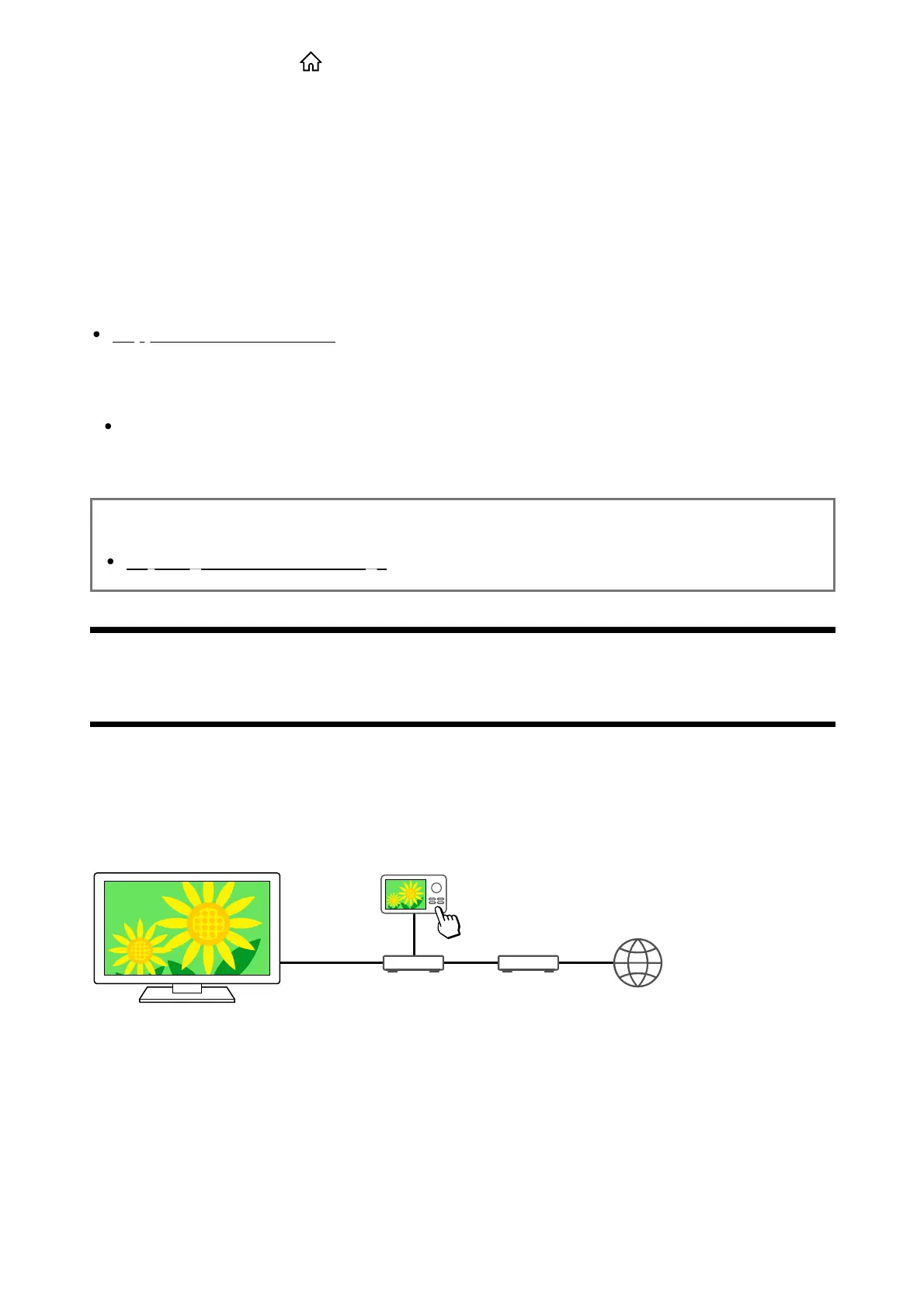
You can play photo/music/video files in a controller (e.g., digital still camera) on the TV screen
by operating the controller directly, if you connect the TV to a home network via a router. The
controller should also be renderer-compatible.
(A) Digital still camera (Controller)
(B) Router
(C) Modem
(D) Internet
Connect the TV to your home network.
Operate the controller to start playing the content on the TV screen.


 To Next Page