EasyManua.ls Logo

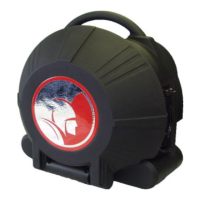
Spartan Tool PROvision 2.0 - User Manual

Spartan Tool PROvision 2.0
52 pages
Print Icon
To Next Page IconTo Next Page
Loading...
SPARTAN TOOL L.L.C.
8 0 0 . 4 3 5 . 3 8 6 6
WWW.SPARTANTOOL.COM
PROvision 2.0
V i d e o I n s p e c t i o n S y s t e m
Owners Manual
SPSP
SPSP
SP
ARTART
ARTART
ART
ANAN
ANAN
AN
63026000 (Rev. A) 4-3-07 © 2007 Spartan Tool LLC

Questions and Answers

  • E
    Edgar PerezAug 12, 2025
    What to do if the VR on my Spartan Tool PROvision 2.0 Security System will not record?
    • J
      jennifer35Aug 12, 2025
      If the VR (Video Recorder) on your Spartan Tool Security System isn't recording, first ensure that a Compact Flash or Memory Stick Duo Card is properly inserted. If the card is inserted, check if it's full and delete any unnecessary files to free up space.
  • A
    Amanda GordonAug 15, 2025
    Why my Spartan Tool Security System doesn't power on with AC?
    • J
      josephnguyenAug 15, 2025
      If your Spartan Tool Security System isn't powering on with AC, there are several potential causes: * The AC outlet may not be powered. Test the outlet to ensure it's providing current. * The AC power cord may be faulty. Try using an alternative power cord or a 12V power cord. * The AC power cord fuse might be blown. Check the fuse to see if it's intact. * The power unit itself may have failed. In this case, contact Spartan Tool Customer Service at (800) 435-3866. Never attempt to repair the power unit yourself.
  • K
    Katherine WatersAug 19, 2025
    What to do if my Spartan Tool PROvision 2.0 doesn't power on with a 12V power cord?
    • C
      Carlos BryantAug 19, 2025
      If your Spartan Tool Security System fails to power on when connected to a 12V power cord, consider these possibilities: * The 12V power cord or its connections may be faulty. Test the unit with an alternative power cord or an AC power cord. * The fuse in the 12V power cord may be blown. Inspect the fuse located inside the body of the 12V power cord. * The power unit itself may have failed. Contact Spartan Tool Customer Service at (800) 435-3866. Never attempt to repair the power unit yourself.
  • M
    Michelle BoydAug 23, 2025
    How to fix a dim picture on my Spartan Tool PROvision 2.0?
    • S
      Shannon BrownAug 25, 2025
      If the picture on your Spartan Tool Security System is dim or hard to see, there are a couple of things you can check: * The light intensity adjustment may be set too low. Press the MAX button to increase the light intensity. * Water may have accumulated in the camera unit. Place the camera unit in a warm, dry, climate-controlled environment for up to 72 hours and then test again.
  • R
    Ryan KaufmanAug 27, 2025
    Why is the distance counter on my Spartan Tool PROvision 2.0 not counting correctly?
    • P
      psnowAug 27, 2025
      If the distance counter on your Spartan Tool Security System is not counting or is counting incorrectly, check the following: * The rollers may be binding. Ensure that the rollers spin freely. * The push-rod may be slipping. Clean the rollers with a mild cleaning detergent.
  • M
    Mary AdamsAug 30, 2025
    What to do if the operation key on my Spartan Tool PROvision 2.0 does not work?
    • P
      Paul SolomonAug 30, 2025
      If the operation key on your Spartan Tool Security System does not work, the battery in the DVR Control Pad may be dead. Remove the DVR Control Pad and replace the battery with a CR 2025 or equivalent.
  • E
    Evan GallowaySep 3, 2025
    How do I display the distance counter text on my Spartan Tool PROvision 2.0 screen?
    • J
      Jessica SmithSep 3, 2025
      If the distance counter text is not displayed on the screen of your Spartan Tool Security System, the position of the text may be in the off position. Push in the POS button until the text is displayed on the screen monitor.
  • C
    Cody WalkerSep 7, 2025
    How to turn on the Spartan Tool PROvision 2.0?
    • A
      Alexander CordovaSep 7, 2025
      To turn on the Spartan Tool Security System, charge the battery or operate PROvision 2.0 using either 110/220V AC or 12V DC power cord.

Summary

Safety Instructions

General Safety and PPE

Covers personal protective equipment and general safety warnings for operation.

Electrical and Environmental Safety

Details electrical grounding, extension cord use, and precautions in wet or hazardous environments.

Health and Chemical Precautions

Addresses risks from bacteria, infectious agents, and chemical exposure during use.

PROvision 2.0 Features

Familiarization with PROvision 2.0

Control Panel and Keypad Functions

Explains the physical layout and operational functions of the control panel and keypad.

DVR Control Pad Operations

Explains the functions of the DVR control pad buttons for recording and playback.

Battery Operation and Charging

Charging Procedures

Detailed instructions for charging the unit via AC and DC power sources.

DVR Recording and Playback

Recording Video and Audio

Step-by-step guide for recording video and using the microphone feature.

Playback of Recorded Files

Instructions on how to navigate and play back recorded video files.

Card Reader and PC Playback

Microphone Operation

External Video Reel (Optional)

Operating Instructions

Basic Operation Steps

Step-by-step guide for powering on, inserting the cable, and initiating an inspection.

Maintenance Procedures

Troubleshooting Common Issues

Power and Picture Quality Problems

Solutions for common issues like no power, dim pictures, or image accumulation in the camera.

DVR and Distance Counter Malfunctions

Troubleshooting steps for DVR recording failures and distance counter errors.

One Year Warranty

Spartan Tool PROvision 2.0 Specifications

General IconGeneral
BrandSpartan Tool
ModelPROvision 2.0
CategorySecurity System
LanguageEnglish