3
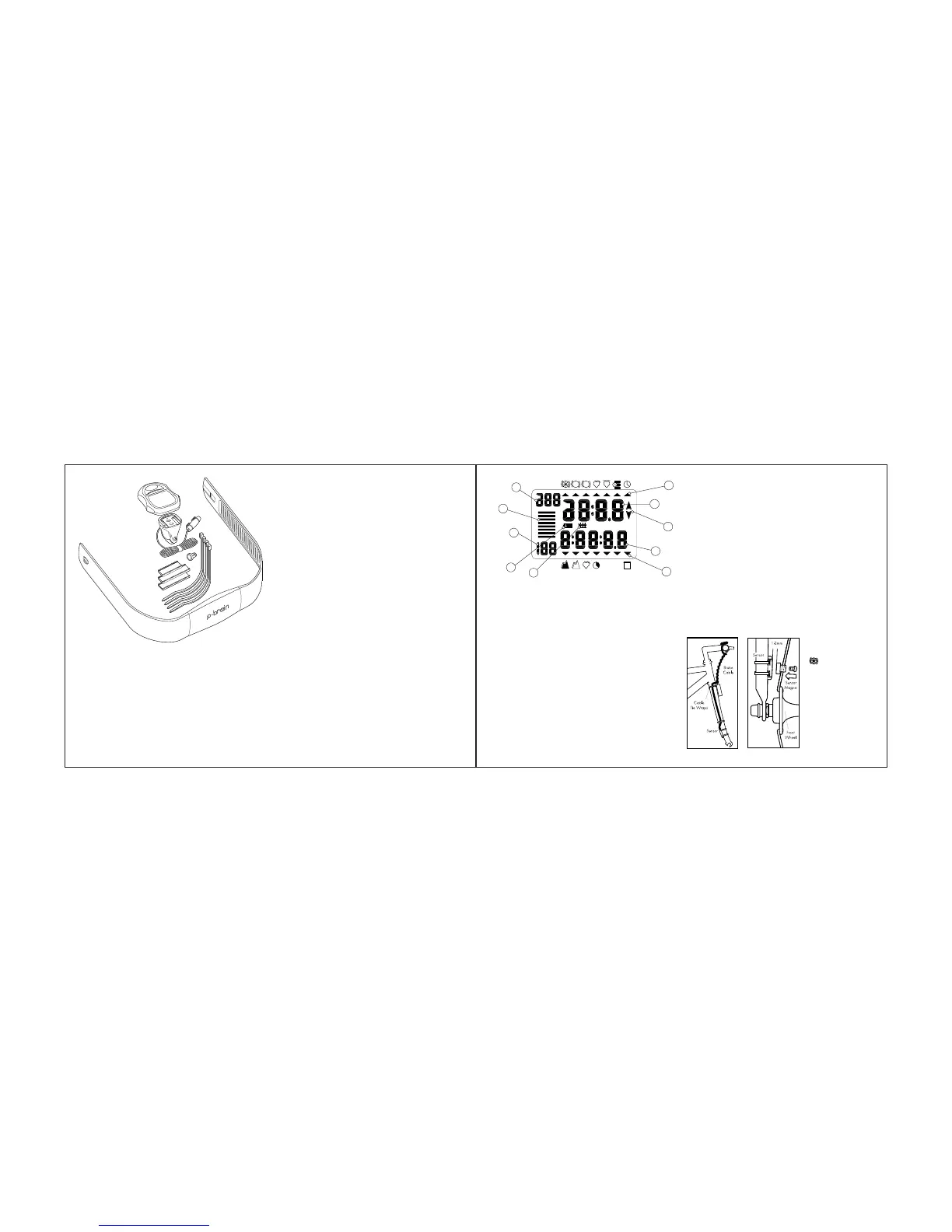
If you purchased the SpeedZone P•Brain
with PC download capability the following
items are also included:
• Desktop download module
• 3.5" floppy disk with SpeedZone
P•Brain SportLog software
If you did not purchase your SpeedZone
P•Brain with the download module, you may
upgrade by visiting your local Specialized
dealer and purchasing the download kit.
(Part # 480-3200)
DISPLAY SCREEN AND BUTTONS
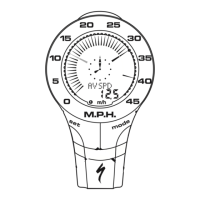
The SpeedZone P•Brain LCD screen has the
ability to display a wide range of informa-
tion. Please refer to the accompanying chart
for a list of all the LCD functions. Your
SpeedZone P•Brain has three buttons which
are used for programming and for selecting
the various modes of operation. The right
side button selects the position of the TOP
LINE FUNCTION CURSOR and while pro-
gramming scrolls the numerical displays up.
The left side button selects the position of the
BOTTOM LINE FUNCTION CURSOR and
while programming scrolls the numerical dis-
plays down. The top button is used for pro-
gramming and for starting and stopping
DATA COLLECTION MODE.
2
MOUNTING
THE SPEEDZONE P•BRAIN
The SpeedZone P•Brain wheel sensor can
mount on the right or the left side of the fork
blade. Use the cable tie-wraps provided to
position the sensor. Do not tighten until the
final placement of the sensor magnet is cor-
rect.
(See Figure 1)
. Attach the magnet to a
spoke across from the sensor with the mag-
net screw. The clearance between the mag-
net and the sensor should be approximately
1/32"-1/16" (1-2mm). Tighten the magnet
and transmitter. Do not over-tighten the mag-
net screw
(See Figure 2)
.
Attach the mount to the handlebar using
the bracket screw provided. Tighten so that
the bracket cannot rotate on the handlebar.
There are several sizing straps provided to fit
different diameter bars.
Slide the computer forward onto the
mount until it ‘snaps’ into place with an
audible click. To remove the computer, push
it backward until it releases from the mount.
To test for proper installation of the magnet,
sensor and computer, push the right button
until the TOP LINE FUNCTION CURSOR is
under the
current speed
icon.
Pickup the
front of the
bicycle and
spin the wheel.
The top line
of the display
should show



 To Next Page