USER SETTINGS FCU MAPPING
Step 2
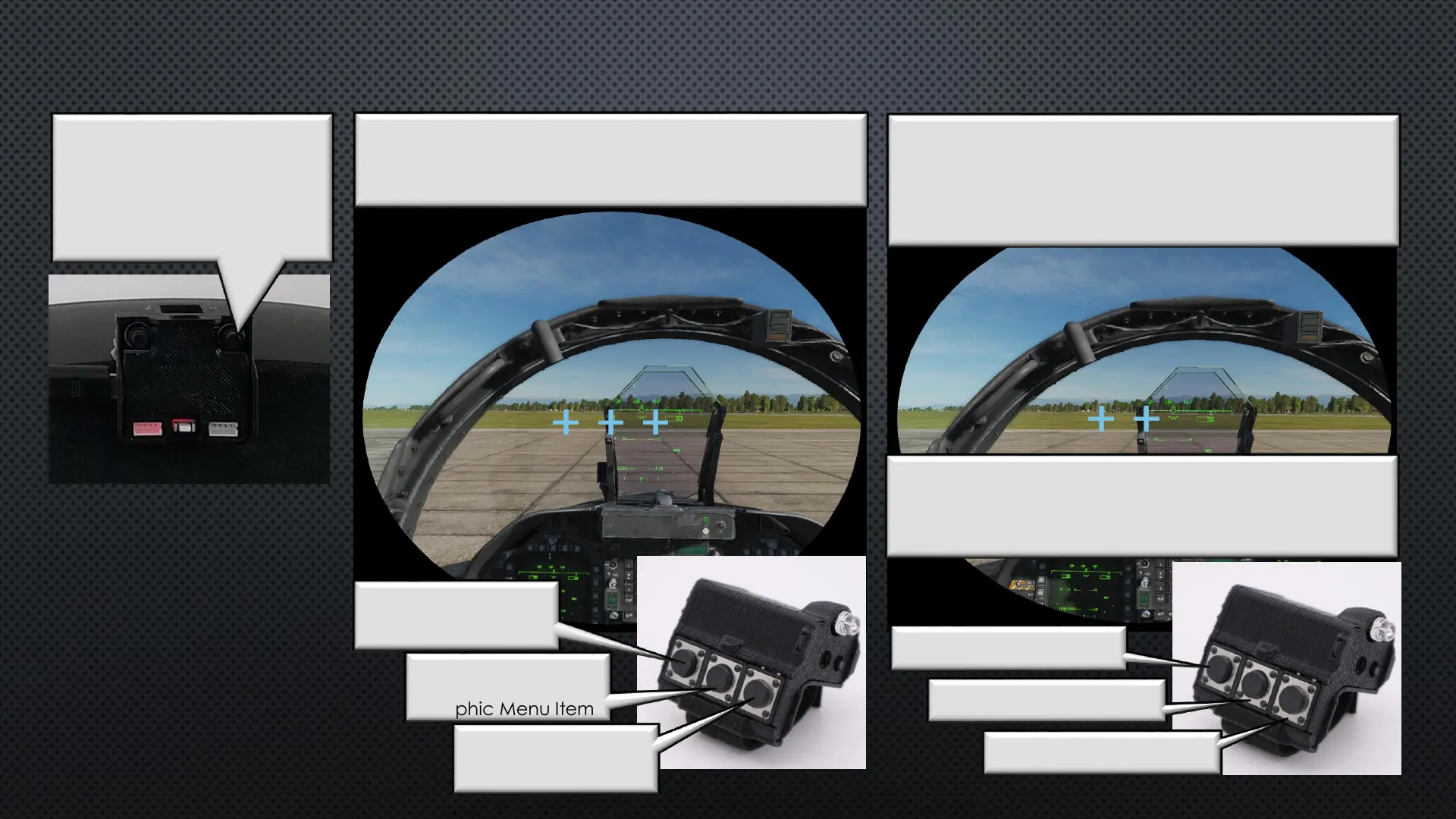
Navigate to the FCU Mapping Mode
(3 Flashing Cursors Representing FCU Buttons)
and Press FCU Button 3
Step 3
Cursors will Change to 2 Flashing Cursors Representing
the 2 choices for Mapping. Press either FCU 1 or 2 to
Map the Left Click to. The Other Unpressed Button will
be mapped to Right Click.
V/R Head Set View
Menu Left
Displays Next
Graphic Menu Item
Menu Right
Displays Next
Graphic Menu Item
Select
Enters the Menu
Setting Item
Set FCU Button 1 to
Left Click
Set FCU Button 2 to
Left Click
Save Setting and Exit
Step 1
Enter User Settings Menu
While in Cockpit View
Press and Hold BTN2 (Right)
for 3 seconds
28
Step 4
Press FCU Button 3 to Save Remapped Settings
Mapping will only Change the Left and Right Mouse
Click Functions


 To Next Page
 Loading...