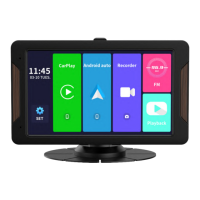
This document describes the MINIEYE C2M AI Collision Avoidance Device, an advanced driving assistance system (ADAS) developed in collaboration with Spedal. The device is designed to enhance driving safety by providing warnings in potentially dangerous situations, leveraging world-leading computer vision and deep-learning technology.
Function Description
The MINIEYE C2M is an AI Collision Avoidance Device that offers a range of anti-collision functions and driving assistance features. It is not an automatic driving system and requires drivers to remain awake, cautious, and adhere to traffic rules. The device provides visual and sound warnings but cannot guarantee complete and accurate identification of all traffic elements.
Key functions include:
- Forward Collision Warning: Alerts the driver when the car is at an unsafe distance from the vehicle ahead, typically for speeds above 30 km/h, with a warning range of 150m to 200m.
- Headway Monitoring Warning: Monitors the distance to the front car across various speed ranges:
- 0km/h-15km/h: warns if the distance is less than 2.5s to 4s.
- 15km/h-30km/h: warns if the distance is less than 1.4s to 2.5s.
- Pedestrian Collision Warning: Monitors the collision risk with urban targets such as pedestrians, bicycles, and motorcycles, with a warning range of 60m to 100m.
- Lane Departure Warning: Alerts the driver of dangerous lane-changing behavior at high speeds (above 60 km/h).
- Stop & Go: Reminds the driver to start when the front car moves in congested traffic, for distances between 0.5m and 2.3m.
- Harsh Acceleration/Cornering/Deceleration Warning: Provides warnings for dangerous driving habits.
- Emergent Collision Warning: Automatically starts recording when a collision is detected.
- Urban Forward Collision Warning: Ensures the car maintains a safe distance from the front car in urban settings, with a warning range of less than 1s to 2.5s.
- Voice Command: Allows control of the device through quick voice commands, such as "Take a picture" or "Turn off the recording."
- Real-time and 3D Road Viewing: The monitor can switch between real-time and 3D road viewing. In 3D mode, it displays road perception results and dangerous collision warnings, including pedestrian anti-collision, front car anti-collision, other vehicles, front car, video recording status, safe distance index, sharp turn indicators, lane departure, pedestrians, and current car. The safe distance index is a time factor (seconds) indicating collision risk.
Important Technical Specifications
- Memory Card Support: Supports Class 10 high-speed memory cards with a maximum capacity of 128GB. Users are advised to use high-quality memory cards from regular suppliers.
- Operating Temperature: The normal working temperature range is -20°C to 70°C.
- FCC Compliance: The device complies with Part 15 of the FCC Rules, meaning it will not cause harmful interference and must accept any interference received.
- RF Radiation Exposure: The equipment complies with FCC RF radiation exposure limits for an uncontrolled environment and should be installed and operated with a minimum distance of 20 centimeters between the radiator and the user's body.
Usage Features
Installation:
- APP Installation: Download the "MINIEYE International" mobile app from Google Play Store or Apple App Store by scanning a QR code or searching.
- Device Connection: Follow the app's directions to connect to the AI Collision Avoidance Device for settings.
- Memory Card Installation: Insert a TF card into the card slot of the main unit.
- Electrostatic Sticker: Paste the electrostatic sticker on the front windshield in the recommended host installation area, avoiding microwave windows (black grid areas) which may prevent effective adhesion.
- Main Unit Installation:
- Remove the camera lens protection film.
- Adjust the device to ensure the lens faces forward.
- Peel off the 3M adhesive protective film, paste the device on the electrostatic sticker, and press firmly.
- Connect the device's power port to the car's cigarette lighter socket using the provided power supply cable.
- Monitor Installation:
- Remove the monitor protection film.
- Adjust the monitor for a good line of sight.
- Peel off the 3M adhesive protective film, paste the monitor on the central control panel (away from the front windshield to avoid reflection), and press firmly.
- Connect the monitor's power port to the power cable.
- Rear Camera Installation (Optional):
- Remove the rear camera lens protection film.
- Find a suitable location on the car's rear windshield, peel off the 3M adhesive, and fix the camera.
- Adjust the rear camera angle.
- Connect the rear camera cable to the main unit's rear camera input terminal.
- Use the crowbar to route the rear camera's power cable to the front of the car.
- Activation: Start the car; the product will automatically turn on, emit a power-on prompt, and begin continuous video storage. Use the mobile app for screen adjustment and personalized configuration.
- Parking Monitoring (Optional): If a parking monitoring cable is purchased separately, refer to its installation guide.
APP Settings and Activation:
- Wi-Fi Connection: Ensure the device's Wi-Fi is on and the app is in the trusted application list.
- Pairing: After turning on the device, open the MINIEYE App, go to the "device" page, tap "+", select the MINIEYE Dash Cam from the network list (for Android, it searches automatically; for iOS, enable WLAN in settings), and enter the default password (12345678). The device ID is on the package bottom.
- User Authorization: Grant user authorization for secure app-to-device communication.
- Collision Avoidance Activation: Park the car on horizontal ground (avoid ramps) for successful activation.
- Car Type Selection: Select the car type in the app for accurate AI anti-collision algorithm predictions.
- Ground Model Construction: Measure the horizontal distance between the camera and the central axis of the windshield using the scale line in the manual to improve ground model accuracy.
- Adjustment Preview: Use the app's real-time image preview and guide lines for adjustment.
- Accurate Adjustment: After activation, drive at speeds over 30km/h on a horizontal road with clear lane lines for 3-5 minutes without changing lanes to allow the system to collect data and complete accurate adjustment.
Preview / Playback:
- Connect to the Dash Cam via direct Wi-Fi.
- Open the MINIEYE APP, tap on the "Device" page to view the current real-time display or playback video from the previous 2 hours.
- Access the photo album to view all driving record videos.
- Files can be viewed, downloaded, and shared through the "Device" -> "Device Album" section of the home page.
Maintenance Features
Safety Precautions:
- Cleanliness: Keep the car windshield and camera surface clean and dry to ensure clear vision. Avoid touching or playing with the camera.
- Reflections: Do not place self-luminous, strongly-reflective, or high-brightness objects (e.g., white paper, plastic bags, metal/ceramic/glass products) on the dashboard, as they may reflect images on the windshield and interfere with camera vision.
- Weather Conditions: Be aware that severe weather (rain, snow, fog, haze, dust, typhoon, tornado, extreme cold/hot) can cause anti-collision functions to fail.
- Lighting Conditions: Poor lighting (backlighting, tunnels, culverts, forests) or strong light (high beam, spotlight, laser, flame, explosion) can also cause anti-collision functions to fail.
- Road Conditions: Poor road conditions (non-standard, worn, or covered lane markings, stagnant water) may affect the device's performance.
- Vehicle/Pedestrian Identification: Some special vehicle types (military, ancient, exotic, engineering vehicles, trailers with special shapes) or people with unusual postures/clothing (camouflage, squatting, kneeling, lying down, performing sports, riding horses, carriages) may not be accurately identified.
- Unknown Objects: Sudden appearance of unknown objects (balloons, drones, flying toys, balls, sporting goods, high-altitude parabolic/floating garbage) may temporarily cause anti-collision functions to fail.
- Algorithm Updates: The functional failure rate for special scenes will decrease with future AI anti-collision algorithm upgrades.
Cautions:
- Responsibility: MINIEYE is not responsible for losses due to malfunction, information loss, or improper operation.
- Functionality: Some functions may not work normally due to vehicle conditions, driving behavior, environment, power off, abnormal temperature, collision, or storage damage.
- Driving Safety: Prioritize driving safety. Ensure the device's installation position does not block driving sight or affect airbags. Do not debug the device or use the app while driving.
- Memory Card Handling: Always cut off power before inserting or removing the memory card.
- Temperature: Do not use the product outside its specified temperature range (-20°C~70°C). Avoid touching the main unit in high temperatures to prevent scalding.
- Modifications: Do not modify the product. Use only standard components (car charger, power cables) to prevent damage, explosion, or fire.
- Battery: Discontinue use if the battery is deformed, expanded, or leaked.
- Legal Compliance: Use the product within the scope permitted by law.
- Dashboard Objects: Avoid placing objects with strong reflection and white light (e.g., paper towels, decorations) on the dashboard, as they may interfere with the algorithm.
Firmware Updates:
- Note that if product functions do not match the instructions, it is likely due to a version upgrade, and the actual version prevails.
For further support, users can visit the MINIEYE Official Website (https://www.minieye.cc) or Spedal Official Website (https://www.spedal.cc), or contact support@spedaltech.com. More product information is available at www.spedal.cc, and product videos can be found by searching "spedal" on YouTube.

 Need help?
 General

 To Next Page