03
GAMETRAKA - GETTING STARTED
USE THE
BRIDGE APPLICATION
BridgeisanappthatlinkscomputerstotheGPS.Thisprocessneedstobecompletedinordertoview,
access and monitor the data recorded in the previous step.
1 Clickhere todownloadBridgeandinstallitonyourcomputer.
(CompatiblewithWindows10+orMacOSXv10.12+).
2 PlugtheGPSintoacomputer(makesuretheGPSison)andopenBridge.
i.Click Download-thiswillsaveadatale(carryinga.gpslenameextension)intoafolder
onyourdesktopcalled‘SPTGPSData’.
ii.Oncethedownloadprocedurehasnished,erasetheGPStokeepmemoryfromgettingfull.
3 Create an account onwww.gametraka.com(seenextstep).
SIGN UP
TO GAMETRAKA
1 Gotowww.gametraka.com andllouttheformonthepage.
Ifyouhaveaninvitecode,addthecodetojoinateam.
2 ClickSign Upontherightandllouttheadditionalinformationonthenextpagetocontinue.
ADDITIONAL GPS
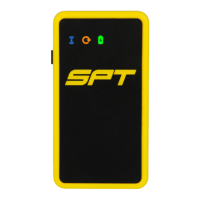
LIGHT INDICATORS
• The GPS is charging when the battery light flashes blue.
• The GPS has less than 2 hours of battery life when the battery light flashes.
• The GPS is searching for more satellites to connect to when GNSS light is solidly red.
• The GPS is connected with GNSS satellites when the when the GNSS light is solidly orange
• The GPS only has 50% of data space left when the GNSS light flashes orange.
• The GPS is full of data space when the GNSS light flashes red.
• The GPS is connected and pairing with another device with the connectivity light is solidly blue.
• The GPS is broadcasting bluetooth when the connectivity light flashes blue.


 To Next Page
 Loading...