GET UP AND RUNNING
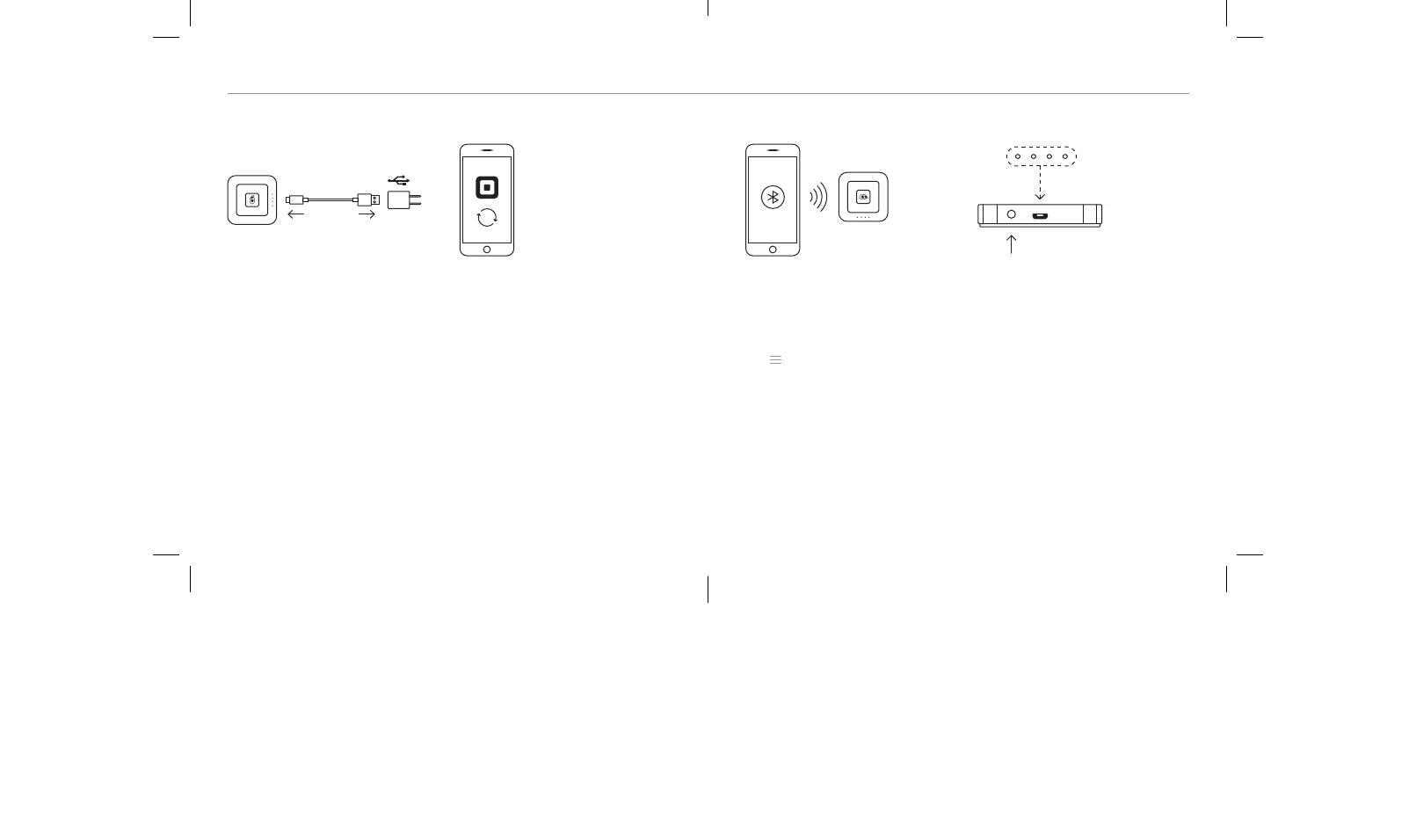
1. Charge
It’s just like charging your phone.
Plug one end of the cable into your
reader, and the other end into a
computer or USB wall charger. To
check if your reader is fully charged,
press the power button once. When
you see four green lights, you’re
good to go.
Need help?
Watch step-by-step setup videos at square.com/setup.
Note:
If you use Square Stand or Dock for Square Reader, simply plug in your
Square Reader with the included USB cable.
3. Connect
Grab your device. Turn on Bluetooth,
usually found in your device’s
settings. Open the Square app.
Tap
(top left) > Settings > Card
Readers > Connect a Reader >
Contactless + Chip Reader. Still
with us? If so, you’ll see the “Pair a
Reader” screen. Leave this on.
2. Update
Make sure you have the latest
software for your smaphone or
tablet and the latest version of the
Square app. (We know updating is
a pain, but it’s really impoant.)
4. Pair
Grab your reader. Press and hold
the power button for about three
seconds. When four orange lights
sta flashing, release the button.
A Bluetooth pairing request will then
appear on your device. Tap Pair and
you’re ready to take payments.


 To Next Page