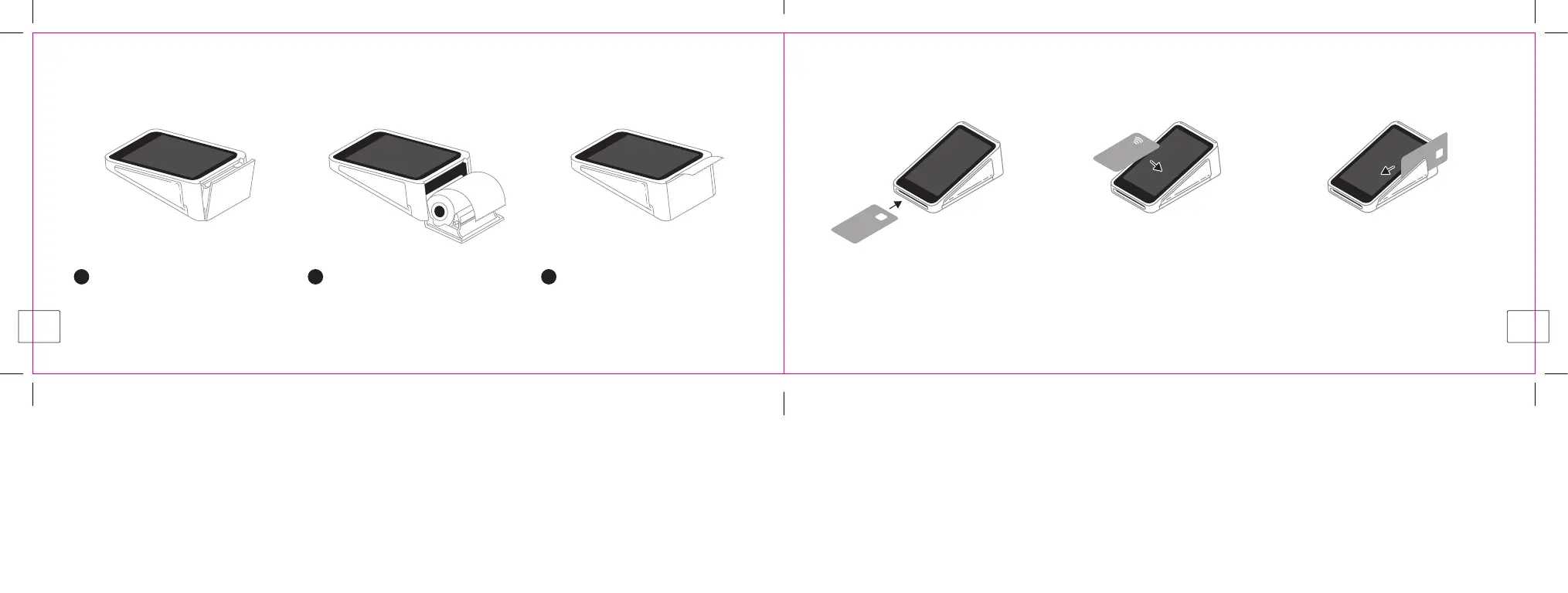
LOADING RECEIPT PAPER
Position and align the paper receipt roll exactly as shown in step 2. When tearing off a receipt, tear down toward the screen.
TAKING PAYMENTS
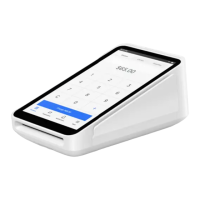
Terminal lets you accept all major chip and PIN and contactless cards. Mobile payments such as Apple Pay and Google Pay are also
accepted. To take a payment, ring up the sale and tap Charge.
To view compatible receipt paper and to reorder, go to square.com/go/uk-terminal-paper from the UK, or square.com/go/ie-terminal-paper from Ireland.
Turn on ofine payments to keep taking payments, even if your Wi-Fi is down. Just reconnect to the internet within 24 hours to upload any ofine transactions.
1
Open the printer door located just
above the screen.
2
Unroll a few centimetres of paper on
a new paper receipt roll. Put the roll
in the printer as shown above.
3
Align the paper with the feed slots,
and then close the printer door.
Tear off the excess paper.
Chip and PIN
Insert the chip and PIN card into the slot
with the chip facing up.
Contactless
Hold the card or mobile device close to
the screen until you hear a beep.
Magstripe-only
Accept non-contactless cards without a
chip by swiping the card on the side slot
with the stripe facing Terminal.
6
7



 To Next Page