ConfiguringLAN
TheprinterdoesnotsupportautomaticIPaddressingorDHCP,itmustbeconfiguredwitha
staticIPaddress.The2FCCsamplesareshippedwiththefollowingconfiguration
IP address: 192.168.0.130
TCP port: 1024
Netmask: 255.255.255.0
Gateway: 192.168.0.1
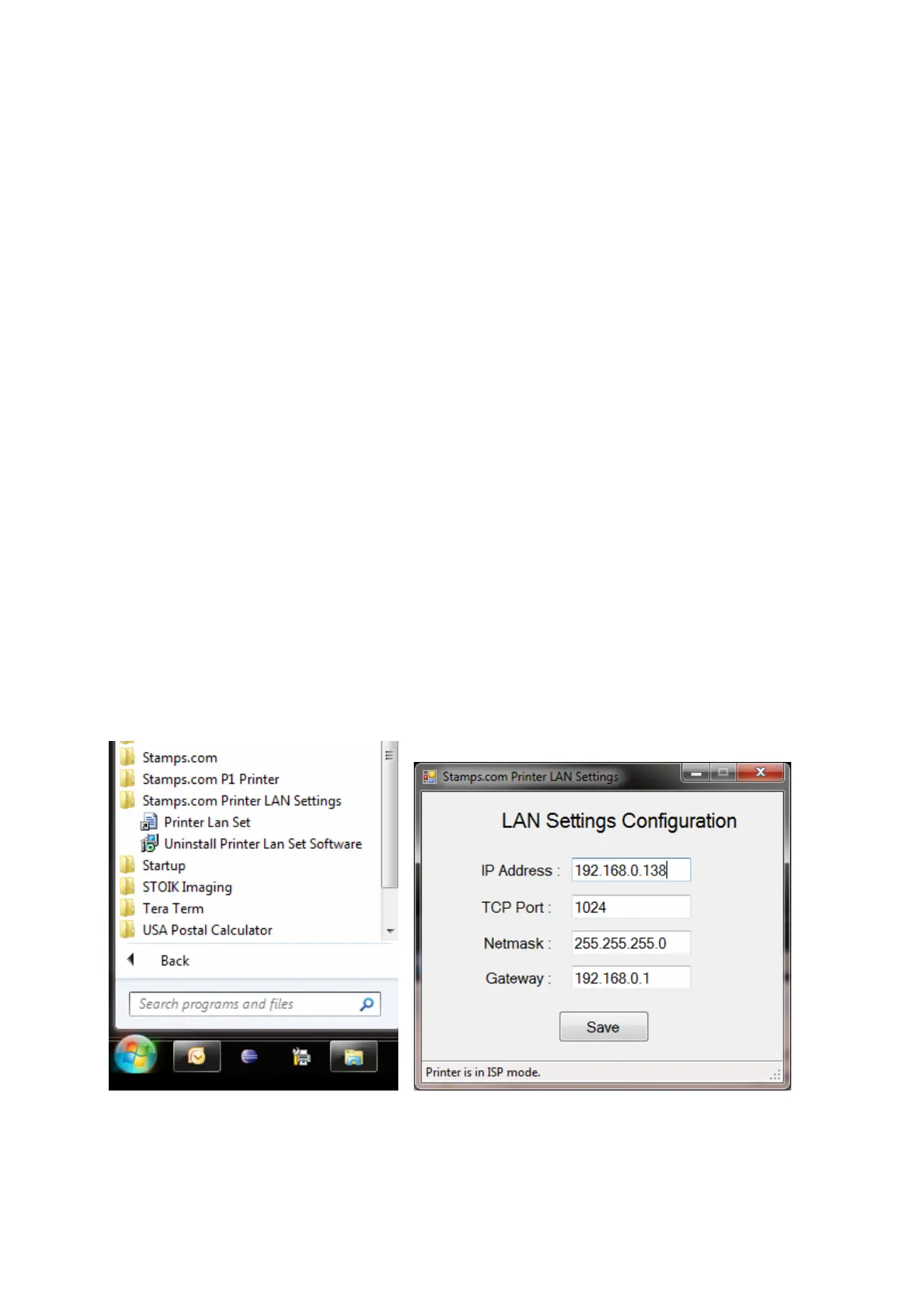
TochangetheLANsettings,installtheLANSettingConfigurationWindowssoftware
Unzipthefile“lansettings.zip”toafolder
and“Run”the“setup.exe”andclick“Next”when
prompted.
Theprintermustbeputinto
“ISPMode”(In‐SystemProgramming)inorderto changetheLAN
settings.Followtheinstructionbelowtodoso.
1. Unplugtheprinteradaptorfromthemains.
2. ConnecttheprintertothecomputerusingaUSBcable.
3. Plugtheadaptorbackintothemains.DonotpresstheON/OFF
button.
4. Puttheprinterinto“ISPMode”byholdingtheAdvancebuttondown(donotreleaseyet)and
thenpressON/OFFbutton.ReleasetheAdvancebutton.TheBlueLEDontheAdvancebutton
willblinktodenotethattheprinterisin“ISPMode”.
Clickonthe“PrinterLanSet”linktoopenthesoftwareandchangetheLANsettings.
NOTE:PleasedonotchangetheTCPPortdefaultvalue=1024



 To Next Page
 Loading...