
 Need help?
Do you have a question about the SteelSeries WORLD OF WARCRAFT and is the answer not in the manual?
Lists the necessary operating system, storage, RAM, and port requirements for the mouse.
Explains how to charge the mouse battery using the base station or USB cable and indicates charging status.
Details how to adjust mouse sensitivity (CPI) using the dedicated button and CPI LED indicator.
Adjusts mouse sensitivity, allowing cursor movement to be faster or slower based on CPI increments.
Sets how often the computer samples mouse data, affecting cursor accuracy and tracking speed.
Determines the height the mouse must be lifted before tracking stops, preventing unwanted cursor movement.
Enables the 'In-game mode' in SteelSeries Engine to bind mouse buttons to in-game functions.
Guides users to detect and enable the gaming mouse within World of Warcraft's interface settings.
Provides steps to bind mouse buttons to action bar slots for in-game commands and abilities.
Offers advice on preventing issues, referencing specific Windows settings that can cause problems.
Explains how to recover from a failed firmware update by using the Firmware Update Tool.
Addresses issues where custom buttons only function within World of Warcraft, not other apps.
Troubleshoots the 'Please connect a SteelSeries Engine-compatible device' error message.
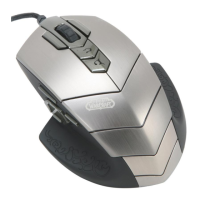
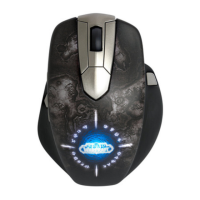
The World of Warcraft® Wireless MMO Mouse is a specialized gaming peripheral designed for an immersive and responsive experience, particularly within the World of Warcraft universe. Developed jointly by Blizzard Entertainment and SteelSeries, this mouse integrates advanced features for optimal gameplay, including programmable buttons, customizable settings, and wireless connectivity.
The primary function of this device is to serve as a high-performance gaming mouse, offering precision, speed, and extensive customization options tailored for Massively Multiplayer Online (MMO) games like World of Warcraft. It operates both wirelessly and wired, providing flexibility in setup. The mouse features a rechargeable battery, eliminating the need for frequent battery replacements. Its design incorporates a unique aesthetic inspired by World of Warcraft, complete with illuminated elements.
A key aspect of its functionality is the integration with the SteelSeries Engine software suite. This software unlocks the full potential of the mouse, allowing users to configure various hardware settings and program its numerous buttons. Without the SteelSeries Engine, many of the advanced features, such as programmable buttons and detailed sensitivity adjustments, would not be accessible.
The mouse is equipped with a CPI (Counts per Inch) adjustment system, which directly impacts its sensitivity. Users can switch between preset CPI settings on-the-fly using a dedicated CPI Button, allowing for quick adaptation to different in-game scenarios or personal preferences. The CPI LED indicates which sensitivity setting is currently active.
For wireless operation, the mouse communicates with a Base Station connected to the computer. This Base Station also serves as a charging dock for the mouse. Alternatively, the mouse can be connected directly to the computer via a micro-USB to USB cable for wired use and charging.
The mouse offers dual connectivity options. For wireless use, the Base Station must be connected to the computer via a micro-USB to USB cable. The mouse is then turned on using a switch on its underside. A small blue light on the left side of the mouse blinks periodically to confirm successful pairing and wireless operation. For a wired connection, simply connect the mouse directly to the computer using the micro-USB to USB cable. It's important to note that wireless functionality requires the Base Station to be connected to the computer.
The mouse utilizes a rechargeable battery. When the battery is low, a small red light on the left side of the mouse will quickly blink. To recharge, users have two options:
If the mouse and Base Station lose their pairing, they can be re-synced. This involves pressing and holding a button on the underside of the Base Station for approximately 3 seconds until its lights blink. Then, the mouse is turned on, and a button next to its on/off switch is pressed and held for about 3 seconds. Upon release, the small light on the left side of the mouse will quickly blink blue, indicating that pairing is in progress. After a few seconds, the mouse and Base Station should be paired, restoring wireless functionality.
The mouse's sensitivity, or CPI (Counts per Inch), can be adjusted directly on the device. A triangular button located under the scroll wheel, known as the CPI Button, allows users to switch between two preset CPI settings. The CPI LED, a small round light between the CPI Button and the scroll wheel, indicates which setting is active (on or off). These CPI settings are fully customizable through the SteelSeries Engine software.
To unlock the mouse's full potential, the SteelSeries Engine software must be installed. After plugging in the mouse and allowing the computer to recognize it, the Engine software can be downloaded from the SteelSeries website. The installer guides users through the setup process. It is crucial to keep the mouse plugged in during installation to ensure proper functionality. The SteelSeries Engine provides access to various settings:
The mouse is optimized for World of Warcraft®, allowing all 10 buttons to be recognized as extended Mouse Button presses within the game. This simplifies binding spells, abilities, and macros. To enable in-game integration:
The user guide provides solutions for common issues:
The manual emphasizes referring to the SteelSeries support website (faq.steelseries.com) for more detailed troubleshooting and information.
 General
| Sensor | Laser |
|---|---|
| Polling Rate | 1000 Hz |
| Cable Length | 2 m |
| Connectivity | Wired |
| Special Features | World of Warcraft |



 To Next Page