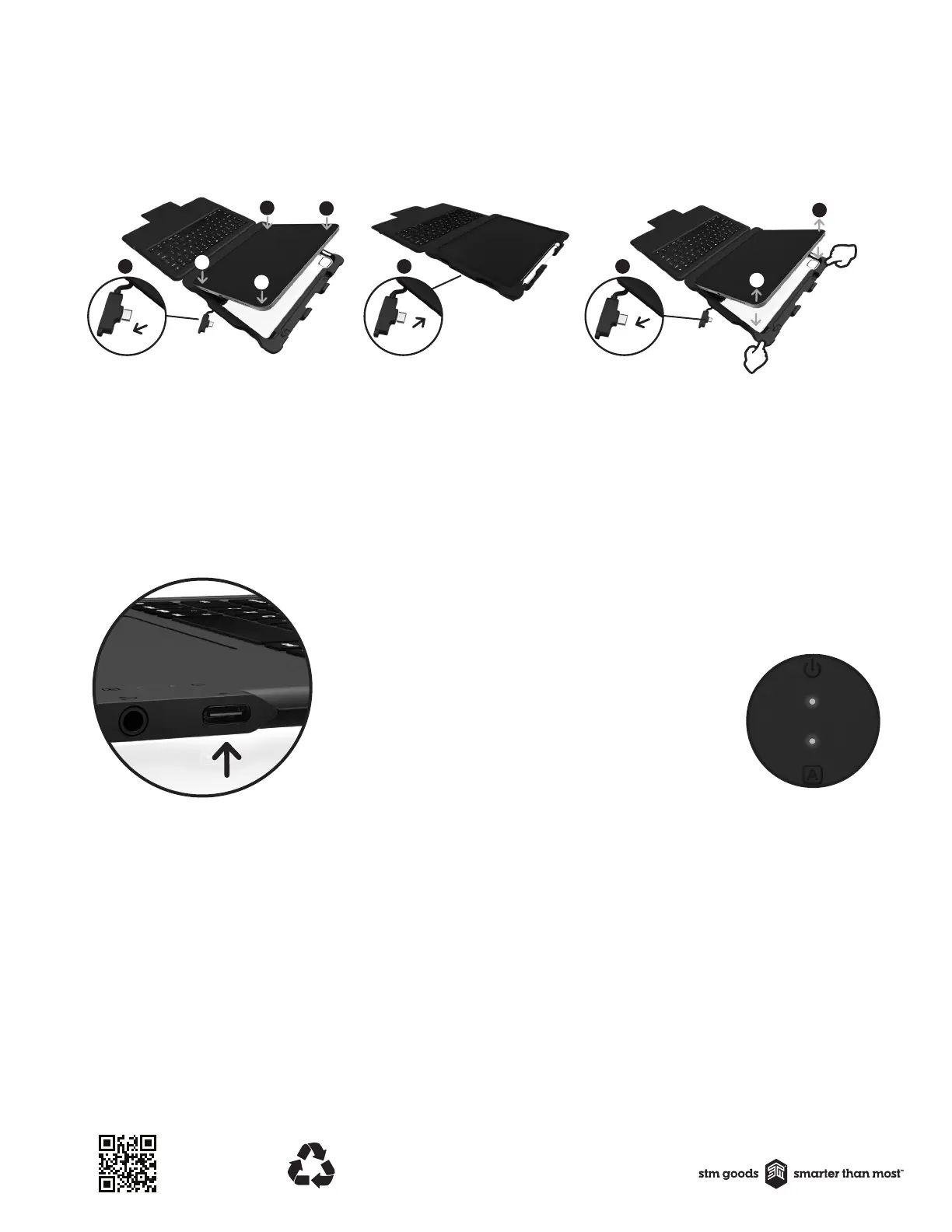
6. Push the USB-C connector back into case opening so
connector plugs into iPad’s USB-C port. Once the cable is
plugged into the iPad securely, the keyboard is now
connected to the iPad, and the connection indicator light on
the keyboard will be illuminated in white.
PREPARING FOR INSTALLATION
1. Remove the card insert from inside the case
INSERTING YOUR iPAD INTO THE CASE
2. Unplug the USB-C connector from the bracket, so that the
cable connector tip is not seated in the bracket and does
not obstruct the iPad installation into the bracket. The
cable will still be connected to the bracket at the other end.
3. Firmly press the left-hand side corners of the iPad into the
left corners of the case.
4. Firmly press the right-hand side corners of the iPad into the
right corners of the case.
5. Ensure all four corners are firmly in position, and the edge
of the case fits smoothly around the front outer edge of
the iPad.
REMOVING YOUR iPAD FROM THE CASE
1. Unplug the USB-C connector from the iPad before removing
the iPad from the case. If the cable is not unplugged before
the iPad is removed, it could cause damage to the iPad or
the cable when the iPad is removed from the case.
2. Release the top right corner of the iPad by firmly pushing the
corner of the case back and away from the iPad.
3. Release the bottom right corner of the iPad by firmly pushing
the corner of the case away from the iPad.
4. The iPad will be easy to remove once the USB-C connector is
unplugged and the top and bottom right corners are
released from the case.
4
4
3
3
2 6
2
3
1
WE BELIEVE IN REDUCING WASTE AND PRESERVING
THE ENVIRONMENT. THIS PACKAGING IS RECYCLABLE.
Check with your local recycling facility for best disposal.
SCAN QR CODE
To learn how we're making smarter
choices for a sustainable future
CHARGING THE iPAD
Insert one end of the USB-C charging cable (not included) into
a power source (not included) and the other end into the
USB-C port on the right side of the keyboard. The light will
illuminate white while charging, and when the iPad is fully
charged. iPad charging level is indicated on the top right
corner of the iPad screen.
STATUS LIGHT INDICATORS
Your Dux Keyboard includes status lights that provide information
about the power and connection:
FEATURE
Keyboard
connected
to iPad
CAPS lock
COLOUR
White
White
PRESENTATION
Solid
Solid
INSTRUCTIONS
TECHNICAL SPECIFICATIONS
USB-C PORT
iPad Charging - Type C Power Delivery (PD) 3.1 allows up to
12V/2.5A fast charging (up to 30W)
• Optimal charging with 20W wall plug
• Specific current and charging time depends on wall plug
used (not included)
Pencil Connection and Charging - plug in Apple Pencil or
Logitech Crayon to connect and charge (using cable and
adapter, not included)
AUXILLIARY PORT
• 3.5mm female headphone jack
• Works with TRS (audio only) and TRRS (audio and microphone) in/output headphones
• Resistance: 16Ω and 32Ω
• Digital audio decode rate- supports maximum DAC:96KHz/10bit and ADC:128kHz/10bit
Data Transfer - USB2.0 for speeds of up to 480 Mbps, supports
data exchange for external peripheral devices such as
USB-C headphones
• Web cam and microscope (apps may be needed for iPad to
read the accessory)
• USB-C memory stick- files, images and videos can be
uploaded to the iPad and transferred from the iPad
• A mouse
Note - The USB-C port on the keyboard does not support
external screen mirroring (DisplayPort) or connection to a
laptop. If these functions are required, simply unplug the cable
that connects the keyboard to the iPad, and plug directly into
the iPad, using the iPad screen for all actions.


 To Previous Page
 Loading...