• 2. Wireless connection
• 2.1 For iOS devices
• 2.2 For Android devices.
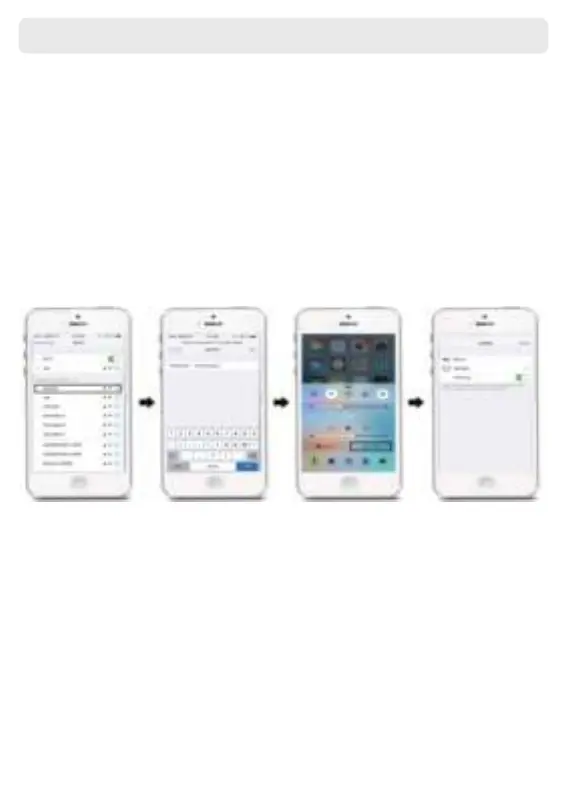
1: Go to your iOS device’s WiFi settings, search and connect to the device SSID, which is
shown on the top center of projection image. (For example “Device: RKcast-2918FC”. Use the
Default password: 12345678
2: Turn on the screen mirroring settings in the control center by scrolling down the
phone, selecting RKcast-XXX and connect.
After successfully connecting your iOS device to both WiFI and using the screen
mirroring mode, you can now enjoy the video’s and images you like.
Notice: After connecting, your phones WiFI may give a false error. If you get the error:
connected but no internet or similar, you can ignore this message and proceed.
1: Go to your Android device’s WiFi settings, search and connect to the device SSID, which is
shown on the top center of projection image. (For example “Device: RKcast-2918FC”. Use the
Default password: 12345678
2: Turn on the screen mirroring settings in the control center by scrolling down the
phone, selecting RKcast-XXX and connect. Notice: This option is called for every brand.
Search for options such as wireless display, Smart view, Screen sharing, Muti-screen,
Screen mirroring, Cast etc.
After successfully connecting your Android device to both WiFI and using the screen
mirroring mode, you can now enjoy the video’s and images you like.
Notice: After connecting, your phones WiFI may give a false error. If you get the error:
connected but no internet or similar, you can ignore this message and proceed.


 To Next Page