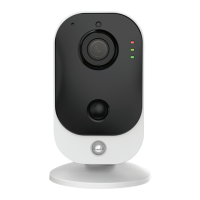
Setup Instructions
Connect Directly to the Camera’s AP
1. Another method to setup the camera is by connect-
ing directly to the camera’s access point (AP). By
connecting to the AP, you can then set it up to connect
to your own router’s AP. The initial setup procedure is
the same as “When Connected Standalone Wirelessly.”
The dierence is that when setting the camera wireless-
ly fails (either if you’re too far away from your router or
the password is incorrect), then the app will display the
camera’s access point and password. Connect to the
SSID of the camera and enter the password that is
provided. At that point, instead of connecting it via the
Cube option on the drop down, select IPC/NVR/DVR.
Scan the barcode of the camera, and enter the
password of the IP camera to connect.
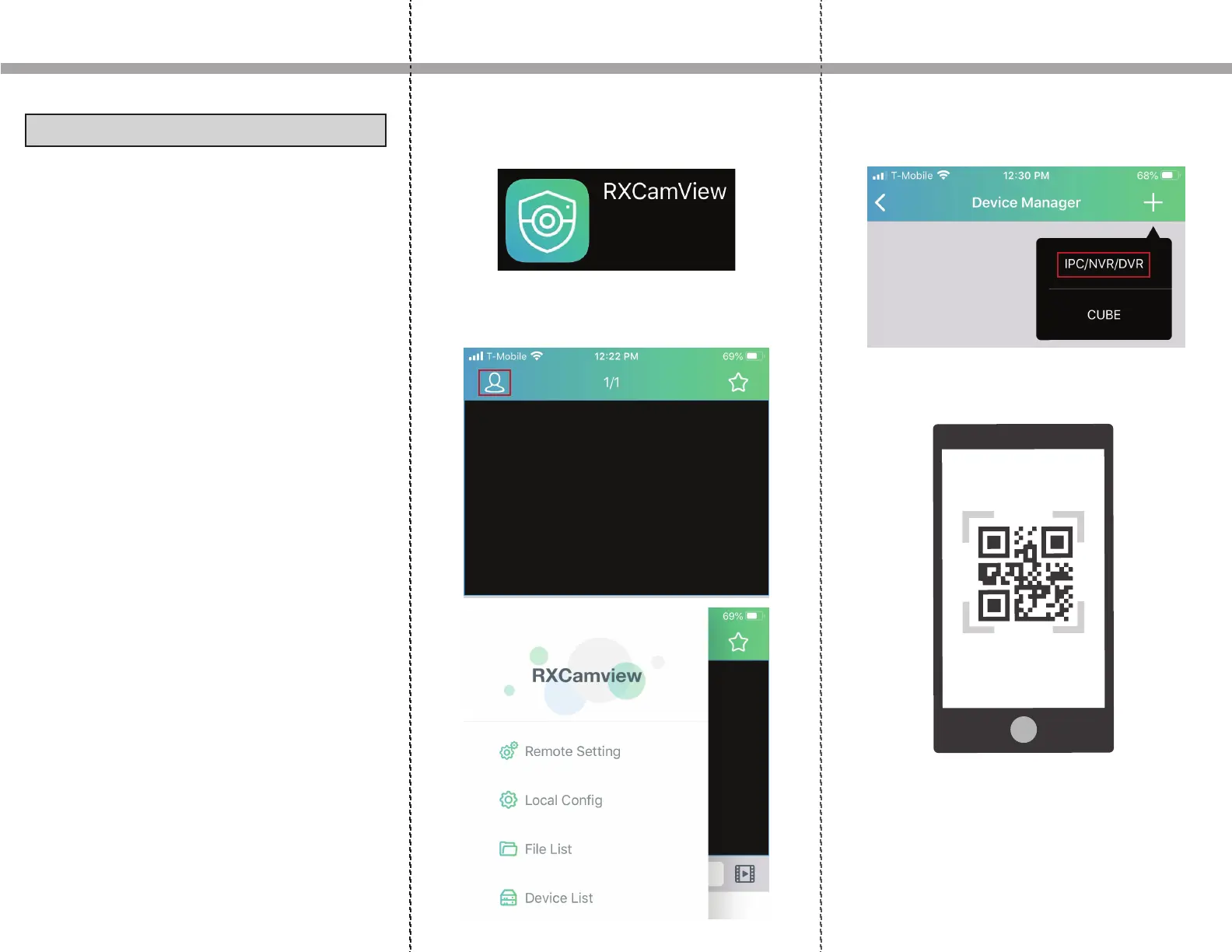
3. Download and launch RXCamview from the App
Store or Play Store.
4. Click the human icon on the top left and then click
on Device List.
5. Click the + icon on the top right and click IPC/N-
VR/DVR from the dropdown.
6. The camera for the phone will open up. Scan the QR
code on the back of the IP camera.


 To Previous Page
 Loading...