
 Need help?
Do you have a question about the Sun Nuclear Radon 1028 and is the answer not in the manual?
Describes intended use, environmental considerations, and basic operation.
Covers electrical safety, hazardous environments, and general user precautions.
Provides definitions for symbols and safety-related information.
Lists resources like the User's Guide, Online Help, and EPA radon information.
Explains formatting used in the manual, like bold and italics.
Explains the purpose and approval of the radon monitor.
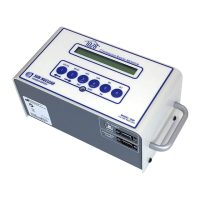
Lists and identifies the components of the Model 1028 Radon Monitor.
Details the USB, Serial, and Printer ports on the monitor.
Describes the LCD display and the functions of the six control buttons.
Guides on where to place the radon monitor for effective testing.
Instructions for installing a fresh 9V backup battery.
Step-by-step guide to replace the 9V backup battery, including precautions.
Steps for connecting the monitor to AC power using the adapter.
Procedure for activating the monitor's display.
Step-by-step guide to initiate a radon measurement test.
How to pause and resume or terminate an ongoing test.
How to view average and current radon readings while a test is active.
How to view average and current radon readings once a test is completed.
Instructions for clearing stored test data from the monitor.
How to review monitor settings like delay, interval, and battery status.
Details on entering parameters via computer or front panel keys.
Lists the character set used for parameter entry.
Explains the monitor's auto-off feature to conserve power.
Procedure to follow if the system is accidentally reset.
Explains messages related to low battery status and actions.
Describes low battery indications when not connected to AC power.
Recommendations for storing the monitor to protect its internal battery.
Identifies parts and describes the function of the optional portable printer.
Details how to connect the printer and identifies its controls.
Step-by-step guide on how to load thermal paper into the printer.
Instructions for printing a formatted report directly from the monitor.
Explains the different sections and data presented in a typical report.
Guides on how to install and remove the printer's rechargeable battery pack.
Instructions and time required for recharging the printer's battery.
Tips for efficient battery use and indications of low battery.
Details on checking and setting the printer's internal DIP switches.
Describes the functions of the Radon Monitor software.
Prerequisites and initial steps for preparing the computer.
Specifies the minimum computer hardware and OS for the software.
Step-by-step guide to download and install the Radon Monitor software.
Explains how to connect the monitor to a computer via USB.
Instructions for starting the Radon Monitor application.
Process for downloading test data from the monitor to the computer.
Steps to properly exit the Radon Monitor software application.
Information presented in the Inspection tab of the software.
Explains the graphical representation of test results in the Chart tab.
How to zoom in/out and move the chart view.
Describes how to select and include images in reports.
Details the checklist for verifying pre-test best practices.
Explains the various commands available through menus and toolbars.
How to save measurement data to a text file.
How to load previously saved measurement data.
Process for sending settings and information to the monitor.
Detailed options for configuring monitor parameters via software.
Options for selecting data, images, and action levels for reports.
Explains settings for letterhead, averages, and image alignment.
Steps to print and preview the final radon report.
Specifies the minimum computer hardware and OS for the software.
Technical details and operating parameters of the radon monitors.
Information on parts, repairs, and available accessories.
Recommendations for storing the monitor to protect its function.
Procedures for cleaning the unit and disposing of it responsibly.
Discusses factors affecting 9V battery life and estimates.
Information on software upgrades and patches.
Steps to check the installed software version.
Instructions for uninstalling the Radon Monitor software.
Guidance on installing software on multiple computers or units.
Automatic and manual configuration for serial port communication.
How to connect the monitor using a serial cable if USB is unavailable.
How to manually select the correct COM port for connection.
Addresses problems like unit not turning on or lost time/date entries.
Steps for addressing specific error codes displayed on the monitor.
How to interpret and clear 'Notice: Press 5' messages.
Information on returning the unit for service or calibration.
Ways to get technical assistance from Sun Nuclear.
How to navigate the support website for resources and case submission.
Location to find information regarding the product warranty.
Explains warning, caution, and informational symbols used in the manual.
Outlines the user's role and accountability in operating the device.
Guidance on reporting safety concerns related to the product.
Warnings against modifications and guidelines for external equipment.
 General
| Brand | Sun Nuclear |
|---|---|
| Model | Radon 1028 |
| Category | Measuring Instruments |
| Language | English |

 To Next Page