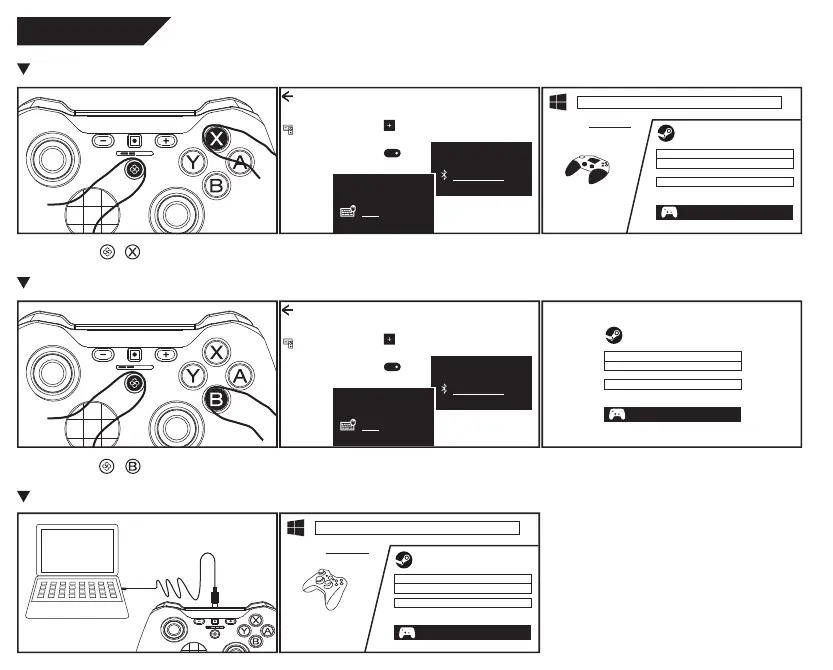
Connect to PC
Option 3: USB (Xbox 360 Controller)
Controller Settings
Detected Controllers:
Xbox 360 Controller
Control Panel > Hardware and Sound > Devices and Printers
Devices
Xbox 360
Controller for
Windows
>
Devices
Turn on Bluetooth, add the device “GamepadX”.
Option 1: Bluetooth (Xinput)
Work as Bluetooth XINPUT device in Windows, and
Xbox One Controller in Steam.
Control Panel > Hardware and Sound > Devices and Printers
Devices
GamepadX
>
Controller Settings
Detected Controllers:
Xbox One Controller
Press and hold + until lights run.
Settings
Bluetooth & other devices
Bluetooth & other devices
Add Bluetooth or other device
Bluetooth
On
Add a device
Bluetooth
Add a device
GamepadX
Press and hold + until lights run.
Devices
Turn on Bluetooth, add the device “Pro Controller”.
Option 2: Bluetooth (Switch Pro Controller)
Work as Nintendo Switch Pro Controller in Steam.
Support motion control.
Controller Settings
Detected Controllers:
Nintendo Switch Pro Controller
Settings
Bluetooth & other devices
Bluetooth & other devices
Add Bluetooth or other device
Bluetooth
On
Add a device
Bluetooth
Add a device
Pro Controller


 To Next Page