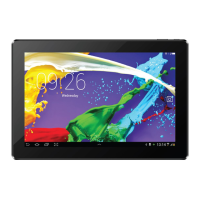
This document describes the Supersonic 10.1" Tablet, model SC-1032WKB, a portable computing device designed for various tasks, running on Windows 10. It features a touch screen panel and can be used as a standalone tablet or connected to a movable base keyboard for a laptop-like experience.
Function Description
The tablet serves as a versatile personal computer, offering a range of functionalities for productivity, entertainment, and communication. Its core function is to provide a portable Windows 10 environment.
- Power Management: The power button allows users to start up or shut down the device by pressing and holding for 5-7 seconds. A single press puts the tablet into sleep mode and wakes it from dormancy.
- Volume Control: Dedicated sound buttons allow for easy adjustment of the loudspeaker volume.
- Camera Functionality: The tablet is equipped with both front and back CCD cameras for taking photos and recording pictures. An indicator light illuminates when the built-in camera is active.
- Navigation: A Windows key provides quick access to the Start screen.
- Connectivity:
- Keyboard Interface: A magnetic interface allows for convenient and firm attachment of the optional movable base keyboard.
- Audio Output: A dedicated earphone socket transmits audio signals to external loudspeakers or earphones.
- USB Connectivity: A Micro USB interface enables data transfer, while a USB 3.0 interface supports direct connection of USB flash drives, mice, and keyboards.
- Video Output: A Mini HDMI interface allows for high-definition multimedia output.
- Charging: A DC indicator light brightens when the device is charging.
- Microphone: A built-in microphone transmits audio signals.
- Storage Expansion: A Micro SD card slot supports Micro SD and Micro SDHC formats for additional storage.
- Wireless Connectivity: The tablet supports Wi-Fi for internet access and Bluetooth for connecting to other devices like printers, mice, and headphones. It also supports mainstream brands of 3G DONGLE network cards, though testing for compatibility is recommended.
- Operating System Features (Windows 10):
- Startup Menu: The Start screen displays various application programs, which users can select to open. Some applications may require logging into a Microsoft account.
- Multitasking: The Desktop mode allows users to view and manage running applications by sliding from the left side of the screen.
- Action Center/Notifications: Sliding from the right side of the screen reveals the "Action Center" or "Notifications" side Windows, providing quick access to settings like tablet mode, rotation lock, battery saver, VPN, Bluetooth, brightness, Wi-Fi connection, quiet hours, locations, and airplane mode.
- App Management: Users can add and start other software application programs beyond those pre-fixed on the Start screen. Applications can be "pinned to start" for easy access or "unpinned" to remove them from the Start screen.
- Search Functionality: In Desktop mode, users can bring up a keyboard (either on-screen or external) to type in the Search box for apps, settings, documents, photos, music, or web searches.
- Voice Search (Cortana): Cortana can be used as a voice command tool for search, providing suggestions, ideas, reminders, and alerts. It can be enabled through the Search index tool in Settings, ensuring "Locations" is turned on in the notification area.
- System Settings: The "Settings" menu provides comprehensive control over the tablet's configuration, including system display, notifications, power & sleep, battery, storage, accounts, time & language, region & language, update & security, and device management.
- Troubleshooting: The "Troubleshoot" section within Settings>Update&Security offers various tips and tools to diagnose and fix common problems related to internet connections, audio, printing, Windows Update, blue screen errors, Bluetooth, and hardware/devices.
- PC Reset: The tablet can be reset via Settings>Update&Security>Recovery. Users can choose to keep their files or remove everything, reinstalling Windows. The tablet must be charging during this process.
- Camera Settings: The camera application offers settings for camera rotation, aspect ratio, framing grid, time lapse, video recording quality, and flicker reduction.
Usage Features
- Tablet Mode: The device can be used as a standalone tablet, with touch gestures for navigation. Sliding upwards or downwards in Tablet mode reveals all apps on the menu.
- Keyboard Docking: The magnetic keyboard interface simplifies attaching and detaching the keyboard. The tablet automatically recognizes the keyboard when properly docked. To dock, align and slide the tablet into the dock. To undock, firmly hold the keyboard and gently pull the tablet upwards.
- QWERTY Keyboard: The optional keyboard provides a full-size QWERTY layout for comfortable typing.
- Touch Tablet (Trackpad): The keyboard's touch tablet functions like a mouse, controlling the cursor on the tablet screen, with distinct left and right keys.
- Personalization: Users can adjust display brightness through the battery icon on the taskbar or via Settings>System>Display. Power management settings, including screen turn-off times and sleep modes, can be configured in Settings>System>Power&sleep.
- Account Management: New user accounts can be added through Settings>Accounts>Family&other people, including Microsoft accounts for syncing settings and files across devices.
- Date and Time Adjustment: The tablet can automatically set the date and time when connected to the internet via Wi-Fi. Manual adjustment is possible by turning off the "Set time automatically" option in Settings>Time&Language. Time zone can also be changed.
Maintenance Features
- Cleaning: The tablet should not be cleaned with detergents containing chemical elements or liquids. A dry, soft cloth tissue paper is recommended for cleaning to prevent corrosion or dampness.
- Data Backup: Users are advised to back up important material regularly to prevent loss due to abnormal software/hardware operation or other accidents.
- Battery Replacement: Only original batteries should be used for replacement to avoid the risk of explosion.
- Warranty: Disassembling the tablet by oneself will void the warranty. The product comes with a ninety (90) DAY warranty for defects in materials and workmanship under normal use, requiring proof of purchase.
- Environmental Precautions:
- Avoid dropping or strongly impacting the tablet.
- Do not use the tablet for extended periods in extremely cold, hot (>35°C), humid, or dusty environments.
- Protect the tablet from direct sunlight.
- Keep the tablet away from strong magnetic and static environments.
- If water or other liquid splashes on the tablet, immediately close it and do not use it until it dries out.
- The product is suitable for use in non-tropic areas below 2,000 meters.

 Need help?
 General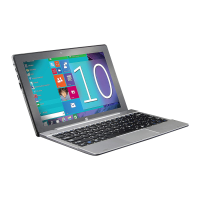

 To Next Page