Adjusting settings when the device is on
•
keep the [+] and [–] buttons pressed simultaneously for 3 seconds to enter pairing mode
•
in pairing mode, keep the multifunction button and the [+] button pressed simultaneously
for 3 seconds to enable dual device connection
3.2. Microphone
Your Suunto Sonic comes with dual microphone and clear voice call (cVc) noise reduction
technology. These features guarantee good voice quality of your phone calls even in noisy
conditions.
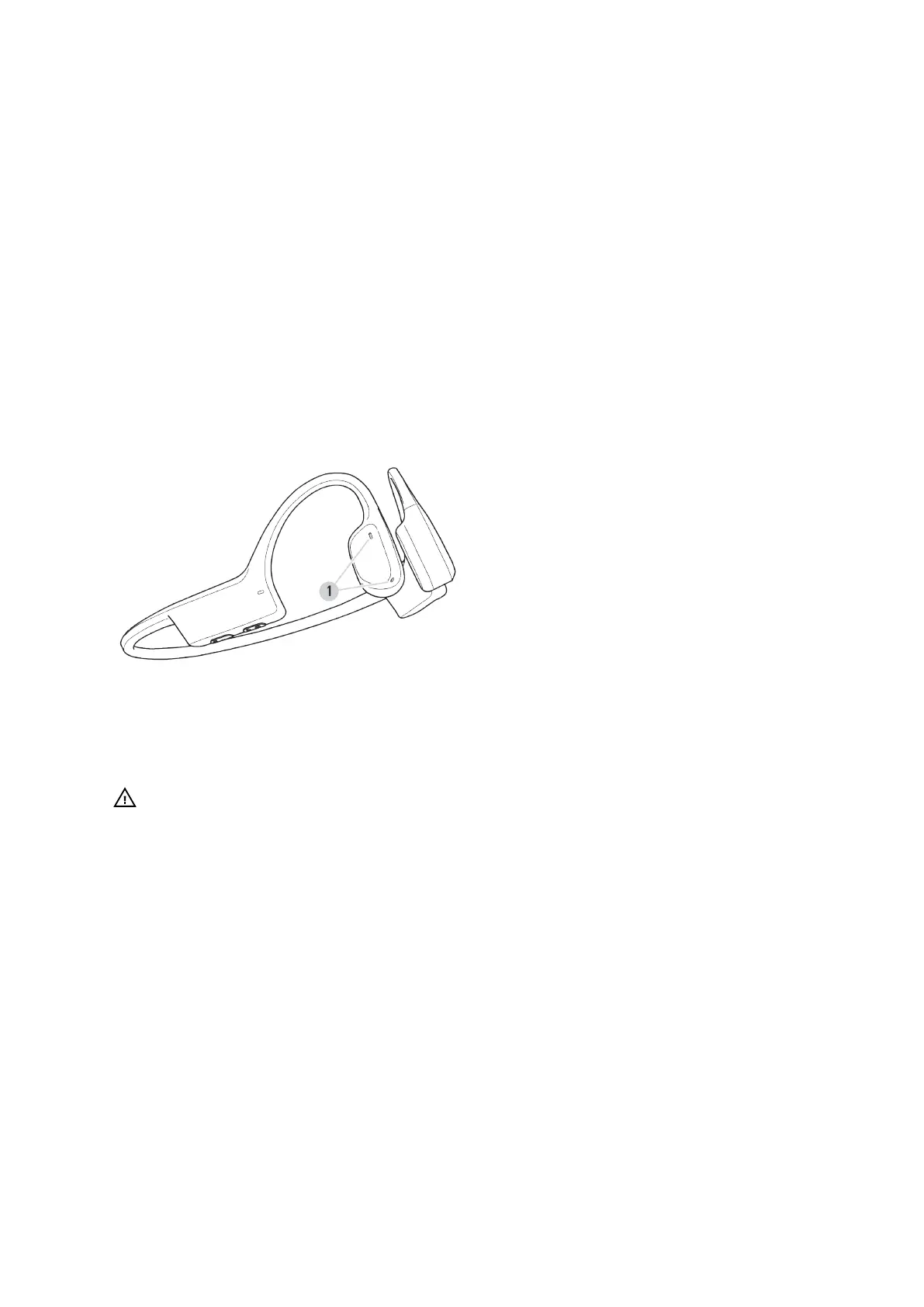
You find the microphones on the right side of the headphones:
1. dual microphone
CAUTION: Do not wash the microphone holes directly with water or volatile liquids, as
they may aect the performance of the microphone.
3.3. Bluetooth connectivity
Your Suunto Sonic headphones communicate with the compatible devices via Bluetooth. You
can pair the product with any Bluetooth devices capable of playing audio, such as mobile
phones, smart watches, tablets, etc. For information on how to pair the headphones with a
compatible device, see 3.4. Pairing.
You can connect your headphones to two Bluetooth devices at the same time. See 4.3. Dual
device connection.
If you want to disconnect the headphones and the compatible device, you can do so in the
Bluetooth settings of the paired device. You have two options. To keep the headphones on
the Bluetooth list of the paired device and ensure quick reconnection, simply disconnect the
devices. If you want to completely remove the headphones from the Bluetooth list of the
paired device, delete the headphones from the list of Bluetooth connections. In this case, if
you want to use the headphones and the Bluetooth device again, you have to start pairing
from the beginning.
Suunto Sonic
7



 To Next Page