1.
2.
3.
4.
5.
6.
7.
8.
9.
10.
1.
2.
3.
4.
5.
6.
Open the bottom lid.
Insert the SIM cards into the micro-SIM slots (SIM A slot is a default).
If using another slot, the configuration can be changed in RouterOS with the CLI command:
/system routerboard modem set sim-slot=down
After changing SIM slots, the LTE modem will be restarted. It can take some time (depending on the modem and board around 30 seconds) to
fully initialize it, so make sure you test your modem.
https://wiki.mikrotik.com/wiki/Dual_SIM_Application
Connect the device to the power source (see " ").Powering
Once the device is powered on and the PC is connected to the device, open in your web browser or Winbox to start the https://192.168.188.1
configuration.
User name: a and there is no password by default you will be logged in automatically to the Quick Set screen.
dmin
We recommend clicking the "Check for updates" button on the right side and updating your RouterOS software to the latest version to ensure the
best performance and stability. Must have an internet connection and a valid SIM card.
To manually update the device, please go to our web page and download the latest (MIPSBE) software packages to your PC.
Open the Web browser or Winbox and upload packages to the Files menu and reboot the device.
Set up your router password in the bottom field "Password" to the right and repeat it in the field "Confirm Password", it will be used to log in next
time.
Click on the "Apply Configuration" to save changes.
Mounting
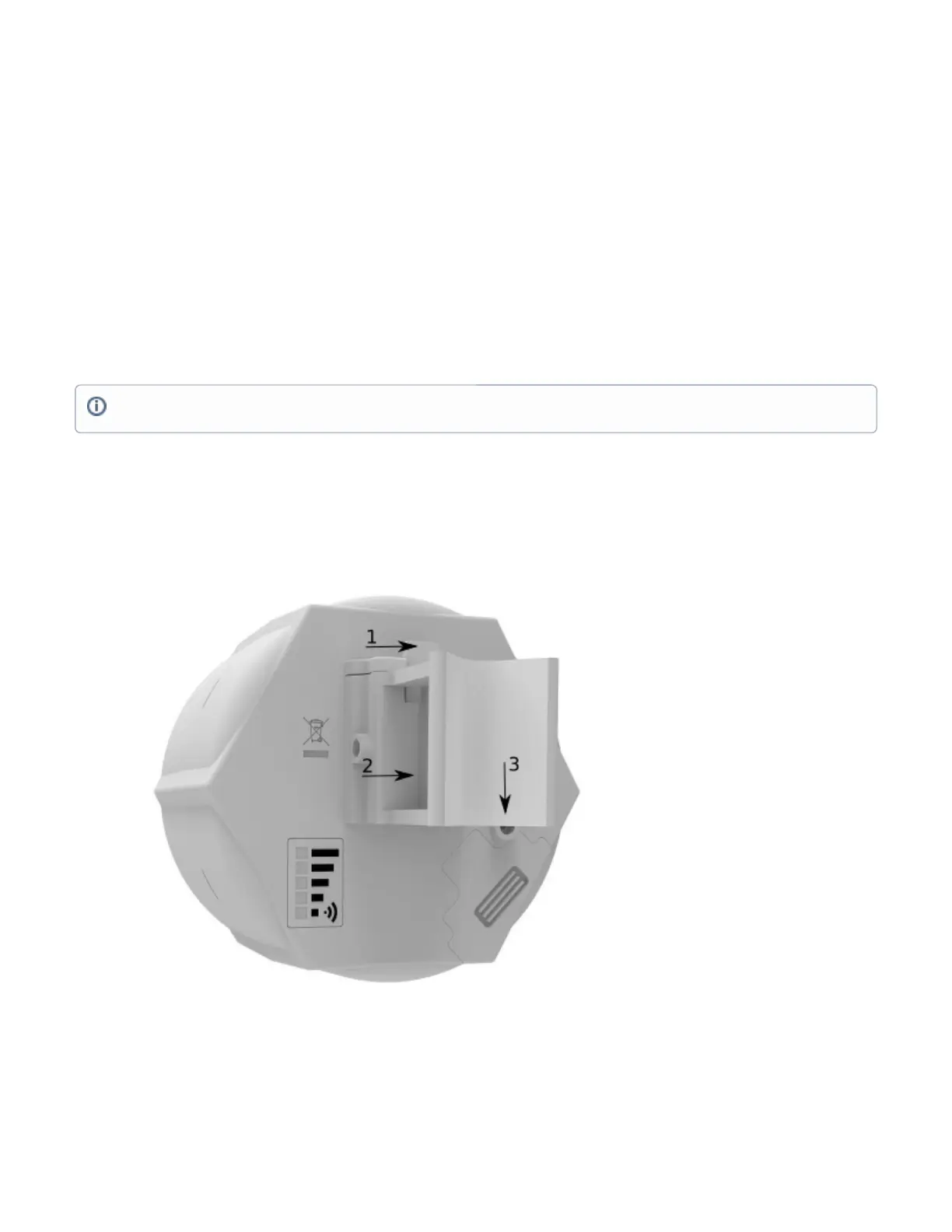
SXT is designed to be mounted on the pole, the package includes a mounting bracket and steel clamp.
With the clip pointed forward, slide the mounting bracket into the rail on the bottom of the case, until the clip clicks into place.
Guide the clamp through the opening in the bracket.
Attach the unit to a pole, with the Ethernet port pointing downward.
Use a PH2 screwdriver to tighten the rings when alignment is complete.
Fix the Ethernet cable to the pole using zip ties, less than one meter from the unit, to avoid the cable being pulled out of the port.
Check mounting angle and positioning.
When using both Ethernet ports, make sure to cut a wider cable opening in the plastic door. You can use pliers to tear out the plastic piece that is
protecting the cable opening. When closing the plastic door, make sure to apply pressure, until it "clicks" into place.
The mounting and configuration of this device should be done by a qualified person.
All pre 7.1.4 versions of ROS will have the default IP set to , after an upgrade to 7.1.4 the default IP is set to .192.168.88.1 192.168.188.1



 To Next Page