EasyManua.ls Logo

Syba SD-PEX50055 - Page 2

Syba SD-PEX50055
3 pages
Print Icon
To Next Page IconTo Next Page
To Previous Page IconTo Previous Page
Loading...
e
Supported
operation
system
(Windows
8
/
7
/
Vista
/
XP
/
Server
2008
32-/64-bit
OS,
Mac
OS
10.7.1
or
above,
and
Linux
Kernel
2.6.31
or
later)
¢
Optical
drive
for
driver
installation
WARNING
Before
installing
and
activating
the
controller
card,
please
make
sure
you
have
a
complete
backup
of
your
existing
data
from
hard
drives.
Manufacturer
is
not
responsible
for
data
loss
due
to
abuse,
misuse,
or
neglect.
Should
you
have
any
installation
problem,
please
contact
your
dealer
for
assistance.
HARDWARE
INSTALLATION
Turn
off
your
computer
and
all
external
devices
connected
to
it.
Disconnect
your
computer
from
the
power
sources.
Open
the
computer
case.
Refer
to
your
computer
user
manual
for
more
details.
Locate
an
available
PCI-Express
slot
(preferably
a
PCI
Express
2.0
slot)
and
remove
the
slot
bracket.
Save
the
bracket
screw
for
later
use.
Align
the
controller
card
horizontally
with
respect
to
the
PCI-Express
slot
and
insert
it
into
the
slot
firmly
and
evenly.
Once
you
have
properly
positioned
the
card
into
the
Slot,
fasten
it
to
the
computer
case
with
the
bracket
screw
you
have
saved.
Connect
the
power
supply
unit
(PSU)
of
the
computer
to
our
product.
Mount
the
SATA
hard
disk(s)
on
the
computer
case.
.
Connect
the
power
cable
to
the
SATA
hard
disk(s).
10.
Connect
the
SATA
hard
disk(s)
to
the
controller
card
with
the
SATA
cable.
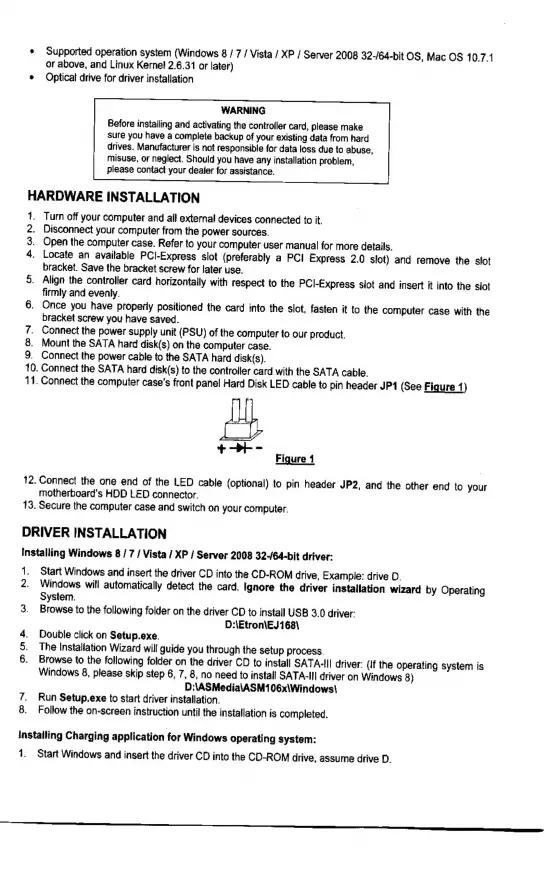
11.
Connect
the
computer
case's
front
panel
Hard
Disk
LED
cable
to
pin
header
JP1
(See
Figure
1)
PON>
D o
ooN
se
a
Figure
1
12.
Connect
the
one
end
of
the
LED
cable
(Optional)
to
pin
header
JP2,
and
the
other
end
to
your
motherboard’s
HDD
LED
connector.
13.
Secure
the
computer
case
and
switch
on
your
computer.
DRIVER
INSTALLATION
Installing
Windows
8
/
7
/
Vista
/
XP
/
Server
2008
32-/64-bit
driver:
1.
Start
Windows
and
insert
the
driver
CD
into
the
CD-ROM
drive,
Example:
drive
D.
2.
Windows
will
automatically
detect
the
card.
Ignore
the
driver
installation
wizard
by
Operating
System.
3.
Browse
to
the
following
folder
on
the
driver
CD
to
install
USB
3.0
driver:
D:\Etron\EJ168\
4.
Double
click
on
Setup.exe.
5.
The
Installation
Wizard
will
guide
you
through
the
setup
process.
6.
Browse
to
the
following
folder
on
the
driver
CD
to
install
SATA-II
driver:
(If
the
operating
system
is
Windows
8,
please
skip
step
6,
7,
8,
no
need
to
install
SATA-II
driver
on
Windows
8)
D:\ASMedia\ASM106x\Windows\
7.
Run
Setup.exe
to
start
driver
installation.
8.
Follow
the
on-screen
instruction
until
the
installation
is
completed.
Installing
Charging
application
for
Windows
operating
system:
1.
Start
Windows
and
insert
the
driver
CD
into
the
CD-ROM
drive,
assume
drive
D.