
 Need help?
Do you have a question about the Synology DiskStation DS416 and is the answer not in the manual?
Lists all items included in the Synology DiskStation package for verification upon arrival.
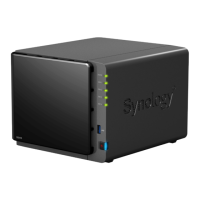
Identifies and describes the front and back panel components and ports of the Synology DiskStation.
Provides critical safety guidelines and precautions for handling, operating, and avoiding damage to the DiskStation.
Lists the necessary tools and compatible drive types for installing hard drives into the DiskStation.
Step-by-step guide on how to remove drive trays and load hard drives into the Synology DiskStation bays.
Instructions on connecting LAN cables, AC adapter, and powering on the DiskStation to initiate startup.
Guide on using the Web Assistant tool to download and install the DiskStation Manager (DSM) operating system.
Directs users to Synology's website for additional information and online resources about the DiskStation.
This document serves as a Quick Installation Guide for the Synology DiskStation DS416, a network-attached storage (NAS) device designed for data storage, sharing, and management. The guide provides essential information for setting up and maintaining the device, covering hardware installation, initial software setup, and safety instructions.
The Synology DiskStation DS416 is a multi-bay NAS device that allows users to centralize their data, create a private cloud, and access files from anywhere. It supports multiple hard drives, enabling users to configure various RAID types for data redundancy and performance optimization. The device is powered by Synology DiskStation Manager (DSM), a browser-based operating system that offers a wide range of applications and services for file management, multimedia streaming, backup, and more. The DS416 is equipped with multiple USB 3.0 ports for connecting external devices like hard drives or printers, and LAN ports for network connectivity. It is designed to be a reliable and efficient solution for both home and small office environments, providing a secure and accessible platform for digital assets. The system includes indicators for status and disk activity, allowing users to quickly assess the device's operational state. A power button with an integrated indicator controls the device's on/off state, while a reset button provides options for restoring default network settings or reinstalling the DSM.
The DS416 is designed for straightforward hardware setup and intuitive software configuration. Users begin by installing hard drives into the device's bays. The guide details the process for both 3.5" and 2.5" drives, emphasizing the importance of proper seating and securing the drives within the trays. Once the drives are installed, the drive bay cover is secured. The device is then connected to the network via an RJ-45 LAN cable and powered on using the provided AC adapter and power cord.
The initial software setup is facilitated by Synology's Web Assistant, a built-in tool that automatically searches for and finds the DiskStation on the local network. Users access Web Assistant through a web browser by entering a specific address (find.synology.com or diskstation:5000). Web Assistant then guides the user through the process of downloading and installing the latest version of DSM from the Internet. This ensures that the device is running the most up-to-date operating system with all its features and security enhancements. The installation process is interactive, with on-screen instructions to follow. After DSM is installed, the DiskStation becomes accessible and manageable from any computer on the network. The device supports various client operating systems, including Windows, Mac OS, and Ubuntu, ensuring broad compatibility. It also supports a range of file systems for both internal and external drives, offering flexibility in data management. The DS416's ability to support different RAID types, including Synology Hybrid RAID, allows users to balance data protection and storage capacity according to their needs. The presence of multiple USB 3.0 ports enhances its versatility, allowing for easy expansion of storage or connection of other peripherals.
Maintaining the Synology DiskStation DS416 involves several aspects, including monitoring its operational status, ensuring proper environmental conditions, and understanding the LED indicators. The device features a Status Indicator and individual Disk Indicators on the front panel, which provide visual cues about the system's health and drive activity. The guide includes an LED Indicator Table that explains the meaning of different colors and blinking patterns for these LEDs. For instance, a green static Status Indicator signifies a normal volume, while an orange blinking light could indicate a degraded or crashed volume, or that DSM is not installed. Disk Indicators show whether a drive is ready, idle, being accessed, or experiencing an error. The rear LAN indicators also provide information about network connection speed and activity.
The DS416 is equipped with fans to dissipate excess heat and maintain optimal operating temperatures. If a fan malfunctions, the device will emit a beeping sound to alert the user. Safety instructions emphasize keeping the device away from direct sunlight, chemicals, and liquids, and ensuring a stable environment without abrupt temperature or humidity changes. It is also crucial to place the product right side up on a stable surface to prevent it from falling. Before cleaning, the power cord must be unplugged, and only damp paper towels should be used, avoiding chemical or aerosol cleaners. The power cord must be connected to the correct and stable supply voltage. To completely remove electrical current, all power cords must be disconnected from the power source. The device also includes a Kensington Security Slot for attaching a security lock, providing physical security. In case of drive errors, the guide suggests restarting the DiskStation or re-inserting the drive(s), and running diagnostic tools provided by the HDD/SSD manufacturer or the built-in S.M.A.R.T. test within DSM. If problems persist, contacting Synology Technical Support is recommended. The device also supports HDD hibernation, scheduled power on/off, and Wake on LAN, which contribute to energy efficiency and remote management capabilities. These features collectively ensure the longevity and reliable operation of the DiskStation.
 General
| RAID levels | 0, 1, 5, 6, 10, JBOD |
|---|---|
| Storage drive size | 2.5/3.5 \ |
| Storage drive capacity | 6000 GB |
| Supported file systems | FAT12, FAT16, FAT32, HFS+, NTFS, ext3, ext4 |
| Storage drive interface | Serial ATA II, Serial ATA III |
| Storage drives installed | Yes |
| Installed storage drive type | HDD |
| Supported storage drive types | HDD & SSD |
| Total installed storage capacity | 24 TB |
| Maximum supported storage capacity | 32 TB |
| Number of storage drives installed | 4 |
| Operating system installed | DiskStation Manager |
| Type | NAS |
| Device class | Small & Medium Business |
| Backup features | Cloud, iSCSI LUN |
| Security algorithms | 256-bit AES, 802.1x RADIUS, HTTPS, SSH, SSL/TLS |
| Built-in optical drive | No |
| Processor cores | 2 |
| Processor model | AL212 |
| Processor family | Annapurna Labs |
| Processor frequency | 1.4 GHz |
| Internal memory | 1 GB |
| Internal memory type | DDR3 |
| Wi-Fi | - |
| Ethernet LAN data rates | 10, 100, 1000 Mbit/s |
| Supported network protocols | CIFS AFP NFS FTP WebDAV CalDAV iSCSI Telnet SSH SNMP VPN (PPTP, OpenVPN) |
| AC input voltage | 100-240 V |
| AC input frequency | 50 - 60 Hz |
| Power supply location | External |
| Number of power supply units | 1 |
| Power supply unit (PSU) capacity | 90 W |
| USB 2.0 ports quantity | 0 |
| USB 3.2 Gen 1 (3.1 Gen 1) Type-A ports quantity | 3 |
| Cables included | AC, LAN (RJ-45) |
| Chassis type | Desktop |
| Cooling type | Active |
| Fan diameter | 92 mm |
| Product color | Black |
| Number of fans | 2 fan(s) |
| Cable lock slot type | Kensington |
| Storage temperature (T-T) | -20 - 60 °C |
| Operating temperature (T-T) | 5 - 40 °C |
| Operating relative humidity (H-H) | 5 - 95 % |
| Sustainability certificates | RoHS |
| Certification | FCC Class B CE Class B BSMI Class B |
 Weight and Dimensions
| Depth | 233.2 mm |
|---|---|
| Width | 203 mm |
| Height | 165 mm |
| Weight | 2040 g |

 To Next Page