4.4 Contacts
Press "OK" to enter the contacts list when in the
contacts menu,press top or bottom key to select SIM
card contacts, Bluetooth contacts and add contacts.
4.4.1 Add Contacts
Press "OK" will show the pop-up circle in add contacts
menu, press top or bottom key to input name and
number to the input area, press “OK”to save or cancel.
Press “#” to choose input method.
4.4.2 Call SIM Card Contacts
Press top and bottom key to choose contacts from SIM
Card Contacts, then press “OK”will show “Find
Contacts”, “Send Message”, “Call the Contacts”, “Edit
Contacts”,”Delete Contacts”, “Choose the Save
Area”and so on. Press top or bottom key to select “Call
the Contacts”.
the record list, press top or bottom key to choose that
you want to play, press “OK”will show “play”or “delete”
, select by press top or bottom key, press “OK”to
confirm.
4.3 Bluetooth
4.3.1 Instrcution of Bluetooth
Open the Bluetooth, search the Talkase Bluetooth on
your smart phone, then pair it.
1. Instruction Before Use
1.1. Install SIM Card
1.2. Charging Method
2. Instruction of Buttons
3. Starter
3.1. Standby Interface
3.2. How to Use Dialer
4. Menu
4.1. Music Player
4.2. Record
4.3. Bluetooth
4.4. Contacts
4.5. Message
4.6. Call History
4.7. Setting
4.8. Calculator
4.9. Anti-Lost
4.10. Shortcut Key
1.1 Install SIM Card
The SIM card slot is on the right side of the back of
Talkase, first remove the cover as instructed, then put
the SIM card into the slot, close the cover, the
installing is done.
Only support micro SIM card.
1.2 Charging Method
Let the four metal contacts of charging slip correspond
to the four of Talkase, then press the charging clip to
ensure it is tightly attached to the back of Talkase,
connect the computer using USB cable or an adapter
for charging. Take out the clip from down to up in
vertical direction, sliding way is not suggested for
protecting the four contacts in charging clip.
3.1.Standby Interface
Long press the power key to start up, standby
interface show the internet signal, Battery Capacity,
and the message notification when there is message
you have not read. When open the Bluetooth it will
show on the interface too. The middle of the interface
is the present time. Press top or bottom menu key for
changing different function.
Lock and Unlock
Press power on/off key and "#" simultaneously to lock
or unlock.
3.2 How to Use Dialer
Press the number key can make a call directly, or dial
by GSM SIM card, or use the BT call to make a dial
after connecting with your smart phone through
Bluetooth.(There must be a SIM card in your smart
phone, how to pair the Bluetooth please refer to BT3.5
). If there is error in input number using the delete
key to correct.
4.1 Bluetooth Music Control
After connecting with the smart phone by Bluetooth
can use the music player.(Note:Only can control
music but can not play, control smart phone to play the
previous and next one.)
4.1.1 How to control music
Press "OK" to enter the function interface when in the
music control menu, press top and bottom key to
select the previous and the next one, press "OK" to
play or pause.
4.2 Record
Begin Recording
Press "OK" to enter the function interface when in the
recording menu, press top and bottom key to select
the function you want, choose the record mark and
begin to record.
Save/Pause/Give up
When recording the screen will show the record time,
press “OK”will show“save/pause/give up ”, select
function by press top and bottom key, press “OK”to
confirm, press recording key to continue recording.
Play and Delete Record List
Press top or bottom key to select, press OK to enter
4.4.3 Dialer to Bluetooth Contacts
Press “OK”to enter the Bluetooth contacts, another
press to choose different functions, press top or
bottom key to “Text Message”, “Dial to the Contacts “,
“Save to the phone book”.
4.5 Message
Press "OK" to enter the message operation interface
when in the message menu, press top or bottom key
to “Text Message”,“Inbox”,“Drafts”,“Outbox”.
4.5.1 Text and Send Message
Choose “Text Message”, press “OK”when the
message is done and the screen will show “send”,
recipient could be choosed from contacts or input
number directly, press “OK”to send. Press top or
bottom key could choose“Save Message”, ”Punctua-
tion”, “Input Method”and so on.
4.5.2 Inbox
Choose “Inbox”, press “OK” to enter the list, press top
and bottom key to select, press “OK”to read, press
again to “Reply”, “Add Contacts”, “Delete”, “Forward”,
“Dial”and so on.
4.5.3 Outbox
Choose “Outbox”, Press “OK” to the list, press top or
bottom key to choose, and press “OK”to read, press
“OK”again to “Forward”or “Delete”.
4.5.4 Drafts
Choose “Drafts”, press “OK”to the list, press top or
bottom key to choose, and press “OK”to read, “OK”
again to “Send”, ”Edit”, “Delete”and so on.
4.6 Call History
Press “OK” to the call history, another press to choose
and “OK”again to “Add contacts”, “Dial “, “Send
Message”, “Delete Call History ”.
4.7 Setting
4.7.1 Alarm Clock Setting
Enter setting-alarm, press “OK” begin to set time,
Press “OK”could enjoy the following functions after
setting done: “Ringtone Setting”, “Repeat Setting”,
“Save Alarm Clock”and so on. The circle could
become solid after successful setting.
4.7.1.1
How to turn off
Enter setting-Alarm Clock, choose the one you want to
delete, press “OK”to confirm, the circle would be
hollow.
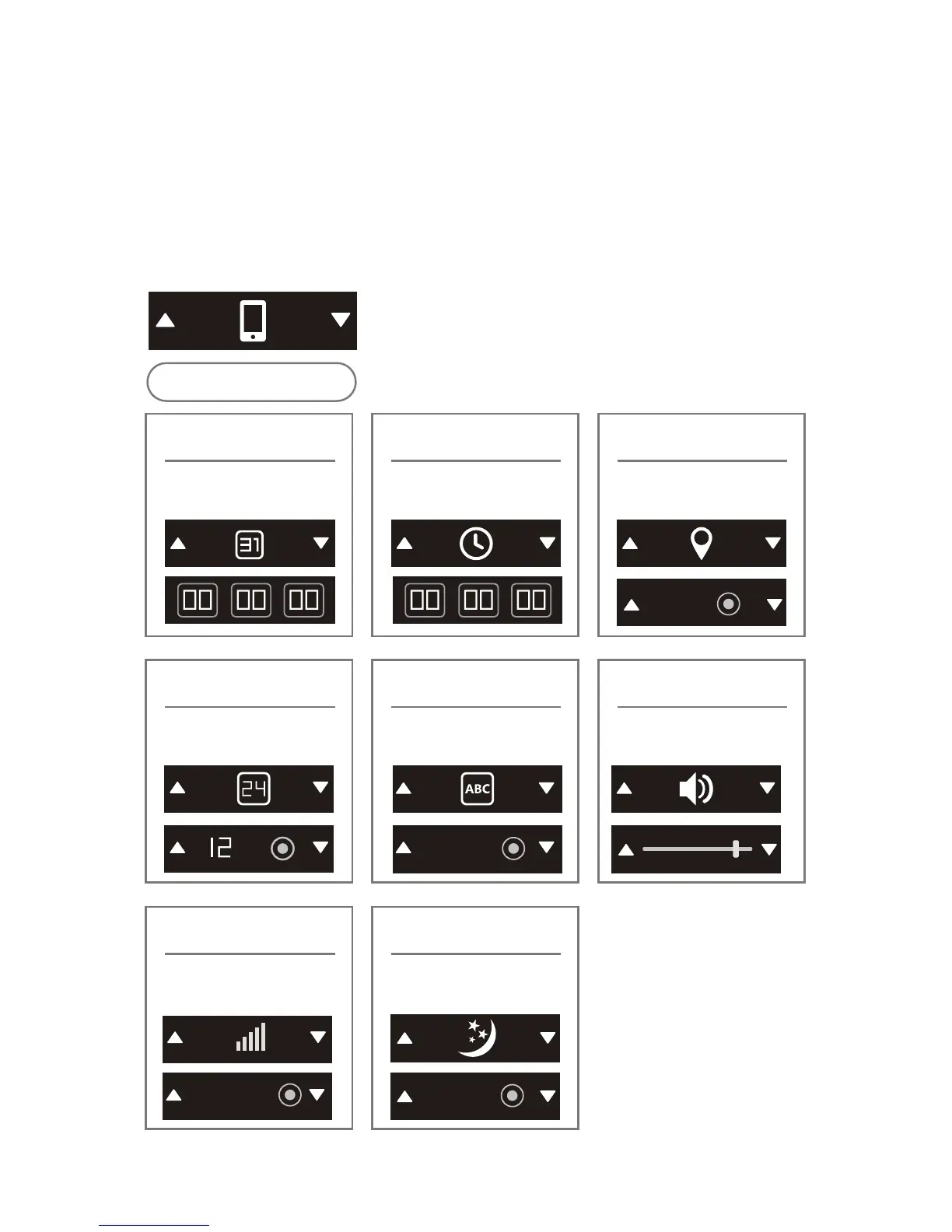
4.7.2 Phone Setting
This including: “Date Setting”, “Time Setting”, “Zone
Setting”, “Time Format Setting”, “System Language
Setting”, “Ringtone Setting”, “Volume Setting”,
“Operator Manul Setting”, “Screen display Time
Setting”, Details See Below:
Input date by
keyboard
Date Setting
Top and bottom key to select
OK to confirm
Top and bottom key to select
OK to confirm
Top and bottom key to select
OK to confirm
Top and bottom key to select
OK to confirm
Top and bottom key to select
OK to confirm
Zone Setting
Input time by
keyboard
Time Setting
Time Format Setting
Volume up by top key
Volume down by bottom key
Volume Setting
Language Setting
Operator Manul
Screen Display Time
4.7.3 Profiles
It including: “Standard Mode”,“Silent Mode”,
“Conference Mode”, “Outdoors Mode”, “Airplane
Mode”. Press “OK” to confirm the one you like.
4.7.4 Restore Factory Setting
Enter setting- restore factory settings, press “OK” get a
notification and “OK” again could accomplish the
setting, press return button to cancel. It can be
restored to the initial status.
4.8 Calculator
Long press calculator key to enter when in standby
interface, then Talkase will be a calculator, input
number to count directly.
Anti-Lost
Press "OK" to enter Anti-Lost function, another press
to switch on or off (Only available after connected by
bluetooth).
Shortcut Key
1. When the Bluetooth is turned off, press return
botton on standby interface, "Connect by..." comes
out, press "OK" can activate Bluetooth rapidly,
otherwise it will be turned on by press the return botton
when the Bluetooth is turned off.
2. Press “#” could exchange input method, press “*”
could choose different punctuation mark when texting
message or edit the contacts’ name.
3. Press OK key to turn on/off the loudspeaker while in
the call status.
15 Seco...AT&T
Washing.
English
22


 To Next Page
 Loading...