
 Need help?
Do you have a question about the Tangent Wave Wave 2 and is the answer not in the manual?
Describes how software determines the panel's control functions and customization options.
Details the USB connection for power (500mA) and data transfer.
Step-by-step guide for connecting the Wave2 panel via USB, ensuring adequate power.
Advice on using USB hubs and extenders, emphasizing power supply needs.
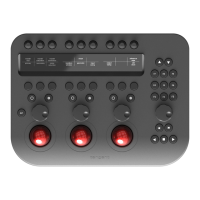
The Tangent Wave2 is a control panel designed for the color correction and video post-production industry. It serves as a physical user interface for software packages, aiming to enhance speed, ease of use, and efficiency by providing direct access to controls without relying on menu functions or mouse clicks. The panel features a familiar three-trackerball layout, which is essential for adjusting primaries in color grading workflows.
The Wave2 panel is designed to be generic, meaning its functionality is not tied to a single software type. Instead, the specific function of each control is determined by the software application being used. Some applications may support the Tangent Mapper, allowing users to customize the panel's controls. If an application does not support the Mapper, the control mapping will be fixed by the application manufacturer. Users are advised to consult the Tangent Wave website to see which applications support the Mapper.
For software integration, some applications will work with the Wave2 panel without requiring additional software installation. However, other applications may necessitate the installation of the Tangent Hub, which can be downloaded from the Tangent Wave website or may be distributed as part of the application itself. Users should check their application's user manual or the Tangent Wave website to determine if the Tangent Hub is required. When setting up the panel within an application, users may need to select "Wave2" as the panel type. If "Wave2" is not an option, selecting "Wave" will still enable functionality.
The Wave2 panel receives power and communicates with the computer via a USB cable. It requires a USB port (1.0 or greater) that can supply 500mA. It's important to note that some older laptops or laptops running on battery power may not be able to provide the necessary 500mA. If a USB hub or extender (repeater) is used, it must be powered and capable of supplying 500mA to the USB socket where the panel is connected. This typically means the USB hub will require an external power supply rated to supply 500mA or more, with a higher rating if other devices are also connected to the hub.
Before using the panel, users should prepare the trackerballs. This involves removing each ball from its cup and rubbing it between their hands. This process deposits natural oils from the skin onto the ball's surface, which helps it to run smoothly within its cup. After preparation, the panel can be connected to a USB port on the computer. It's crucial not to press any buttons on the panel during connection.
The manual includes important safety instructions. Users should read the manual before use, keep it for future reference, and heed all warnings and instructions. The apparatus should not be used near water or installed near heat sources such as radiators, heat registers, stoves, or other heat-producing apparatus (including amplifiers). The panel should be unplugged when not in use for long periods. All servicing should be referred to qualified personnel, especially if the apparatus has been damaged, liquid has been spilled, objects have fallen into it, it has been exposed to rain or moisture, it does not operate normally, or it has been dropped.
Regarding health and safety during use, some experts believe that using human input devices can cause serious injury to hands, wrists, arms, neck, or back. To mitigate these risks, users are advised to take frequent short breaks, get up and walk around at least once an hour, and vary their tasks throughout the day. They should keep their shoulders relaxed with elbows at their side, position the control panel within easy reach, adjust their chair and control panel to keep wrists straight, and avoid resting wrists on sharp edges. If pain, numbness, or weakness is experienced in these areas, a qualified health professional should be consulted.
Troubleshooting guidance is provided for common issues. If the panel isn't working, users should first check if they are using a USB hub or extender. If so, they should remove it and plug the panel directly into the computer. If the panel then works, the issue lies with the hub or extender. If not, further troubleshooting steps are suggested. For specific issues like a button, knob, or trackerball not working, users should first verify if the software they are using actually utilizes that particular control. Then, they should unplug and replug the panel, ensuring no buttons are pressed during reconnection. If the problem persists, contacting Tangent support is recommended. If software communication issues arise, users should refer to the sections on installing the Tangent Hub and selecting the Wave2 panel type in their application.
Maintenance of the Wave2 panel involves proper cleaning. The panel should not be cleaned with harsh abrasives or chemical cleaning products. If it becomes dirty, it should be wiped with a soft, damp cloth. Users should also be careful to avoid scratching the plastic with sharp objects like watch straps or jewelry.
Periodically, the trackerballs and their housing unit will need cleaning. To do this, the panel should be unplugged, and the balls removed. The balls should be cleaned with a soft, damp cloth and then rubbed between the hands to re-deposit natural oils for smooth operation. To clean inside the trackerball unit, a damp cotton bud should be used, focusing on the three white balls that the red ball rests on, and the lens of the optical sensor. Users should be gentle, avoid pressing too hard on the lens, and ensure the cotton bud is only slightly damp. Excessive movement of the ball can cause erratic behavior as the optical sensor may not track it correctly; smooth movements and avoiding rapid changes in direction or spinning are recommended. Dust buildup inside the panel can also affect the optical sensor's ability to track ball movement.
Firmware updates are also addressed. The Wave2 panel comes with the most up-to-date firmware version at the time of manufacture. However, newer versions may become available on the Tangent Wave website. Users can check their panel's current firmware version, which is displayed on the Wave2 screens when the panel is first plugged in, and compare it to the version available online. If an update is needed, users should follow the specific firmware update instructions provided with the update.
 General
| Model | Wave 2 |
|---|---|
| Manufacturer | Tangent |
| Type | Control Panel |
| Connectivity | USB |
| Power | USB Powered |
| Operating System Compatibility | Windows, macOS |
| Software Compatibility | DaVinci Resolve |

 To Next Page