(Confidentiality)
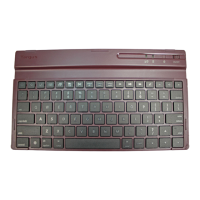
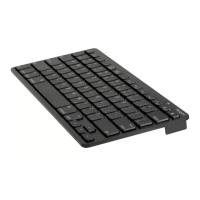
Model:AKB44
Brand name:Targus
Establishing the Connection: iPad Air
New Bluetooth Keyboard: Never paired with iPad Air before
1. Switch on the Bluetooth keyboard. (Turn on the power by pushing the On/Off Switch to the right.), and the Blue LED
continue to blinking for 3 minutes, searching for device (ex. iPad Air Air) into the auto pairing mode
2. Start your iPad Air’s Bluetooth set up function to search for this Bluetooth keyboard and enter password.
Note: There won’t be any prompt, just click “ENTER” after you have entered password on the iPad Air.
4. The Bluetooth keyboard is now connected to your iPad Air.
5. Auto pairing mode will keep 3 minutes, if unable to finish the pairing action within 3 minutes, Bluetooth keyboard will
into sleeping mold.
6. Two ways to weak up Bluetooth keyboard into pairing mold again:
A. Re-switch on Bluetooth keyboard.
B. Press “FN” + “Cap” two keys at the same time more than 3 second.
Bluetooth Keyboard paired already: Lost the connection with iPad Air / Re-pairing with another iPad Air
Lost the connection with iPad Air
1. Switch on the Bluetooth keyboard. (Turn on the power by pushing the On/Off Switch to the right.) , Bluetooth
keyboard into auto searching for previous iPad Air for next 20 seconds.
2. If fail, Bluetooth keyboard will into sleeping mold.
4. Press any key to weak up Bluetooth keyboard into pairing mold, Blue LED will light all the time for 10 seconds.
Re-pairing with another iPad Air
1. Press “FN” + “Caps” to re-pairing another iPad Air
Charging the Bluetooth Keyboard
The Bluetooth Keyboard requires charging when the low battery Red LED keeps flashing.
1. Connect the keyboard with the USB charging cable, plug the other end into a power outlet.
2. The charging Red LED will remain lit until charging is finished.
3. Fully charged and under normal conditions, the keyboard provides 150 hours of battery life
Trouble Shooting Guide
• Make sure the bluetooth keyboard is fully charged.
• If the red LED starts blinking while the keyboard is in use, it is indicating a battery low status and it is time for
charging.
• On your iPad Air, click on the Bluetooth icon within the system preferences pane. Refer to the Apple Bluetooth help
file to ensure Bluetooth is working properly.
• Try moving the Bluetooth keyboard closer to your iPad Air Air. Make sure there are no other Bluetooth devices in

 Need help?
 General

 To Next Page