EasyManua.ls Logo

Tascam DR-701D - User Manual

Tascam DR-701D
20 pages
Print Icon
To Next Page IconTo Next Page
Loading...
D01271700B
ENGLISH
FRANÇAIS
ESPAÑOL
DEUTSCH
ITALIANO
日本語
OWNER'S MANUAL
MODE D’EMPLOI
MANUAL DEL USUARIO
BEDIENUNGSANLEITUNG
MANUALE DI ISTRUZIONI
取扱説明書
DR-701D
Linear PCM Recorder for DSLR
®

Other manuals for Tascam DR-701D

Question and Answer IconNeed help?

Do you have a question about the Tascam DR-701D and is the answer not in the manual?

Summary

Important Safety Precautions

Information to the User

Details FCC compliance for Class B digital devices and user responsibilities for interference.

For Canada

States compliance with Canadian ICES-003 standard for digital apparatus.

Declaration of Conformity

Manufacturer's declaration of compliance with technical standards.

Important Safety Instructions

General Safety Instructions

Provides 14 essential safety guidelines for operating the equipment.

Cautions About Batteries

Battery Usage Precautions

General guidelines for safe battery installation, handling, and usage.

Precautions for Placement and Use

Heat and Interference Precautions

Warns about placing near heat sources and potential interference.

Names and Functions of Parts

Preparation

Powering the Unit with AA Batteries

Step-by-step guide for installing AA batteries.

Turning the Unit On

Instructions on how to power on the device from standby.

Turning the Unit Off (Standby)

Instructions on how to power off the device into standby mode.

Inserting SD Cards

Connecting External Stereo Mics and Monitoring Equipment

Microphone and Headphone Connections

Connecting external microphones and headphones.

Monitoring System Connections

Connecting external monitor speakers or amplifiers.

Connecting Cameras

Recording Camera Audio

Connecting to a camera for audio input during recording.

Monitoring Camera Audio

Connecting to a camera for audio output monitoring.

Camera Synchronization via HDMI

Using HDMI for camera clock synchronization and timecode.

Using the TIMECODE IN Connector

Timecode Input for Recording

Using the BNC connector for timecode input to synchronize recordings.

Recording

Setting Input Destinations

Configures input sources for channels (EXT IN, built-in mic, IN jacks).

Adjusting the Input Level

Setting input gain levels for each channel to avoid distortion.

Using the Limiter

Enabling the limiter to automatically adjust input gain and prevent overload.

Setting the Automatic Level Control (ALC) Function

Enabling ALC to automatically adjust input level based on sound.

Setting the Low-Cut Filter

Low-Cut Filter Setup

Configuring the low-cut filter to reduce low-frequency noise.

Starting Recording

Initiating Recording

Instructions on how to start and stop the recording process.

Connecting with a Computer

Connecting via USB

Procedure for connecting the unit to a computer using a USB cable.

Exchanging Files

Instructions for transferring audio files between the unit and a computer.

Quick Reference for Using Various Functions

Troubleshooting

Unit Not Turning On

Troubleshooting steps for when the unit fails to power on.

Unit Does Not Function

Troubleshooting steps for general operational failures.

Recording Not Possible

Troubleshooting steps for when recording cannot be initiated.

Specifications

Summary

Important Safety Precautions

Information to the User

Details FCC compliance for Class B digital devices and user responsibilities for interference.

For Canada

States compliance with Canadian ICES-003 standard for digital apparatus.

Declaration of Conformity

Manufacturer's declaration of compliance with technical standards.

Important Safety Instructions

General Safety Instructions

Provides 14 essential safety guidelines for operating the equipment.

Cautions About Batteries

Battery Usage Precautions

General guidelines for safe battery installation, handling, and usage.

Precautions for Placement and Use

Heat and Interference Precautions

Warns about placing near heat sources and potential interference.

Names and Functions of Parts

Preparation

Powering the Unit with AA Batteries

Step-by-step guide for installing AA batteries.

Turning the Unit On

Instructions on how to power on the device from standby.

Turning the Unit Off (Standby)

Instructions on how to power off the device into standby mode.

Inserting SD Cards

Connecting External Stereo Mics and Monitoring Equipment

Microphone and Headphone Connections

Connecting external microphones and headphones.

Monitoring System Connections

Connecting external monitor speakers or amplifiers.

Connecting Cameras

Recording Camera Audio

Connecting to a camera for audio input during recording.

Monitoring Camera Audio

Connecting to a camera for audio output monitoring.

Camera Synchronization via HDMI

Using HDMI for camera clock synchronization and timecode.

Using the TIMECODE IN Connector

Timecode Input for Recording

Using the BNC connector for timecode input to synchronize recordings.

Recording

Setting Input Destinations

Configures input sources for channels (EXT IN, built-in mic, IN jacks).

Adjusting the Input Level

Setting input gain levels for each channel to avoid distortion.

Using the Limiter

Enabling the limiter to automatically adjust input gain and prevent overload.

Setting the Automatic Level Control (ALC) Function

Enabling ALC to automatically adjust input level based on sound.

Setting the Low-Cut Filter

Low-Cut Filter Setup

Configuring the low-cut filter to reduce low-frequency noise.

Starting Recording

Initiating Recording

Instructions on how to start and stop the recording process.

Connecting with a Computer

Connecting via USB

Procedure for connecting the unit to a computer using a USB cable.

Exchanging Files

Instructions for transferring audio files between the unit and a computer.

Quick Reference for Using Various Functions

Troubleshooting

Unit Not Turning On

Troubleshooting steps for when the unit fails to power on.

Unit Does Not Function

Troubleshooting steps for general operational failures.

Recording Not Possible

Troubleshooting steps for when recording cannot be initiated.

Specifications

Overview

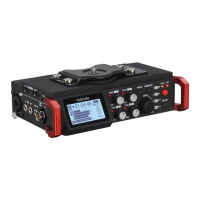
The TASCAM DR-701D is a linear PCM recorder designed for use with DSLR cameras, offering high-quality audio recording capabilities to complement video production. This device is engineered to capture pristine sound, providing a robust solution for filmmakers and videographers who require professional-grade audio.

Function Description

The DR-701D serves as an external audio recorder that can be mounted directly onto a DSLR camera, integrating seamlessly into a video production workflow. It records audio in Linear PCM format, ensuring uncompressed, high-fidelity sound. The device supports various recording formats, including MONO, STEREO, and POLY (6ch), allowing for flexible audio capture depending on the production needs. It can record up to six tracks simultaneously, including four individual mic/line inputs and a stereo mix, providing ample channels for complex audio setups.

A key feature is its ability to synchronize with a camera's clock via HDMI, ensuring precise timecode alignment between audio and video. This is crucial for post-production, simplifying the editing process. The DR-701D can also receive HDMI timecode from the camera and record it into the BWF Time Reference field, further enhancing synchronization accuracy. For external timecode sources, it includes a BNC connector for linear timecode (LTC) input, with an internal generator that synchronizes to the external signal.

The recorder offers multiple input options, including four XLR/TRS combo jacks for professional microphones (with phantom power support), a 3.5mm stereo mini jack for external stereo mics (with plug-in power), and a 3.5mm stereo mini jack for camera audio input. This versatility allows users to connect a wide range of microphones and audio sources. Output options include a 3.5mm stereo mini jack for headphones, a 3.5mm stereo mini jack for line out, and a 3.5mm stereo mini jack for camera audio output, enabling monitoring and routing of audio signals. HDMI input and output connectors facilitate integration with cameras and HDMI monitor recorders, allowing recorded audio to be added to HDMI video input from a camera and then output.

The DR-701D records to SD, SDHC, or SDXC cards, providing ample storage for long recording sessions. It features a clear display that shows essential information such as timecode reception status, recorder operation status, elapsed time, power supply status, HDMI connection status, recording settings, level meters, remaining time, peak values, project name, trim levels, and GANG status.

Usage Features

The DR-701D is designed for intuitive operation, making it accessible for both experienced audio professionals and those new to external recording.

  • Powering On/Off: The unit can be powered on by sliding the HOLD switch, which brings up the TASCAM DR-701D start-up screen followed by the Home Screen. To turn off, slide the HOLD switch again, and the unit will enter standby after its shutdown process.
  • Battery Use: It operates on four AA batteries (alkaline, NiMH, or lithium) and can also be powered by an AC adapter (sold separately) or USB bus power. The device includes a battery management system that allows users to select the battery type for accurate power remaining display.
  • SD Card Handling: SD cards are inserted into a dedicated slot after opening the front cover. The unit supports various SD card standards, and a list of compatible cards is available on the TEAC Global Site.
  • Input Level Adjustment: Input levels can be manually adjusted using dedicated knobs, with guidelines provided on the display to prevent distortion. The device also features a limiter function to automatically adjust mic input gain, preventing clipping during loud sounds. An Automatic Level Control (ALC) function further assists by automatically adjusting input levels in response to the sound.
  • Low-Cut Filter: A low-cut filter can be applied to reduce unwanted low-frequency noise, such as air-conditioning or wind noise, improving audio clarity.
  • Monitoring: Users can select which signal to monitor (e.g., a stereo mix, individual channels, or HDMI inputs) through the PHONES jack. The PHONES volume control allows for adjustment of the headphone output level.
  • Recording: Recording is initiated by pressing the dedicated record button. The display provides real-time information on recording status, project name, elapsed time, and remaining recording time. The unit supports dual recording mode, indicated by a DUAL indicator, which can be used for safety tracks.
  • Playback: Recordings can be played back, paused, and stopped using dedicated transport buttons. The device also supports searching backward and forward within files and jumping to specific playback positions marked during recording.
  • File Management: The DR-701D allows users to select where to save files, create new folders, and manage existing files. It can connect to a computer via USB to transfer audio files, appearing as an external drive.
  • Timecode Integration: The TIMECODE IN connector allows for external timecode synchronization, which is recorded into the BWF Time Reference field. HDMI connectivity also enables clock synchronization with cameras and output of HDMI timecode.
  • Slate Tone: A SLATE button is included to generate slate tones, useful for marking takes and synchronization points.
  • Remote Control: The unit supports remote control, allowing for external operation.
  • Display Settings: Users can adjust the display backlight and contrast for optimal visibility in various environments.
  • Automatic Power Saving: An automatic power saving function can be enabled to turn off the unit after a period of inactivity, conserving battery life.

Maintenance Features

Proper maintenance ensures the longevity and optimal performance of the DR-701D.

  • Cleaning: The unit should be cleaned only with a dry cloth. Avoid using wet cloths, thinner, alcohol, or chemical agents, as these can damage the surface or cause discoloration.
  • Battery Replacement: When the "Battery Empty" message appears, batteries should be replaced promptly. Always install batteries with the correct polarity. If the unit will not be used for a long time, remove the batteries to prevent leakage, which could cause fire, injury, or stains. If battery fluid leaks, wipe it away from the battery compartment before inserting new batteries. If fluid gets in an eye, wash thoroughly with clean water and consult a doctor immediately. If fluid gets on skin or clothing, wash it off with clean water.
  • SD Card Care: If an "SD Card Error" or "Card Full" message appears, users should check the card, erase unnecessary files, or replace the card. If the card is not formatted properly, the unit can format it, but this will erase all data. It is recommended to back up files to a computer regularly.
  • Firmware Updates: The unit's firmware can be updated, and information about the current version can be checked through the system settings.
  • Troubleshooting: The manual provides a comprehensive troubleshooting guide for common issues such as the unit not turning on, automatically turning off, not functioning, SD card not recognized, playback issues, no sound output, recording problems, low input levels, distorted sound, inability to erase files, or files not appearing on a computer.
  • Environmental Considerations: The device should not be exposed to drips or splashes, nor should objects filled with liquids be placed on it. It should not be installed in confined spaces and should be kept away from heat sources.
  • Service: If problems persist after troubleshooting, users are advised to contact TEAC for service referral and should not use the product until it has been repaired.
  • Disposal: For European customers, the manual provides guidelines for the separate disposal of electrical and electronic equipment and batteries, emphasizing the importance of proper disposal to protect the environment and human health.

Tascam DR-701D Specifications

General IconGeneral
Audio quality16 bit
Frequency range20 - 80000 Hz
Microphone input impedance2000 Ω
USB 2.0 ports quantity1
Product colorBlack, Red
Weight and Dimensions IconWeight and Dimensions
Weight567 g
Dimensions (WxDxH)169 x 113.5 x 57.3 mm

Related product manuals