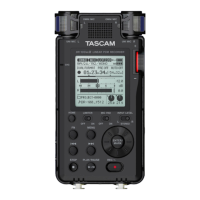
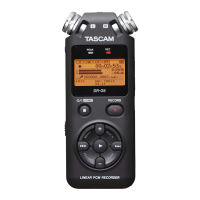
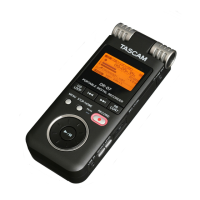
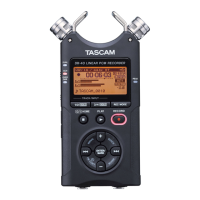
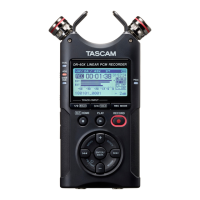
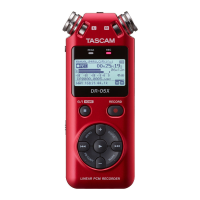
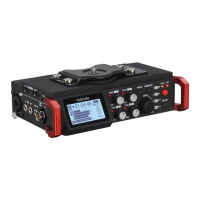
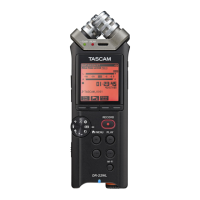
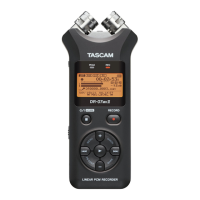
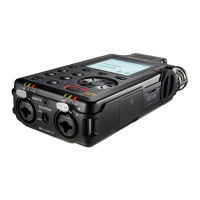
The Tascam DR-100 MkII is a linear PCM recorder designed for high-quality audio capture. It offers a range of features for both professional and amateur users, focusing on flexibility in input sources, recording settings, and playback control.
Function Description:
The core function of the Tascam DR-100 MkII is to record audio in various formats and from multiple input sources. It serves as a portable recording solution, capable of capturing sound with internal microphones or external professional-grade microphones via XLR inputs. The device also supports line-level inputs and outputs, making it versatile for different recording scenarios, including connecting to a DSLR camera to act as an external microphone.
Usage Features:
The DR-100 MkII features a user-friendly interface with dedicated buttons and a clear LCD screen for navigation and status display.
Controls and Navigation:
- HOME: This button returns the user to the main home screen, providing a central point for navigation.
- MENU: Accesses the device's menu options, allowing for detailed configuration of settings.
- I/O LOOP: Used to set or clear in/out points for looped playback, useful for reviewing specific sections of audio.
- QUICK: Opens a popup menu for quick access to frequently used functions.
- Navigation Buttons (<< and >>): On the home screen, these buttons allow users to scroll through files. Within menus, they navigate back and forth through options.
- STOP: This button serves multiple purposes: it stops recording and creates a new file, stops or pauses playback, and acts as a "NO" confirmation in menu screens.
- PLAY/PAUSE: On the home screen, it plays the currently selected file. During recording, it pauses the recording without creating a new file.
- PB CONTROL: Opens and closes the playback control menu, offering more granular control over audio playback.
- INPUT CONTROL: This button is crucial for setting the recording inputs. It allows selection between XLR, Uni mic, Omni mic, and Line inputs.
- XLR: Records audio via the XLR/jack inputs, ideal for external microphones.
- Uni mic: Utilizes the main microphones on top to record in one direction.
- Omni mic: Records in a 360-degree pattern using the main microphones.
- Line: Records audio via the line input.
- WHEEL: A rotary control used for scrolling through menus and files, providing a tactile way to navigate.
- ENTER/MARK: Functions as a "YES" or "CONFIRM" button in menus. During playback, pressing and holding it adds a mark to a clip, useful for identifying important sections.
- AUTO: Enables automatic settings for various parameters, offering a hands-free recording option.
- RECORD: This button initiates recording. Pressing it once enters record standby, and pressing it again starts the actual recording.
- HOLD: This switch disables all other buttons, preventing accidental presses and changes to settings during recording or transport. It's a good option for hands-free recording.
- On/off button: A press-and-hold button to power the Tascam on or off. Ensure the hold button is not switched on if the device doesn't respond.
- OMNI MIC L/R: These are the built-in omnidirectional microphones, capturing sound from all directions.
- XLR Inputs (MIC/LINE 1 IN): Two XLR/jack combo inputs (Left and Right) allow for connecting external microphones or line-level sources. These are separate mono channels, enabling two-track recording. A silver release button must be pressed when removing XLR cables.
- MIC/LINE 1 Switch: Located on the bottom panel, this switch sets the input type for the XLR ports to either microphone or line level. It's generally advised to keep this on XLR for microphone use.
- Line Input (Mini-jack): A 3.5mm mini-jack female connector for line-level signals.
- Line Output (Mini-jack): A 3.5mm mini-jack female connector for line-level signals, allowing connection to devices like DSLRs.
- Headphone Output (Mini-jack): A 3.5mm mini-jack for monitoring audio with headphones.
- Headphone/SP Output Volume: A dedicated control for adjusting the headphone volume, independent of the input volume.
- USB (Mini-B): A USB Mini connection for connecting the Tascam to a PC for file transfer and for charging the internal battery.
- DC IN 5V: An input for connecting to mains power, enabling faster charging and extended operation.
Recording Settings and Adjustments:
- MIC GAIN (LMH): A switch to adjust the microphone sensitivity to low, medium, or high. This is crucial for preventing quiet recordings or peaking.
- +48V OFF/ON (Phantom Power): This switch provides +48V phantom power to external microphones that require it. If a microphone isn't recording, checking this setting is a primary troubleshooting step. When activated, the LCD screen will prompt for confirmation.
- AUTO/LIMITER OFF/ON: In the input menu, this feature can be activated or deactivated.
- Auto: Automatically adjusts the recording volume to maintain an even level.
- Limiter: Adjusts gain to reduce distortion when input levels are very loud.
- SPEAKER OFF/ON: Toggles the mono speaker on the front of the device for playback.
- File Format: The device allows setting the recording file format. Users can choose between 16-bit and 24-bit (recommended for higher quality) and adjust the sample rate (e.g., to 48KHz).
- Recording Input Sources: The device supports four main input settings: XLR, Uni mic, Omni mic, and Line. Omni and Uni modes inherently record in stereo. For external microphones (e.g., with a boom pole), users should navigate to MENU > INPUT SETTINGS, scroll to MIC, ensure TYPE is MONO, set the front panel input selector to XLR, and the bottom panel switch to mic.
- Saving Files: Users can control where audio files are saved by navigating to MENU > BROWSE, where they can create new folders or select existing ones. Alternatively, files can be saved to the standard root directory.
Recording Process:
- Preparation: Press the RECORD button once to enter standby mode (the REC indicator will blink). This allows users to set recording levels and microphone positions before actual recording begins. The INPUT GAIN wheels on the side adjust the input level, with the internal wheel controlling the right channel and the external wheel controlling the left.
- Recording: Once set up, press the RECORD button again to start recording. The light around the record button will turn solid red.
- Pausing/Stopping: Pressing PLAY/PAUSE during recording will pause without creating a new file. Pressing STOP will stop the recording and create a new file.
- Playback: To play back a recording, return to the home screen and use the navigation buttons to select the desired file. Press PLAY/PAUSE to begin playback.
Maintenance Features:
- Initialise Function: This feature, found under MENU > SETUP > INITIALIZE, resets the Tascam to its factory settings. This is useful for clearing any previous user configurations.
- SD Card Slot: The device uses an SD card for storage. The slot is located on the top panel and can be lifted to access the card. Pressing down on the card releases it.
- Battery Holder: The Tascam operates on both an internal battery and two AA batteries, providing flexible power options.
- ¼ inch Screw Thread: Allows the Tascam to be mounted on a stand, enhancing its versatility for various recording setups.
- Force Reset Function: If the Tascam becomes unresponsive or "soft-locked" in a menu or recording process, a force reboot can be performed. This involves pressing and holding the 'POWER' button simultaneously with the 'STOP' button for at least 10 seconds to force the unit to turn off.

 Need help?
 General

 To Next Page