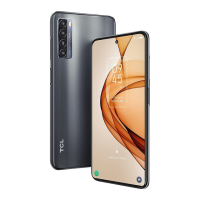
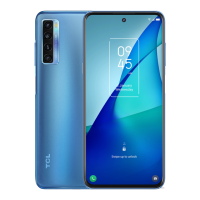
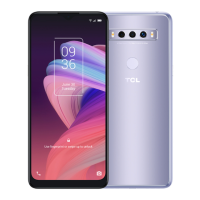
This document serves as a user manual for the TCL 20 SE (model T671H), providing comprehensive instructions on its operation, features, and maintenance. The phone is designed to offer a "DISPLAY GREATNESS" experience, emphasizing its visual capabilities and overall user interaction.
Device Overview and Basic Operation
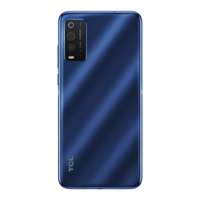
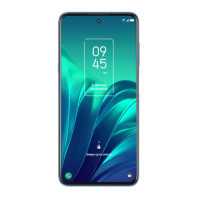
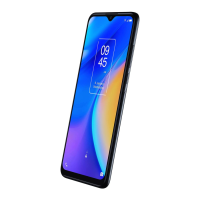
The TCL 20 SE features a standard smartphone layout with several key components and controls. On the front, it includes a receiver and a front camera. The display is a touch screen, allowing for interactive control. Below the screen, there are three navigation buttons: a back button, a recent apps button, and a home button. On the right side of the device, you'll find volume keys and a power key. The left side houses the SIM card slot/microSD card slot and a dedicated Google Assistant button. At the bottom, there's a microphone and a USB Type-C port for charging and data transfer, along with a speaker. The top of the device includes a headset connector and another microphone. The rear of the phone features a camera and a back flash.
Getting Started
To begin using the TCL 20 SE, you'll need to set it up by inserting a SIM card and, optionally, a microSD card. The phone supports nano-SIM cards exclusively and features hot-swap capability, meaning you don't need to power off the device to insert or remove the SIM card. To insert the cards, use the provided SIM pin to open the SIM tray, place the SIM card(s) and/or microSD card into the slots, and then carefully close the tray.
Charging the battery is another essential first step. The phone's charging status is indicated by a percentage displayed on the screen, even when the phone is powered off. To optimize battery life and reduce energy consumption, it's recommended to disconnect the charger once the battery is fully charged, switch off Wi-Fi, GPS, Bluetooth, or background-running applications when not in use, and reduce the backlight time.
To power on the phone, press and hold the Power key until the device starts up. You'll then need to unlock it using your chosen method (Swipe, PIN, Password, Pattern, Fingerprint, or Face recognition). To power off, press and hold the Power key until options appear, then select "Power off." A forced reboot can be initiated by pressing and holding the Power key for at least 10 seconds.
Home Screen and Navigation
The home screen is the central hub for all applications, shortcuts, folders, and widgets. You can customize it by adding frequently used items for quick access. The home screen extends horizontally, allowing for multiple pages of content.
Navigation is primarily done through the touchscreen. Basic gestures include:
- Touch: To open an application or select an item.
- Touch and hold: To access available options for an item, such as moving or removing applications.
- Drag: To move an object to a different location on the screen.
- Slide/Swipe: To scroll through applications, images, web pages, or move between home screen pages.
- Flick: Similar to swiping but quicker for faster navigation.
- Pinch/Spread: To scale elements on the screen, such as zooming in or out.
- Rotate: Automatically changes the screen orientation from portrait to landscape when the phone is turned sideways.
The status bar at the top of the screen displays phone status indicators (right side) and notification information (left side). Dragging down the status bar reveals the notification panel, and dragging it down again opens the quick settings panel. Notifications can be accessed by touching them, and event-based notifications can be cleared by touching "CLEAR ALL." The quick settings panel can be customized by touching the Edit icon.
Lock/Unlock Screen and Personalization
To protect your phone and privacy, you can secure the screen with a pattern, PIN, password, fingerprint, or face unlock. To set up a screen unlock method, go to "Settings > Security & biometrics > Screen lock."
- Pattern Unlock: Draw a specific pattern to unlock the screen.
- Face Unlock: Requires setting a pattern/PIN/password first. Hold the phone 20-50 cm from your face, positioning it within the square shown on the screen. For best results, enroll your face indoors and away from direct sunlight. Enable Face unlock to automatically unlock when the screen turns on, or swipe up first.
- Fingerprint Unlock: Touch the fingerprint sensor with an enrolled finger to unlock.
The phone screen automatically locks and enters sleep mode after a period of inactivity to save power. This timeout period can be adjusted in "Settings > Display > Sleep." You can also manually lock the screen by pressing the Power key once.
Personalizing the home screen involves:
- Adding items: Touch and hold a folder, application, or widget and drag it to your preferred home screen.
- Repositioning items: Touch and hold an item, then drag it to the desired position. Items can be moved between home screen pages by dragging them to the left or right edge of the screen.
- Removing items: Touch and hold an item, then drag it to the "remove" icon at the top of the screen until it turns red.
- Creating folders: Stack one item on top of another to create a folder. To rename a folder, open it and touch its title bar.
- Wallpaper customization: Touch and hold an empty area on the home screen, then touch "Wallpapers."
- Widgets and recently used applications: Touch and hold an empty area on the home screen, then touch "Widgets" to display available widgets. To view recently used applications, touch the Recent apps key. You can open an application by touching its thumbnail, close it by sliding it up, or switch between applications by sliding right/left. "CLEAR ALL" at the bottom of the screen closes all running applications.
Volume Adjustment
The volume keys on the side of the device adjust the media volume. You can also touch the volume icon on the screen to adjust Alarm, Ring, and Notification volumes independently.
Text Input
The TCL 20 SE uses an onscreen keyboard for text input. Keyboard settings can be accessed via "Settings > System > Language & input > Virtual keyboard." The keyboard orientation automatically adjusts when the phone is turned sideways or upright, a feature that can be toggled in "Settings > Display > Auto-rotate screen."
Text editing features include:
- Selecting text: Touch and hold or double-touch within the text. Drag the tabs to adjust the selection.
- Editing options: Once text is selected, options like "Cut," "Copy," and "Share" appear.
- Inserting text: Touch where you want to type, or touch and hold a blank area to make the cursor and a tab appear. Drag the tab to move the cursor.
- Pasting text: If text has been cut or copied, touching the tab will display "Paste" and "Select all" options.
The phone includes several multimedia applications:
- Camera: The camera app allows you to capture photos and videos. Double-pressing the Power key quickly opens the camera. In camera preview mode, pressing the Volume up or down key takes a photo, or pressing and holding takes burst shots.
- Gallery: This application is used for viewing and managing photos and videos captured with the camera or downloaded to the device.
- Music: The music player allows you to listen to audio files stored on your device. In music/video/streaming mode, the volume keys adjust the media volume.
Apps and Features
The TCL 20 SE comes with a suite of essential apps and features:
- Phone: This app handles calls. In call mode, the volume keys adjust the earpiece or headset volume.
- Contacts: Manages your contact list, allowing you to store and organize phone numbers and other contact information.
- Messages: Used for sending and receiving text messages (SMS) and multimedia messages (MMS).
- Calendar: Helps you organize your schedule, appointments, and events.
- Clock: Includes features like alarms, a world clock, stopwatch, and timer.
- Calculator: A basic utility for performing mathematical calculations.
- TCL apps: The device may include specific applications developed by TCL, enhancing the user experience.
- Other applications: Various pre-installed or downloadable applications for diverse functionalities.
- Google applications: A suite of Google services such as Google Assistant, Play Store, Maps, Gmail, and more.
Settings
The "Settings" menu provides extensive options for customizing and managing your device:
- Display: Adjusts screen brightness, sleep timeout, font size, and other display-related preferences.
- Home screen & lock screen: Configures home screen layout, wallpaper, and lock screen security.
- Sound & vibration: Manages ringtones, notification sounds, media volume, and vibration patterns.
- Button & gestures: Customizes the functions of physical buttons and gesture controls.
- Advanced features: Offers additional functionalities and enhancements.
- Smart Manager: A tool for optimizing device performance, battery life, and storage.
- Security & biometrics: Manages screen lock, fingerprint, face unlock, and other security settings.
- Location: Controls location services and permissions for apps.
- Privacy: Manages privacy settings, app permissions, and data usage.
- Apps: Lists installed applications, allows for managing permissions, storage, and notifications for each app.
- Storage: Displays storage usage and allows for managing files and freeing up space.
- TCL Account: Manages your TCL user account for specific TCL services.
- Accounts: Manages all accounts linked to your device, such as Google accounts.
- Digital Wellbeing & parental controls: Helps monitor and manage screen time and set digital boundaries.
- Google: Provides settings for various Google services.
- Accessibility: Offers features to assist users with disabilities, such as screen readers and enhanced text.
- System: Includes system updates, language & input settings, date & time, backup & reset options, and information about the phone.
Connectivity
The TCL 20 SE supports various connectivity options:
- Wi-Fi: Connects to wireless networks for internet access.
- Bluetooth: Connects to other Bluetooth-enabled devices like headphones or speakers.
- SIM card & mobile network: Manages mobile data, roaming, and network preferences.
- Connected devices: Manages connections to other devices, including USB connections and casting.
Maintenance Features
The manual emphasizes several maintenance practices to ensure optimal device performance and longevity:
- Battery Management: To reduce power consumption, disconnect the charger once the battery is full, switch off unused Wi-Fi, GPS, Bluetooth, or background apps, and reduce backlight time.
- Software Updates: While not explicitly detailed as a maintenance feature, the "System" settings typically include options for checking and installing software updates, which are crucial for security and performance improvements.
- Troubleshooting: The manual directs users to tcl.com for FAQs, software information, and service details, including hotlines and repair centers, to address any issues.
- User Manual Access: The complete user manual can be downloaded from tcl.com, providing detailed guidance for various operations and troubleshooting.
- Legal Information: Users can view legal information on the phone itself via "Settings > System > About phone > Legal information."
By following these guidelines, users can effectively operate, customize, and maintain their TCL 20 SE, ensuring a smooth and enjoyable experience.

 Need help?
 General

 To Next Page