Need help?
Do you have a question about the TCL TAB10 and is the answer not in the manual?
Identifies and locates key physical components of the tablet, such as cameras, buttons, and connectors.
Instructions for charging the tablet and inserting SIM/SD cards for initial use.
Explains the status bar indicators and how to interact with application icons and the favorite applications tray.
Describes how to access and use the notification and quick settings panels by swiping down from the status bar.
Guides on how to initiate a phone call using the dial pad or contacts, including input correction.
Instructions on how to answer, reject, or mute incoming calls, and access call history.
Guides on adding, editing, deleting, and synchronizing contacts with multiple accounts.
Instructions for writing, sending SMS, and checking messages stored on the SIM card.
Explains how to send MMS messages with media files like images and videos.
Instructions on opening the Gmail app and synchronizing with your Google account.
Steps for creating, attaching files, and sending emails within the Gmail app.
Details on configuring and using cellular data for internet access.
Steps for finding and connecting to Wi-Fi networks, including hidden ones.
How to access the support center application on your device for help.
Information on checking FAQs and using online chat support via the TCL website.
A list of international telephone numbers for customer support and call centers.
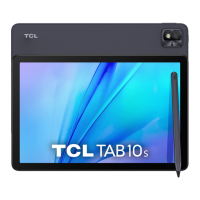
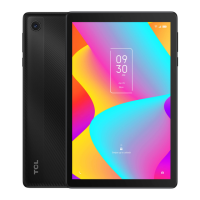
The TCL TAB 10 is a versatile tablet designed for everyday use, offering a range of features for communication, entertainment, and productivity. This quick start guide provides an overview of its functions, usage, and basic maintenance to help users get started.
The TCL TAB 10 serves as a portable computing device, allowing users to browse the internet, manage contacts, send messages, make calls (if supported by a SIM card and service provider), and access various applications. It integrates essential communication tools like messaging and email, along with multimedia capabilities for viewing photos, videos, and listening to audio. The tablet runs on an operating system that supports a wide array of applications, enhancing its functionality for different user needs.
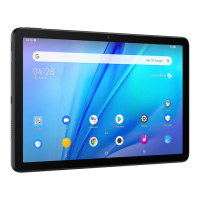
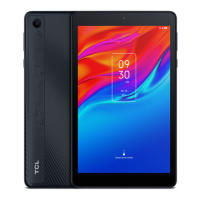
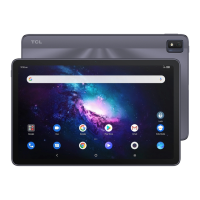
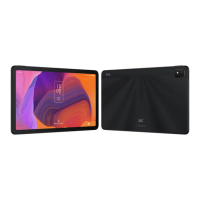
The tablet features a straightforward layout with key physical controls. On the side, you'll find the Volume up/down buttons, which allow for adjusting audio levels. The Power key is also located on the side, used for turning the device on/off, locking/unlocking the screen, and accessing power options. A Headset connector is provided for audio output through headphones. The tablet is equipped with both a Front camera for video calls and selfies, and a Rear camera for capturing photos and videos.
Upon first use, the tablet needs to be charged. It comes partially charged, and users should connect it to the provided USB cable and charger to fully power it up. The device supports a SIM card and an SD card for expanded storage and cellular connectivity. Users can open the designated slot to insert these cards. It's important to note that microSD™ cards are sold separately, allowing users to customize their storage capacity.
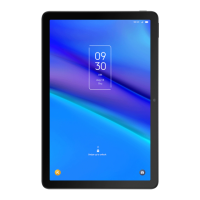
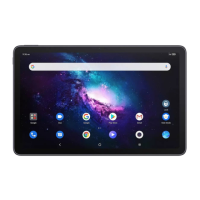
The Home screen is the central hub for accessing applications, widgets, and folders. It's designed for quick access to frequently used items. Tapping the Home button consistently returns the user to the main Home screen. The Home screen is extended, allowing users to swipe left and right to view additional screens for more application icons and widgets.
The Status bar, located at the top of the screen, displays status and notification indicators. On the left side, users can see notifications, while the right side shows connection service status. Dragging down from the Status bar opens the Notification panel, where users can view and manage alerts. Tapping on a notification will open the corresponding application. To clear event-based notifications, a dedicated clear button is available, though ongoing notifications will remain.
For quick access to common settings, the Quick Settings panel can be opened by swiping down twice from the Status bar. Here, users can enable or disable functions and change modes by tapping on the respective icons. A dedicated button provides access to the full Settings menu for more comprehensive management of device items. The Quick Settings panel can also be edited to customize the displayed options.
If the tablet supports cellular connectivity, users can place calls using the Phone application, accessible from the Favourites Tray. The Call screen allows users to dial numbers directly using a dial pad or select contacts from Favorites or Contacts tabs. The dial pad includes a delete button for correcting incorrect digits. The device also supports answering or rejecting calls by sliding icons on the screen. Users can mute the ringtone of an incoming call using the Volume Up/Down key. Call history, including missed, outgoing, and incoming calls, can be accessed through the Recents tab in the Call screen.
The Contacts app is used to store and manage contact information. Users can add, edit, and delete contacts on the tablet. The app also supports synchronizing contacts with other accounts that offer contact syncing. Contacts can be imported or exported from various sources, such as external storage, email, or other accounts. Adding a new contact is done by tapping the '+' icon in the Contacts app. The tablet supports synchronizing contacts from multiple accounts, depending on installed applications.
The pre-installed Messaging app enables sending and receiving SMS (Short Message Service) and MMS (Multimedia Messaging Service) through a wireless service provider. The Messaging app can be accessed from the Home screen's Favourites tray or the application list. Users can check messages stored on their SIM card through the Messaging settings. To compose a new message, users tap the designated icon on the Messaging app screen. The app allows viewing entire message threads and activating delete mode by long-pressing a message. Sending a text message involves entering the recipient's number and the message content, with options to insert emoticons and send the message. SMS messages exceeding 160 characters may be charged as multiple messages, and special characters can also increase message size. Multimedia messages (MMS) allow sending video clips, images, photos, animations, and sounds to compatible devices and email addresses. Attaching media files automatically converts an SMS to an MMS.
Gmail, Google's web-based email service, is integrated into the tablet. Upon initial setup, it automatically synchronizes with the user's Google account. Users can create, send, and receive emails directly from the tablet. The Gmail app supports adding multiple email accounts. It displays messages and conversations from one Gmail account at a time, with an option to switch between accounts or add new ones through the Menu > Settings > Add account path.
To access the internet, the tablet supports both Cellular Data and Wi-Fi connections. For Cellular Data, when a SIM card is inserted for the first time, the tablet automatically configures network service (2G, 3G, 4G). Users can check their network connection and access point names through Settings > SIM card & Cellular network > Cellular network > Access Point Names. The network service connection status is also shown in the Status bar. For Wi-Fi, users can enable Wi-Fi through Settings > Wi-Fi. To connect to a Wi-Fi network, they simply tap on the desired network. For secured networks, a password or other credentials will be required. Hidden networks can be added by selecting "Add network" and entering the SSID, password, and secured credentials.
Regular charging is essential to maintain the tablet's battery life. Users should use the provided USB cable and charger to ensure proper and safe charging.
The tablet supports microSD™ cards for expandable storage. This allows users to manage their storage by adding external memory for applications, media, and documents, preventing the internal storage from becoming full.
While not explicitly detailed in the provided text, typically, tablets receive software updates that improve performance, add new features, and enhance security. Users should regularly check for and install these updates to keep their device running optimally.
The guide directs users to the SUPPORT CENTER application on their smartphone/tablet for assistance. Additionally, users can find frequently asked questions and chat support on the TCL website (https://www.tcl.com) in the Support section. A list of regional Call Center numbers is also provided for direct phone support, covering countries like Argentina, Australia, Canada, Chile, Colombia, Ecuador, Mexico, New Zealand, Peru, Dominican Republic, Uruguay, USA, and Venezuela. This comprehensive support system helps users resolve any issues they might encounter with their TCL TAB 10.
 General
| Display Size | 10.1 inches |
|---|---|
| Resolution | 1280 x 800 pixels |
| Operating System | Android 10 |
| Rear Camera | 5MP |
| Front Camera | 2MP |
| RAM | 3 GB |
| Storage | 32GB |
| Connectivity | Wi-Fi, Bluetooth |
| Dimensions | 243.2 x 162.2 mm |

 To Next Page