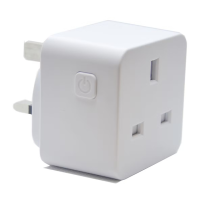
COMMON TROUBLE SHOOTING:
No Validation code
If you have not received a validation code please check you have
entered your details correctly. If you are still not receiving a
validation code try registering under a different source, either a
mobile number of email address.
No WiFi connection during the connection process
If your Plug will not connect please ensure your router is 2.4GHZ
and your WIFI connection is working correctly and your detail
are correct.
Try resetting your router and if you have WIFI booster devices
they are turned off.
If the device still will not connect, you can use AP Mode. To
start the process press the Otherwise button in the top right
hand corner of step 8 and choose AP mode from the list. Follow
the on screen prompts to complete the process. Further
instructions on how to do this can be found at
https://www.tcpsmart.eu/product-group-power/
Device not flashing quickly
If the Smart Camera’s red light is not flashing quickly when
starting the connection process, you will need to reset the
Camera using the supplied metal puck. You can access the reset
button on the base of the Camera under the rubber cover.
Not sure if I have 2.4Ghz or 5Ghz
Your home WiFi router needs to be set to 2.4Ghz and not 5Ghz.
If you are unsure, please consult your broadband provider such
as Virgin Media, BT or Skype for details on how to change the
settings.
For more trouble shooting advice please visit our website
https://www.tcpsmart.eu/faq/
HÄUFIGE FEHLER:
Kein Validierungscode
Wenn Sie keinen Validierungscode erhalten haben, prüfen Sie bitte, ob Sie Ihre
Kontaktinformationen richtig angegeben haben. Wenn Sie dann noch immer
keinen Validierungscode erhalten, registrieren Sie sich auf eine andere Art, d. h.
entweder mit Ihrer Mobiltelefonnummer oder Ihrer E-Mail-Adresse.
Während des Verbindungsprozesses konnte keine WLAN-Verbindung aufgebaut
werden
Wenn Ihre Stecker keine Verbindung aufbaut, prüfen Sie bitte, ob Ihr Router mit
2,4 GHz arbeitet und Ihre WLAN-Verbindung ordnungsgemäß funktioniert.
Setzen Sie Ihren Router zurück und schalten Sie mögliche WLAN-Extender aus.
If the device still will not connect, you can use AP Mode. To start the process press
the Otherwise button in the top right hand corner of step 8 and choose AP mode
from the list. Follow the on screen prompts to complete the process. Further
instructions on how to do this can be found at https://www.tcpsmart.eu/product-
group-power/
Stecker blinkt nicht schnell
Wenn das rote Licht der Kamera am Anfang des Verbindungsprozesses nicht
schnell blinkt, setzen Sie die Kamera mithilfe der mitgelieferten metallischen
Scheibe zurück. Der Knopf zum Zurücksetzen befindet sich auf der Unterseite der
Kamera, hinter der Gummiabdeckung.
Ich bin mir nicht sicher, ob mein Router mit 2,4 GHz oder 5 GHz arbeitet
Ihr WLAN-Router muss mit 2,4 GHz und nicht mit 5 GHz betrieben werden.
Wenn Sie sich nicht sicher sind, wenden Sie sich bitte an Ihren Internetanbieter
(etwa die Deutsche Telekom oder 1&1) für weitere Details dazu, wie Sie diese
Einstellung ändern können.
Weitere Problemlösungen finden Sie auf unserer Webseite:
https://www.tcpsmart.eu/faq/


 To Next Page
 Loading...